Build schedule templates from scratch, including two-week patterns
A new template builder lets you lay out a template shift by shift, without building a real week first. Templates can repeat every week or every two weeks, and they can carry notes and checklists onto every shift.
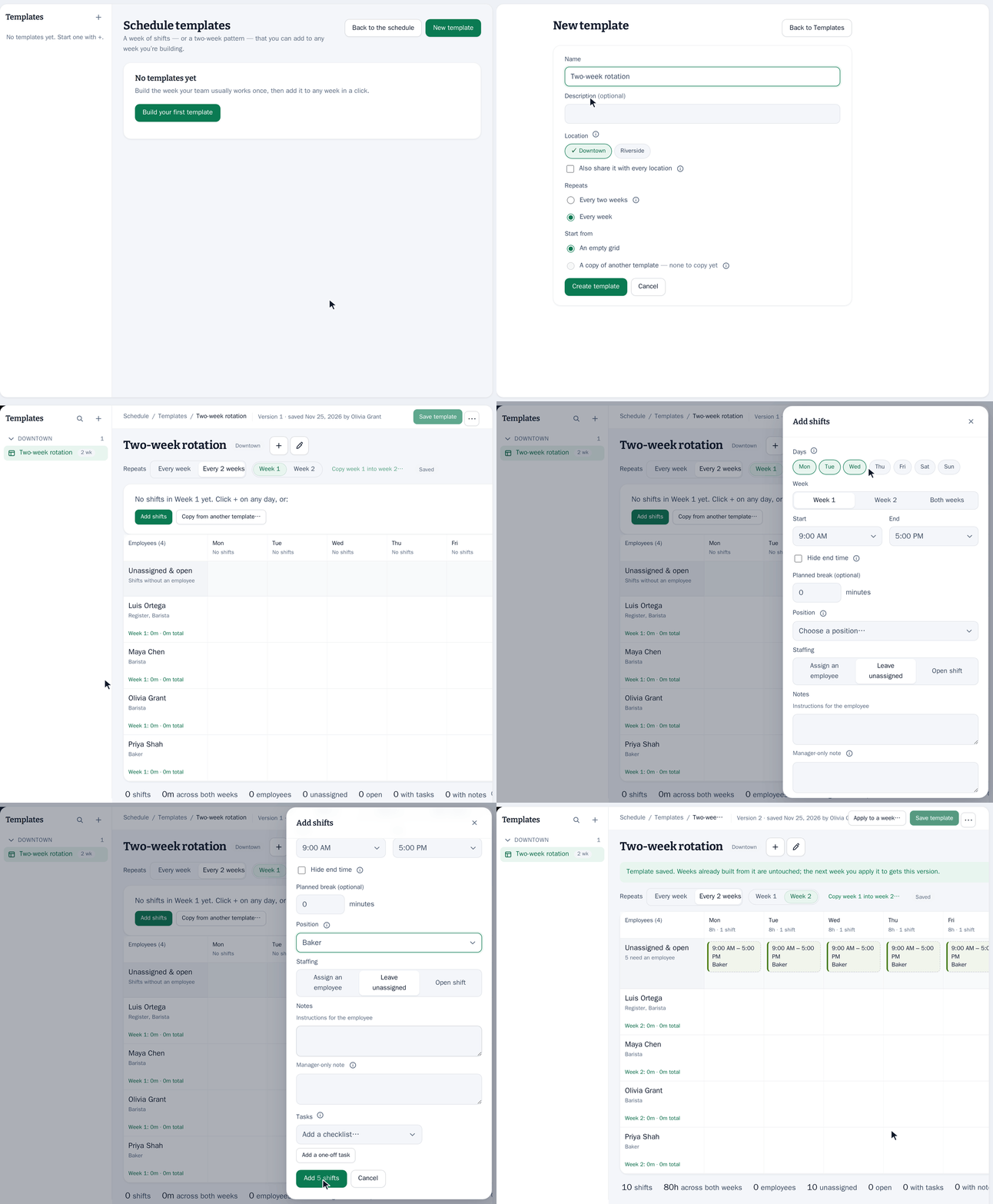
Lay out a template shift by shift
Open Templates on the schedule and choose Open template builder. Click New template, give it a name and a location, and start from an empty grid or a copy of another template. Add shifts sets up a shift on several days at once: times, break, position, who works it (or leave it unassigned or open), notes for the employee, a manager-only note, and checklists or one-off tasks. Nothing is saved until you click Save template, and Discard changes puts it back.
Templates that repeat every two weeks
Choose Every two weeks when you create a template, for teams that rotate or pay every two weeks. The builder shows Week 1 and Week 2 tabs, and Copy week 1 into week 2 gives you a head start. When you apply it, you choose which template week lands on the week you're building, and the week after gets the other one.
Apply or save from the schedule
Templates on the schedule now opens with two tabs. Apply a template shows a preview first, including anyone who would be left off and why, and nothing is removed or published. Save this week turns the week on screen into a new template or an update to one you already have.
A reminder before an unpublished week starts
If a week is about to start with shifts your team can't see yet, the people who publish it get a reminder by email, and by push where they have it on, with a Review and publish button. It waits while anyone who publishes that week is working in Shift Amp. Choose how early reminders come in Settings, Scheduling, under Schedule notice period. Shift Amp never publishes for you.
Also in this release
- NewEmployees can open one of their shifts on the web to confirm it (where you ask for that), tick off its checklist and see where it is, with a map link.Employee scheduling
- NewEmployees can request time off and see their PTO balance on the web, under Time off in the sidebar.Employee scheduling
- NewEmployees can set and update their availability on the web, under Availability in the sidebar.Employee scheduling
- ImprovedThe Publish button says how many shifts it will publish, like "Publish 25 shifts…".Employee scheduling
- ImprovedIf someone you invited hasn't joined yet, they get one more reminder email a day later.
- ImprovedPage help is written for whoever is reading it, so employees get help about their own schedule, time clock and Today.
Try it on your week.
Free for your whole team. Every new team starts with 14 days of everything.
No credit card required.