Edit, pin, or archive a wiki page
Edit a page, pin it to the top of the wiki, or archive it when it's out of date. Only owners and operations administrators can restore an archived page.
Keep the wiki current by editing pages, pinning the ones your team needs most, and archiving the ones you no longer need. Owners and operations administrators can do this for any page. Location managers can do it for pages shared with a location they manage. Assistant managers can read pages but not change them.
Edit a page
- In the left menu, select Wiki, then select the page.
- Select Edit at the top right.
- Change the title, the text or who can see the page.
- If the page asks people to confirm they've read it, choose under Existing acknowledgements whether they need to confirm again. See Ask your team to confirm a page.
- Select Save changes.
Nothing is saved until you select Save changes. If you're a location manager and the page is also shared with locations you don't manage, a message warns you that saving limits the page to your locations. Ask an owner or operations administrator if it should keep its wider audience.
Pin a page
- Open the page and select ⋯ at the top right.
- Select Pin to the top.
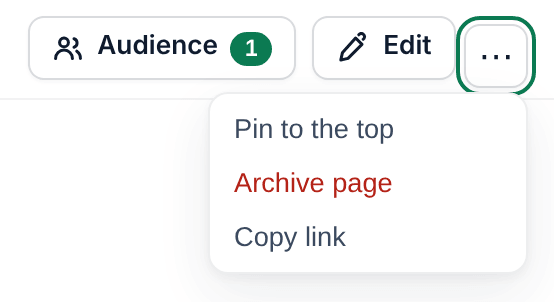
Pinned pages come first: under Pinned in the list of pages, on the wiki's front page, and at the top of your team's wiki in the app. To unpin a page, select ⋯, then Unpin from the top.
Archive a page
- Open the page and select ⋯ at the top right.
- Select Archive page.
- Select Archive page again to confirm.
The page leaves everyone's wiki, on the web and in the app. Nothing is deleted.
Restore a page
Owners and operations administrators can bring a page back:
- In the left menu, select Wiki.
- In the list of pages, open Archived at the bottom. It starts folded.
- Select the page, then select ⋯ at the top right.
- Select Restore page.
The page returns to everyone it's shared with. An archived page can't be edited until it's restored.
Was this article helpful?