Create a wiki page
In Wiki, write the page with the toolbar, choose who can see it, and select Publish page. Your team reads it in the Shift Amp app.
The wiki holds the guides your team keeps coming back to, such as how to open the café or the dress code. Owners, operations administrators and location managers can write pages. Assistant managers can read them but not write them. Employees read the pages shared with them in the Shift Amp app.
Write the page
- In the left menu, select Wiki.
- Select + (New page) above the list of pages.
- Type the title on the first line, where it says Untitled, then press Enter.
- Write the page. Use the toolbar for headings (H1, H2, H3), Bullets, a Numbered list or a Quote. You can also type # and a space to start a heading, or - and a space to start a list.
To add links and pictures:
- A website: select the words, select Link, enter the address in Link address (it must start with https://), then select Add link.
- Another wiki page: select Page link, search for the page's title, then select the page.
- A picture: select Image and choose a JPEG, PNG or WebP file. A page can hold up to 20 pictures.
Choose who can see it
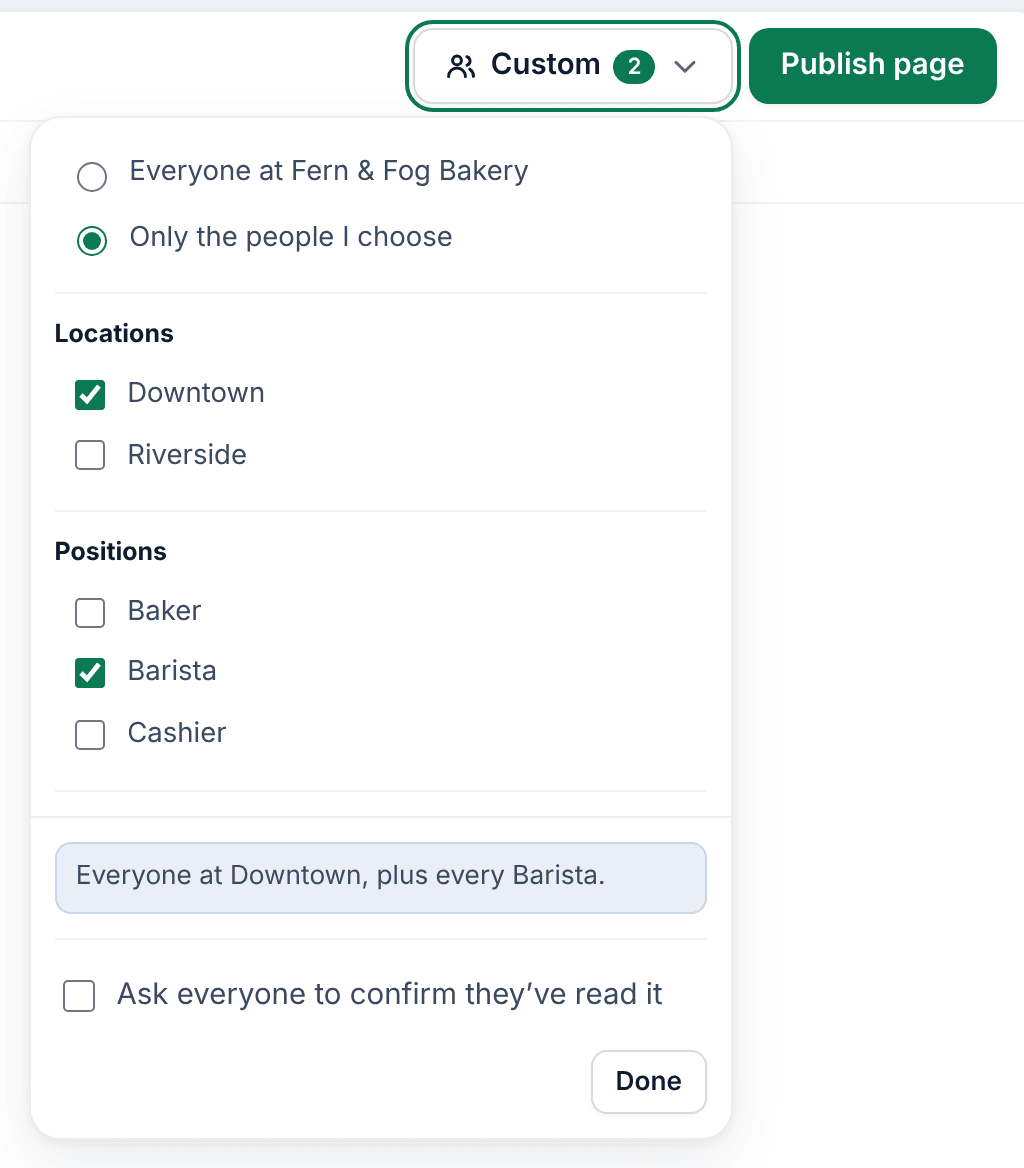
- Select the audience button at the top right. It reads Everyone until you choose.
- If you're an owner or operations administrator, choose between everyone at your organization (the first choice, which names your business) and Only the people I choose.
- To choose people, tick any Locations, Positions and People (scroll down the panel to see People). The choices add up: the page reaches everyone at a ticked location, plus everyone in a ticked position, plus each person you tick.
- Check the sentence below the lists. It says exactly who the page reaches, such as "Everyone at Downtown, plus every Barista."
- Select Done.
Location managers don't see step 2. A page they write must include at least one location they manage, and they can tick only people at their locations.
The audience is kept up to date for you: when someone starts at a location or in a position, they see its pages, and when they leave, they stop seeing them.
Publish the page
Select Publish page. The page opens, and everyone in its audience can read it in the app's wiki straight away. Publishing doesn't send a notification, so tell your team if a page is new.
To ask your team to confirm they've read the page, see Ask your team to confirm a page. To change it later, see Edit, pin, or archive a wiki page.
Was this article helpful?