Add payroll IDs
Enter the ID your payroll provider knows each person by. Nobody can be included in a payroll export until they have one.
A payroll ID is the code your payroll provider uses for each person, such as their employee number in that system. Every payroll export includes it, and an export won't generate while anyone in it is missing one. Only organization owners and operations administrators can add or change payroll IDs.
Add or change payroll IDs
- In the left menu, select Reports.
- In the list of reports, select Payroll exports.
- Select Payroll IDs.
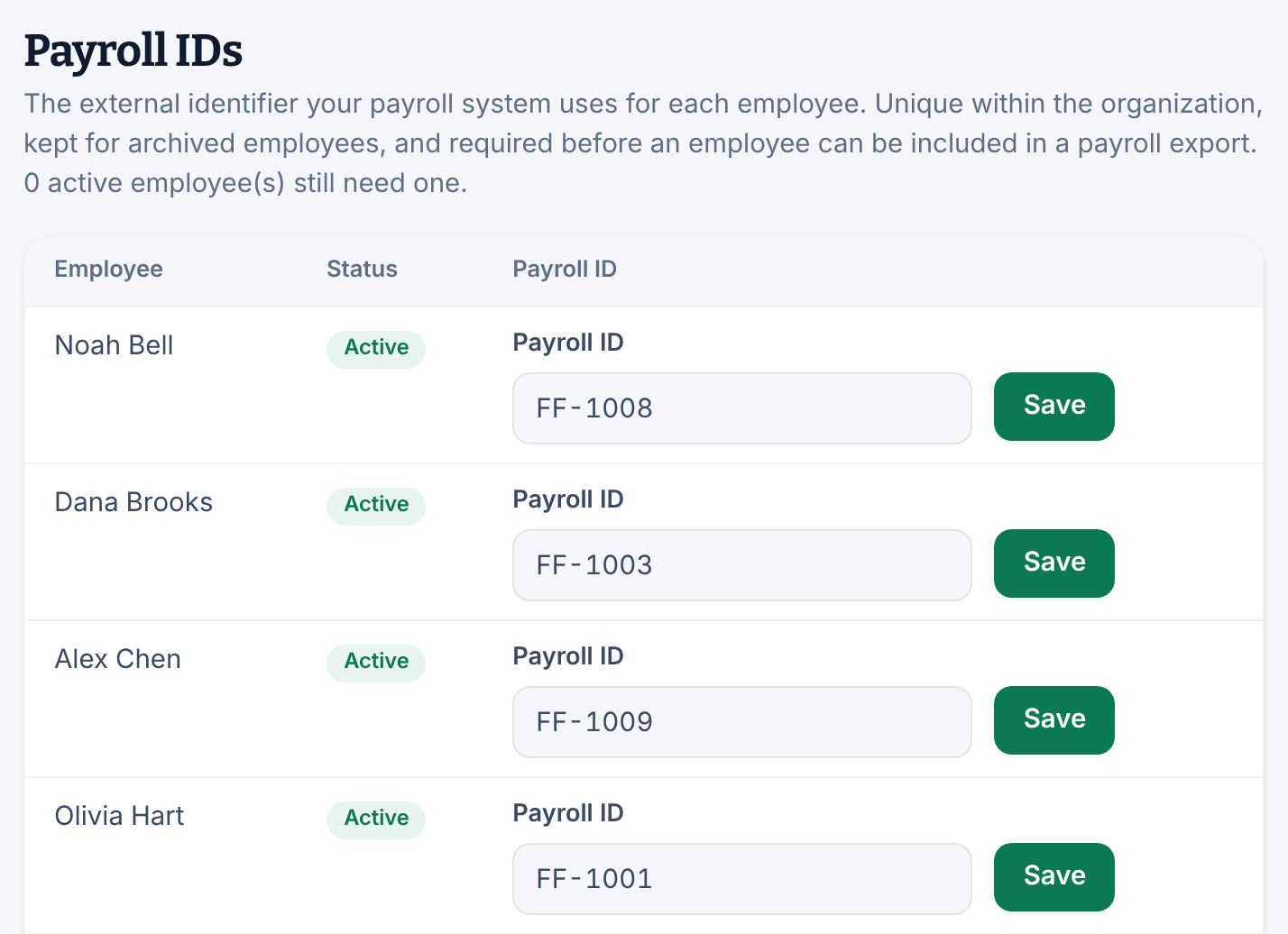
- In the person's row, enter their ID in Payroll ID.
- Select Save in the same row.
"Payroll ID saved." appears. Each row saves on its own, so save one person before moving to the next. The line at the top of the page says how many active people still need an ID.
You can also get to this page:
- from Settings: select Labor cost & reporting, then Manage identifiers →;
- from a person's record: under Work & access, the Identifiers panel shows their Payroll identifier, with a Manage payroll identifiers link;
- from a blocked payroll export: select add them beside the list of people missing an ID.
Location managers can see the payroll ID of people at their locations on their record, but can't change it.
Rules for payroll IDs
- An ID can be up to 64 characters.
- Each ID can belong to only one person in your organization.
- An ID can't start with =, +, - or @.
- Archived people keep their IDs.
To remove an ID, clear the field and select Save. Changing or removing an ID doesn't change exports you've already made. The new ID is used from the next export.
Was this article helpful?