Set your currency and who sees labor cost
In Settings, confirm the currency your rates use, choose whether location managers see cost totals, and set how often you pay.
Three organization-wide settings shape labor cost and payroll exports: your reporting currency, whether location managers see cost, and your pay period. Only organization owners and operations administrators can change them; other managers don't see this part of Settings.
Open the settings
- Open the account menu at the bottom of the left menu (your name), then select Settings.
- Select Labor cost & reporting.
The same page shows how many positions have no default rate and how many people have no payroll ID, with links to fix them: Manage positions →, Review every rate → and Manage identifiers →.
Confirm your reporting currency
All rates in your organization use one currency, and nothing is ever converted. You can't enter a rate until the currency is confirmed.
- Under Reporting currency, enter the three-letter code in Currency code, such as USD.
- Select Confirm currency.
The page then reads "Rates are entered and reported in USD." You can also confirm the currency at the top of the Positions page.
Choose whether location managers see cost
Owners and operations administrators always see every rate and cost figure. Assistant managers and employees never see any. Location managers see cost totals for the locations they manage, and this setting lets you take that away.
- Under Who can see labor cost, turn Location managers can see aggregate labor cost on or off.
- Select Save access.
- If you turned it off, select Take it away to confirm.
Location managers aren't notified. With the setting off, the Overview and Estimated labor cost reports no longer open for them: both show "Something went wrong". The cost table in Paid time off says the cost couldn't be worked out, while the rest of that report still shows. Even with the setting on, they never see a rate or a figure that stands for one person.
Set your pay period
Your pay period sets which dates a new payroll export opens on, and the dates behind Current pay period in Timesheets. It doesn't change any hours or cost, or exports you've already made.
- Under Pay period, choose a Pay cycle: Weekly, Every two weeks, Twice a month or Monthly.
- If you chose Every two weeks, set Counting from to the first day of any pay period.
- Select Save pay period.
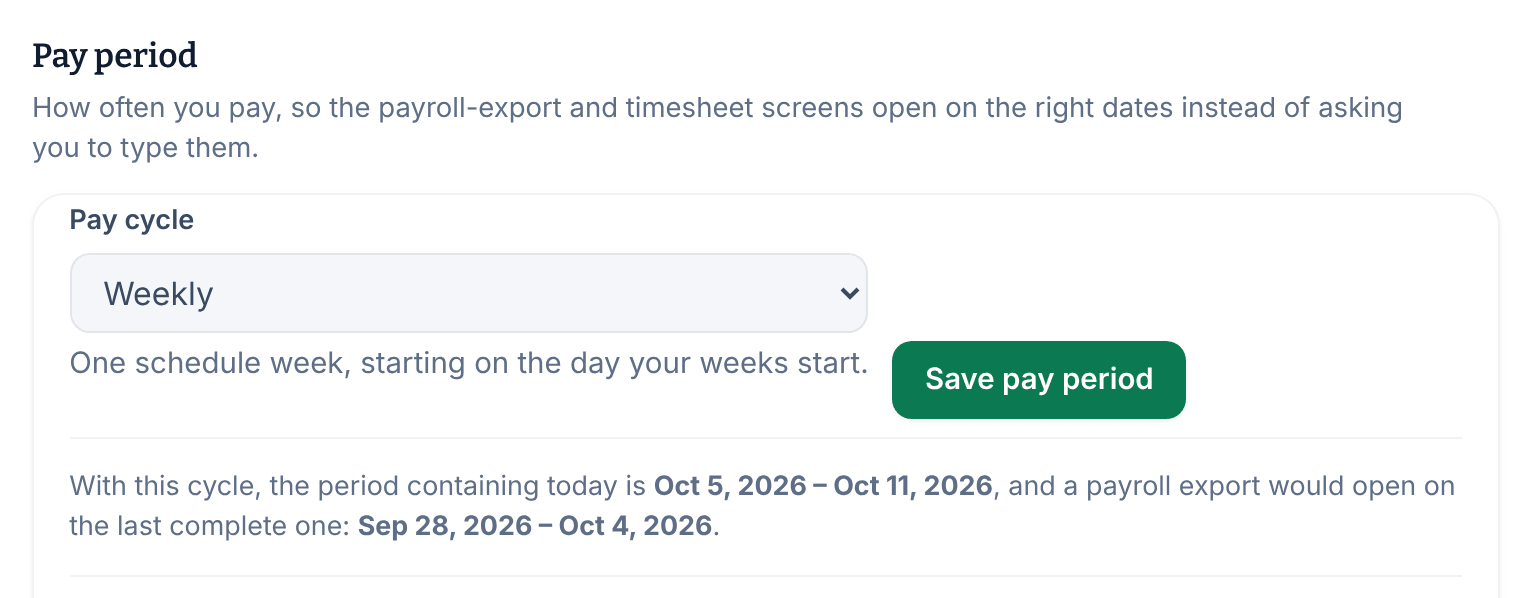
Before you save, the page shows the period that contains today and the one a new payroll export would open on. Weekly and every-two-weeks periods start on the day your schedule weeks start. Twice a month runs from the 1st to the 15th, then the 16th to the end of the month.
Was this article helpful?