Create a payroll export
Once every week in a pay period is approved, generate a CSV file of approved hours from Reports and load it into your payroll provider.
A payroll export is a CSV file of approved working time for a pay period, ready to load into your payroll provider. It holds hours, not money: no rates, no pay and no paid time off. Shift Amp doesn't send it anywhere. You download it and upload it yourself.
Owners and operations administrators can export any location. Location managers can export work at the locations they manage. Assistant managers can't create exports.
Before you start
Shift Amp won't generate an export until everyone in the period is ready:
- Every week the period touches is approved in Timesheets, including a week that only partly overlaps it. See Review and approve timesheets.
- Nobody has a missing clock-out in the period, and no correction request or review flag is waiting.
- Everyone included has a payroll ID. See Add payroll IDs.
Create the export
- In the left menu, select Reports.
- In the list of reports, select Payroll exports.
- Select New export.
- Check From and To. They start on your last complete pay period. To switch, select one of the recent pay periods listed below the form.
- Choose a Format and a Location.
- Select Update preview.
- If Blocked until resolved appears, fix each item it lists, then select Update preview again.
- Select Generate.
The export's page opens. Select Download CSV to save the file.
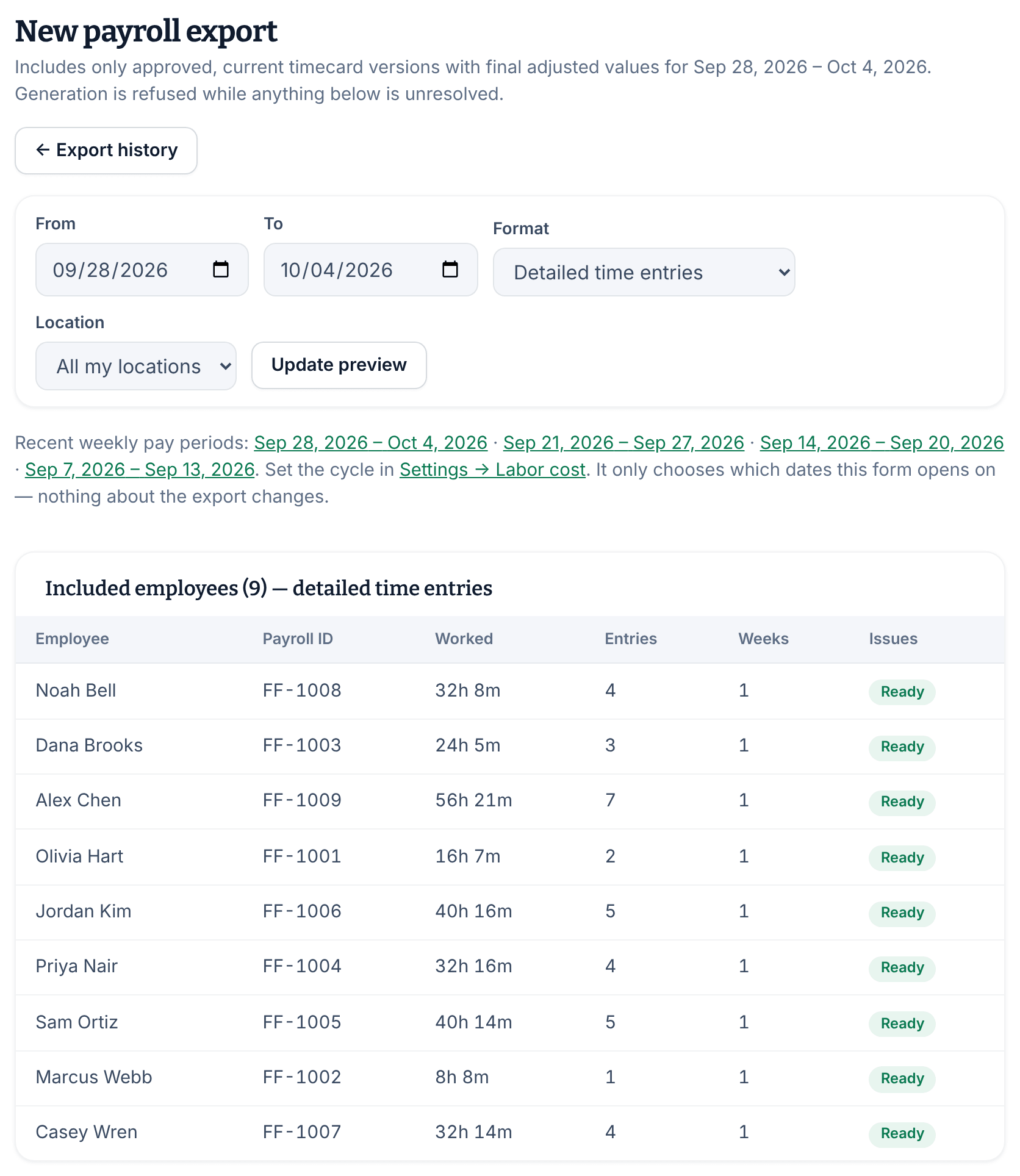
Choose a format
- Detailed time entries: one row for each work session, with clock-in and clock-out times, breaks and worked time.
- Employee period summary: one row for each person, location and position, with their total worked, break and scheduled time.
Both formats include each person's payroll ID and name, and give time in minutes and in decimal hours.
If you're a location manager
If your business has more than one location, choose your own location under Location rather than All my locations. An export for All my locations is refused if anyone worked at a location you don't manage during the period, even when the preview says Ready.
Find an export later
Payroll exports lists your exports, newest first, and they can't be deleted. Select an export's period to open it, then select Download CSV. You get the same file every time. Location managers see only the exports they made.
To change the dates new exports start on, set your pay period. See Set your currency and who sees labor cost. To send approved PTO to payroll, see Track paid time off.
Was this article helpful?