Replace a payroll export
An export never changes. If a timecard in it changes later, approve the week again, then generate a replacement for the same period.
A payroll export is a fixed record of the approved time it was made from. If a timecard in it is reopened, or approved again with different times, Shift Amp marks the export as changed, and you can generate a replacement for the same period. Owners and operations administrators can replace any export; location managers can replace the exports they made.
Spot an export that's out of date
In Payroll exports, the Status column reads "1 changed since export", or a higher number, when timecards in the export have been reopened or changed. Otherwise it reads Current, or Replacement for an export that replaced an earlier one.
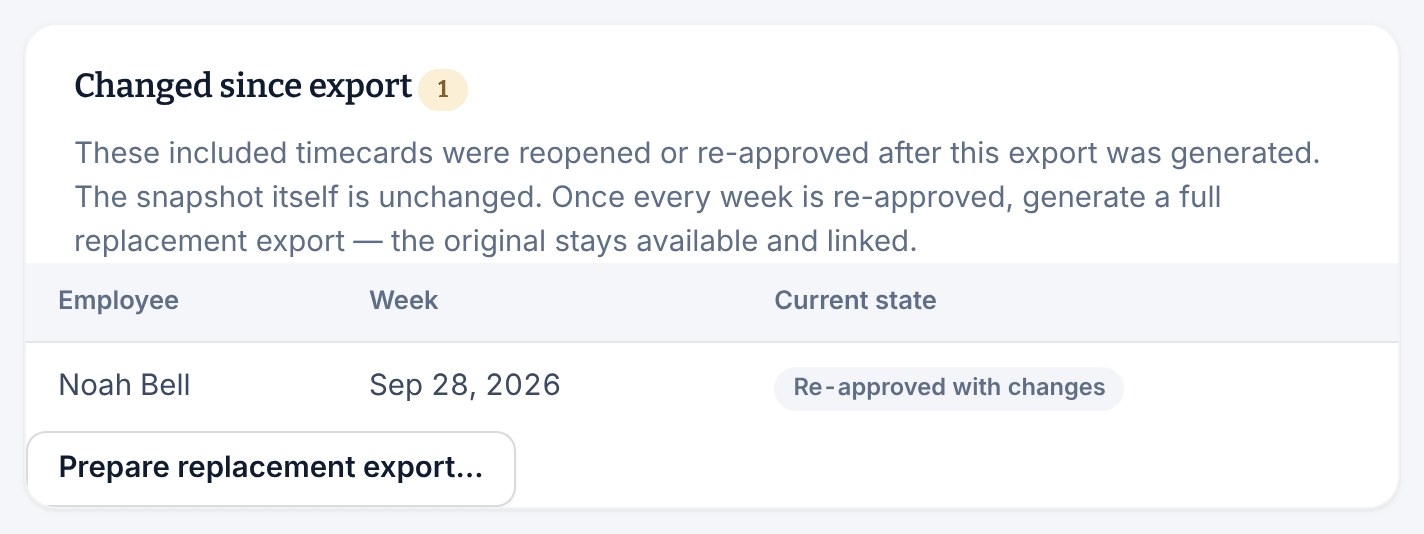
Open the export to see which timecards changed. Under Changed since export, each one is listed with its Current state, such as Reopened or Re-approved with changes.
If a week is reopened and approved again without any change, it drops off the list. The export is still correct, and you don't need a replacement.
Make the replacement
First, finish correcting the time and approve every changed week again in Timesheets. See Review and approve timesheets.
- In the left menu, select Reports.
- In the list of reports, select Payroll exports.
- Select the export's period to open it.
- Select Prepare replacement export…. The Replacement payroll export page opens with the same dates, format and location.
- Check the preview. If Blocked until resolved appears, fix each item it lists, then select Update preview.
- Select Generate replacement.
- On the new export's page, select Download CSV.
Load the new file into your payroll provider in place of the original.
The replacement covers the whole period again, not only the changed timecards. Everyone in it must be ready, as for any export: weeks approved, no missing clock-outs, and a payroll ID for each person. See Create a payroll export.
Was this article helpful?