Update someone's details
Edit a person's name, phone, contact email, hire date, photo, employee ID and weekly hours on their record, and leave notes for other managers.
Everything you keep about a person is on their record. Organization owners and operations administrators can update anyone's details. Location managers can update people at the locations they manage, except for the employee ID. Assistant managers can read most details but can't change them.
To open a record, in the left menu, select Organization, then People, then select the person's name. It opens on Overview.
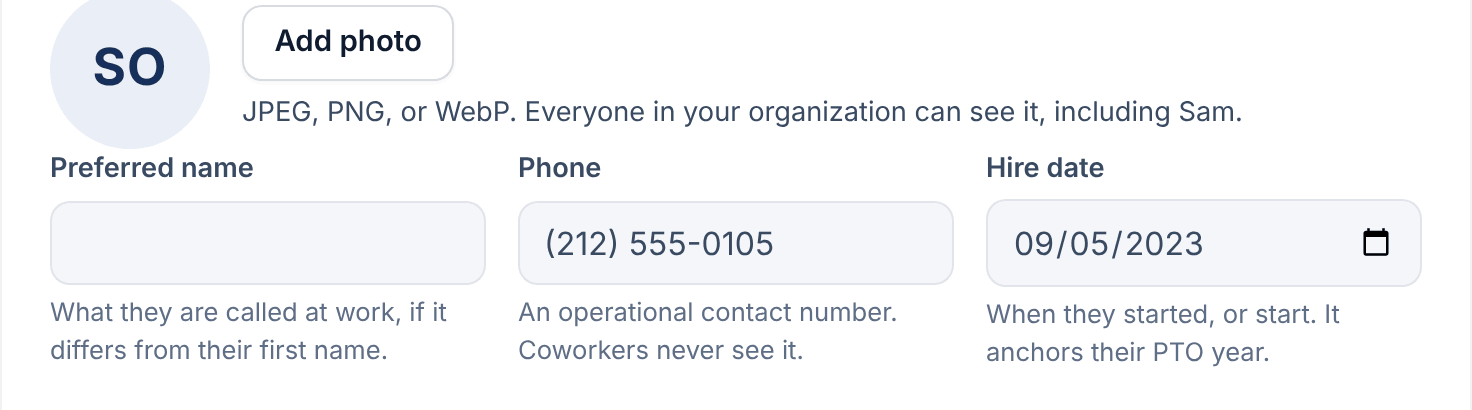
Preferred name, phone, hire date and photo
These are under Profile. Each field saves as soon as you leave it.
- Preferred name: what they're called at work, if it's not their first name.
- Phone: a contact number for work. Coworkers never see it.
- Hire date: when they started, or will start. If you track paid time off, a new date can move their PTO year. Shift Amp asks first, and you confirm with Move the PTO year.
- Add photo or Replace photo: a JPEG, PNG or WebP image under 2 MB. Everyone in your organization can see it. Remove deletes it straight away.
Name on the record and contact email
To change the name on their record or their contact email, select Work & access in the list of sections. Under Assignments, edit First name, Last name or Email, then select Save changes.
The contact email is where their invitation goes. It's not necessarily the address they sign in with, which only they can change. See Change your sign-in email.
Employee ID
Owners and operations administrators can enter an Employee ID under Work & access, then Identifiers. It's your own code for the person, and it appears in roster and timesheet downloads. Payroll IDs are separate. See Add payroll IDs.
Weekly hours
Under Work & access, then Weekly hours:
- Preferred hours each week is a target you can see while scheduling. It never stops a shift.
- Maximum hours each week is the most they should work. Leave it blank to use your organization's limit. The tighter of the two applies, and the line under the field says which.
Both take 1 to 112 hours. See Set a weekly hours limit.
Manager notes
Use Manager notes for things the next manager on shift should know. Type in Add a note, then select Add note.
The person never sees these notes, and neither do assistant managers. Keep them about day-to-day work: performance and HR matters belong in your HR system. Only a note's author can edit it. Anyone who can see the notes can Archive one, and archived notes stay on the record.
Was this article helpful?