Invite your team to the app
Send app invitations to everyone who hasn't joined yet, resend or withdraw one, and see who has accepted.
Each person on your roster needs an invitation before they can use the Shift Amp app: an email with a link that connects their account to your business. Organization owners, operations administrators and location managers can send invitations, location managers to people at the locations they manage. Assistant managers can't send invitations.
How invitations work
- The invitation goes to the email address on the person's record.
- Its link works once and expires after 7 days. Sending a new invitation replaces the old link.
- The person creates an account with the invited address, then signs in to the app. See Join your team on Shift Amp.
- Nobody is notified when someone joins. Check their status instead, as described below.
Invite everyone who's waiting
- In the left menu, select Organization, then People. A person's record opens.
- Select People above their name to open the People list.
- Select Invite your team. Everyone on your active roster who hasn't joined is listed. The people you can invite are already ticked, and anyone whose invitation is still live is listed without a box. If there's nobody left to invite, the page says so.
- Untick anyone you don't want to invite yet. Clear selection unticks everyone, and Select everyone ticks them all again.
- Select Send invitations, then select Send invitations again to confirm.
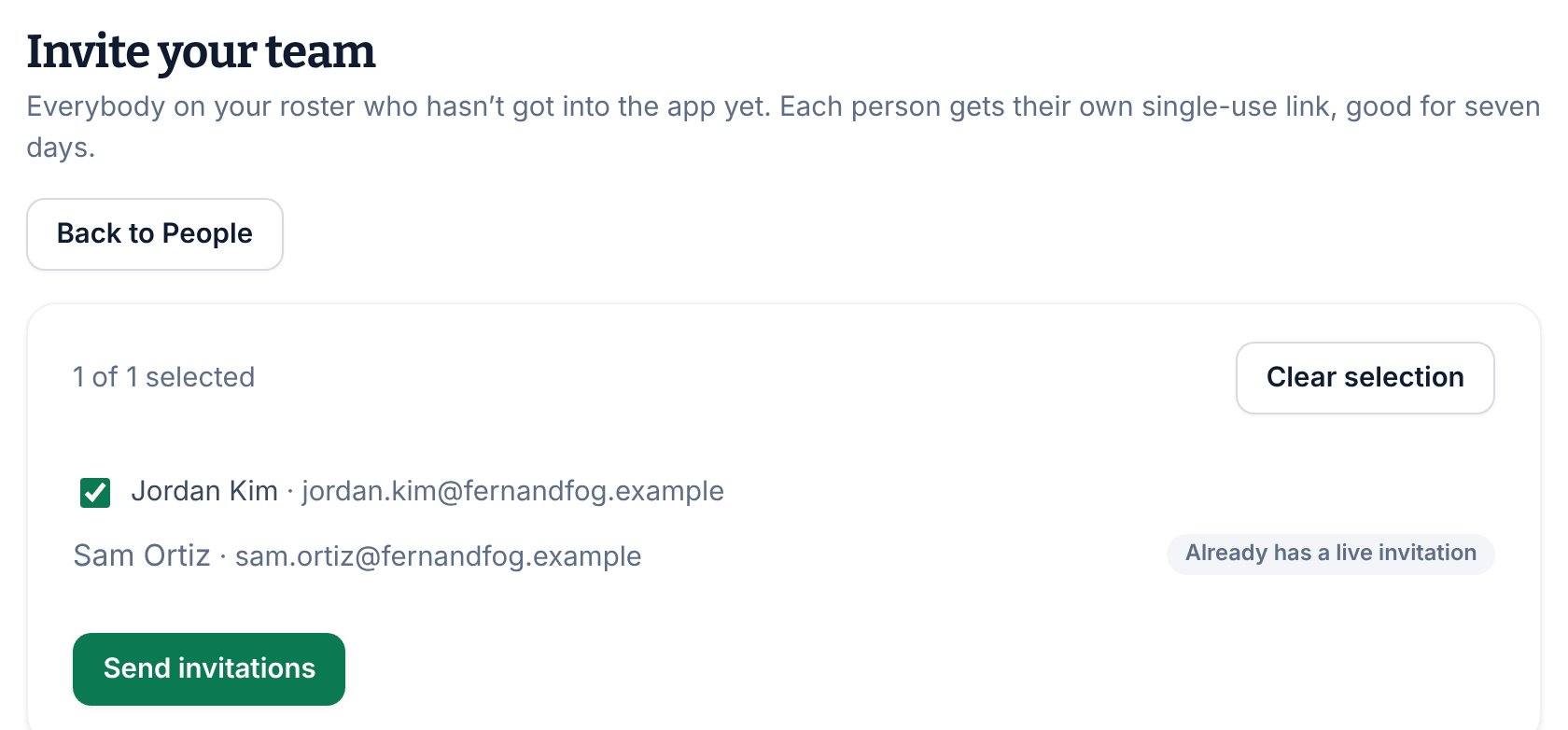
The page then says how many invitations were sent. Anyone who didn't get one is listed under Who didn’t get one, with the reason. If the reason is "Email didn't send", check the address on their record, then resend their invitation from there. You can invite up to 500 people at a time.
Send or resend one invitation
- Open the person's record from the list of names.
- Select ⋯ (More actions) at the top right, then Send invitation or Resend invitation. The page moves to Account access.
- Under Mobile app access, select Send invitation, Resend invitation or Resend, whichever is shown.
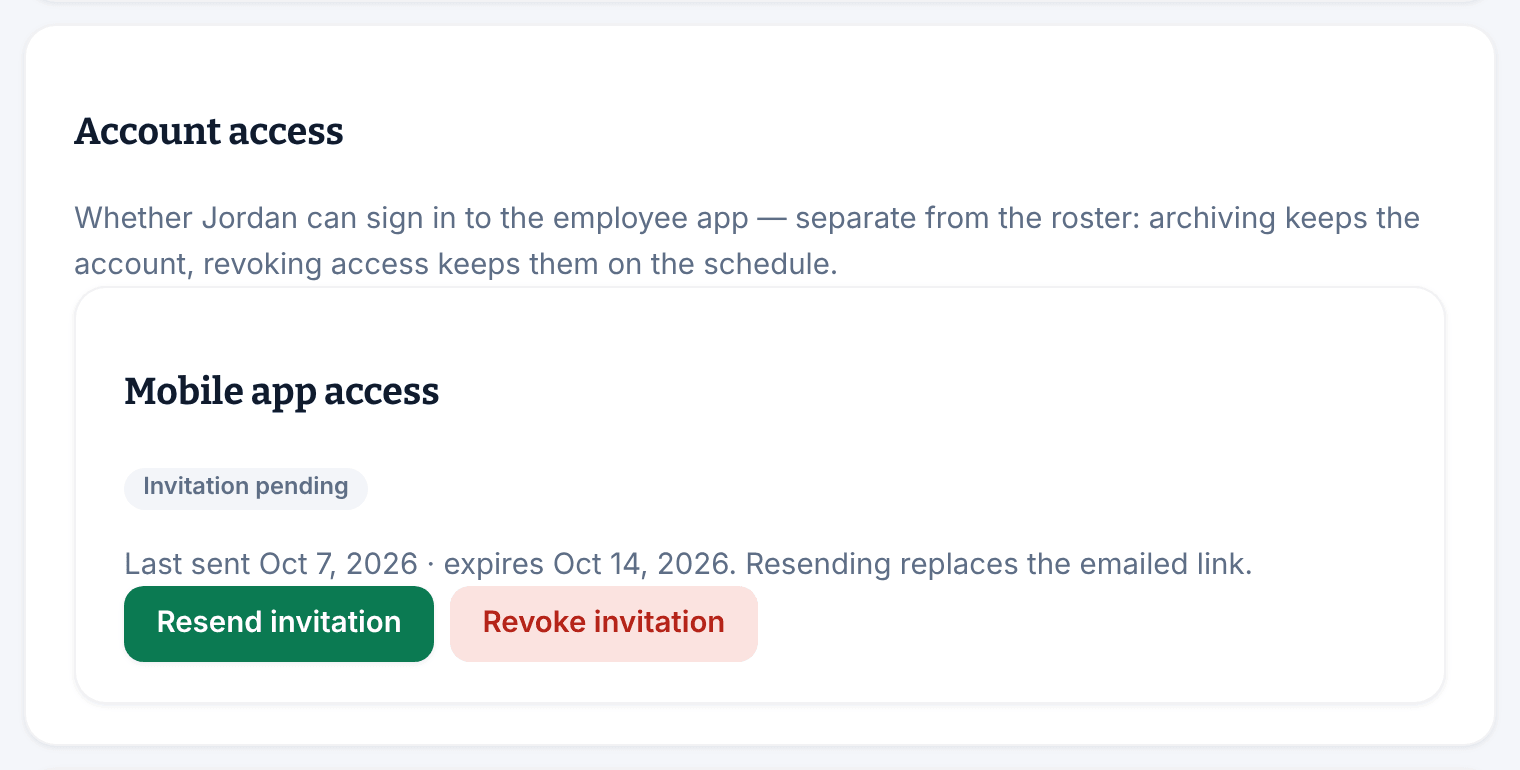
The status reads "Invitation pending", with the date the link expires. Wait a minute before sending another. Archived people can't be invited until you reactivate them.
Withdraw an invitation
While an invitation is pending, select Revoke invitation under Mobile app access, then select Revoke invitation again. The link stops working straight away. You can send a new one later with Resend.
Check who has joined
In the People list, the Access column shows where each person stands:
- "Active account": they've joined.
- "Invitation sent": they haven't accepted yet.
- "Invitation failed": the email bounced. Check the address and resend.
- "Invitation expired": the link expired or was withdrawn. Resend it.
- "Not invited": nobody has sent one yet.
- "Access revoked": a manager removed their sign-in. Invite them again to let them back in.
To list only the people in one state, choose it under Account. If someone still can't get in, see Help someone who can't sign in.
Was this article helpful?