Review and approve timesheets
Check each person's week on Timesheets, fix anything that blocks approval, then approve one timecard or several at once. Reopen a week with a reason.
Each person's week of punches is a timecard. When the time is right, approve it: approving locks the week and tells the employee. Owners and operations administrators can approve any timecard. Location managers can approve one when every location the person worked that week is theirs. Assistant managers can look at timesheets but can't change or approve them.
Find the weeks that need attention
- In the left menu, select Time, then Timesheets.
- Go to the week with ← Previous week or Next week →.
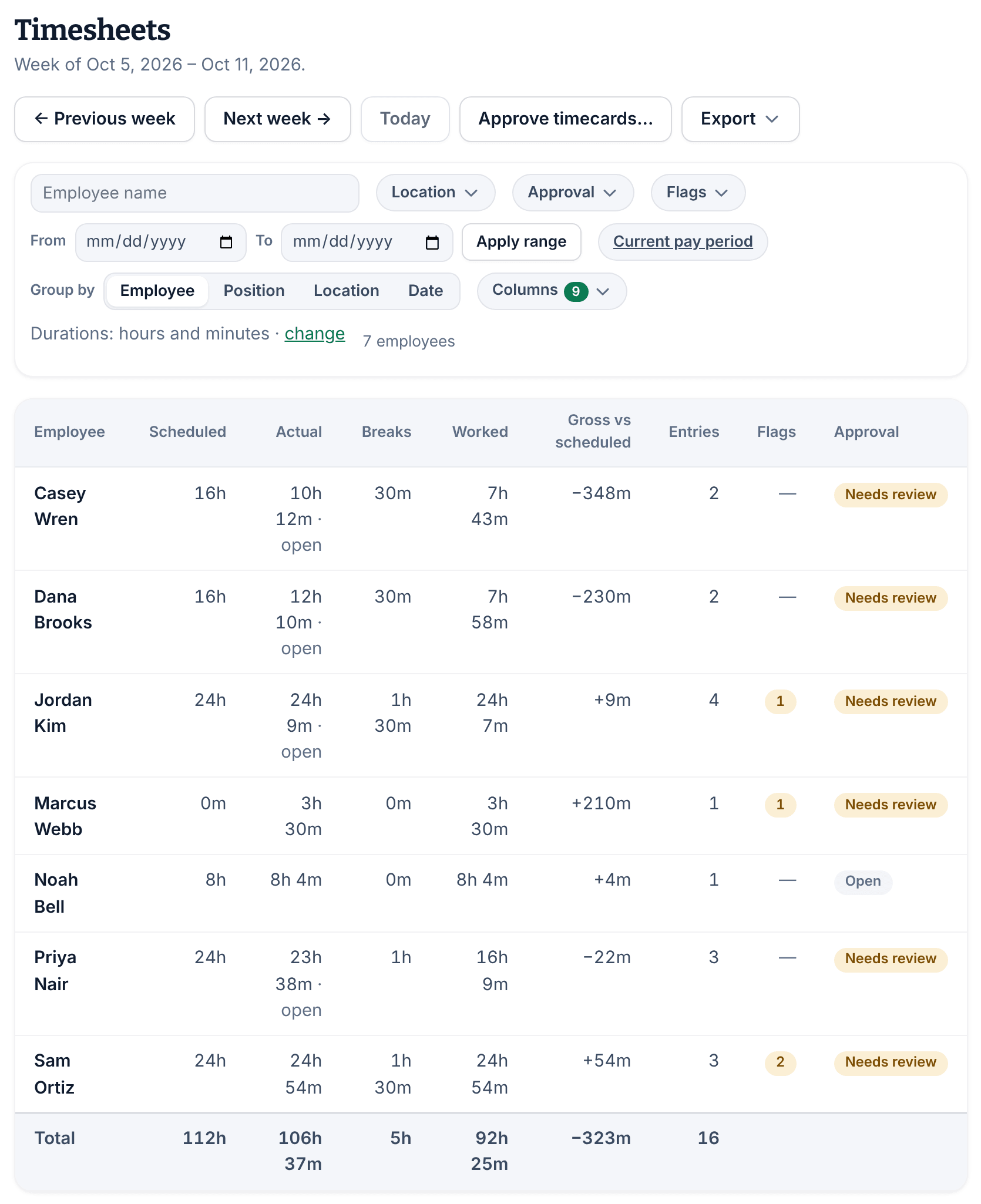
Each row is one person's week. Actual runs from clock-in to clock-out, breaks included, and Gross vs scheduled is Actual minus Scheduled. The Approval column says where each week stands:
- Open: nothing is blocking it. The week is ready to approve.
- Needs review: an entry is still open, a reported problem is waiting, or a flag needs checking.
- Approved, or Reopened after an approval.
To list only the weeks that need you, set Approval to Needs review, or Flags to With flags only.
Approve one timecard
- Select the person's name. Their timecard opens.
- Check each entry: the times, how they compare with the scheduled shift, and any breaks.
- Under Approval, if the timecard says "This week can’t be approved yet:", fix what it lists. For an entry that's still open, see Fix a missed punch. For a correction request, see Respond to a reported time problem. For review flags, see Clear flags on a timecard.
- Select Approve timecard, then select Approve timecard again to confirm.
The timecard now reads Approved, and the employee gets a Timecard approved notification. If something changed after you opened the page, nothing is approved: refresh the page and check the week again.
Approve several at once
- On Timesheets, stay on one week with Group by set to Employee, then select Approve timecards….
- Under Approve several weeks, tick the people to approve, or select Select all. Only weeks with nothing blocking them are listed.
- Select Approve selected, then Confirm.
The panel says how many timecards were approved and why any were skipped. A week that changed after you ticked it is skipped and comes back unticked, so you can check it again.
Reopen an approved week
Approving freezes the week: the correction forms, flag reviews and notes disappear from the timecard until someone reopens it.
- Open the timecard.
- Under Approval, say why in Reason for reopening (required).
- Select Reopen timecard, then select Reopen timecard again to confirm.
The employee gets a Timecard reopened notification, without your reason. When you've made your changes, approve the week again.
Was this article helpful?