Correct a time entry
On the person's timecard, open the correction you need and give a reason. Punches are never overwritten: each change is listed beside the original.
You can correct an entry's times, breaks, location, position or linked shift on the person's timecard, leave an entry out of the totals, or leave a note for other managers. Owners, operations administrators and location managers can correct time at their locations. Assistant managers can view timecards but can't change them.
Open the entry
- In the left menu, select Time, then Timesheets.
- Go to the week with ← Previous week or Next week →, then select the person's name.
- Find the entry. Each one is headed with its date, position and location, such as "Oct 5, 2026 · Barista at Downtown".
Each correction opens a short form under the entry. Every form needs a Reason (required, kept in the audit history), and each one asks you to confirm by selecting its button a second time. Times are in the location's time zone, which is shown next to the label.
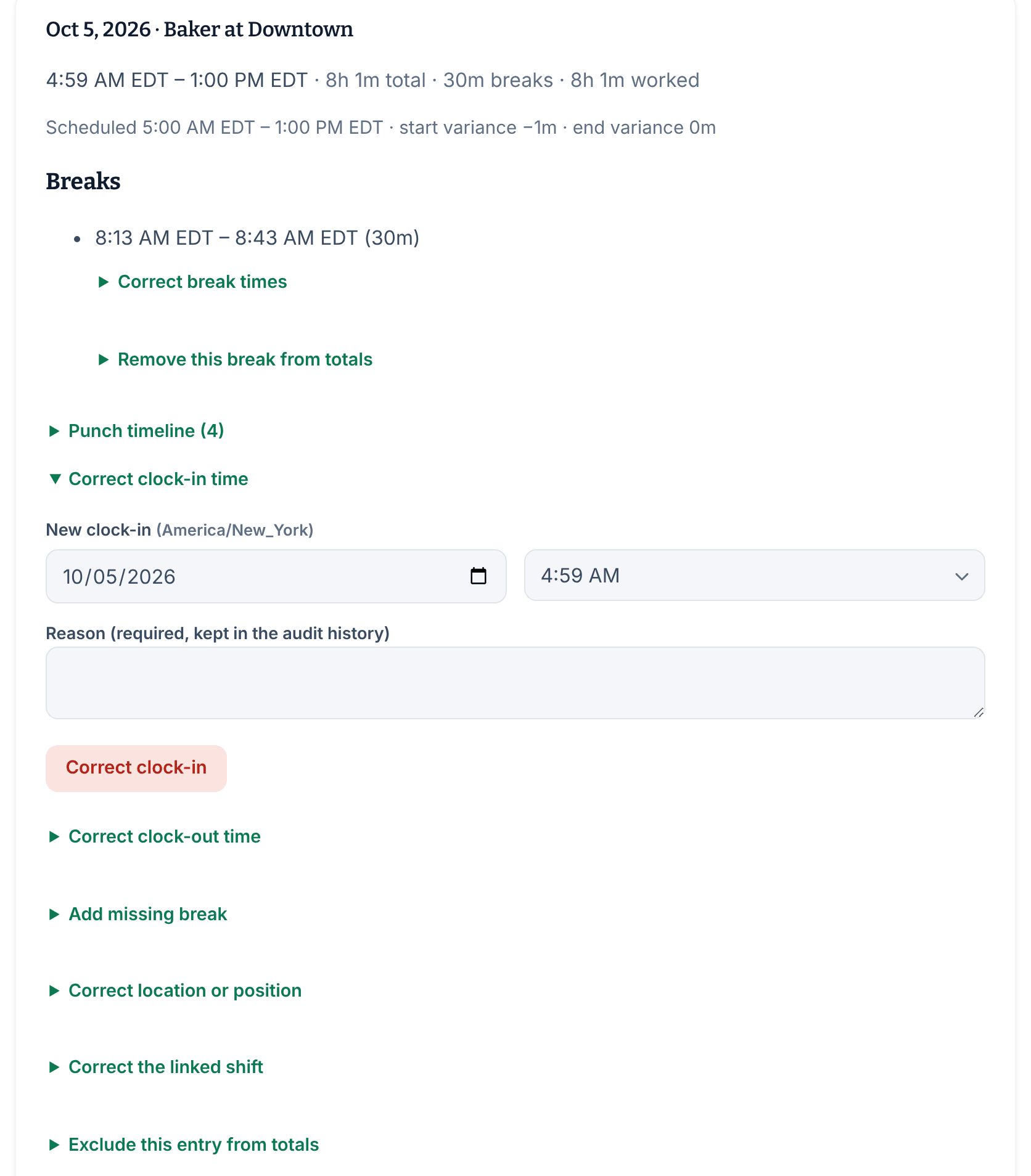
Change a clock-in or clock-out
- Select Correct clock-in time or Correct clock-out time.
- Set the date and time under New clock-in or New clock-out, and enter a reason.
- Select Correct clock-in or Correct clock-out, then confirm.
If you see "Breaks must fall inside the work session.", correct the break first.
If the entry is still open, see Fix a missed punch.
Fix a break
- To change a break's times, select Correct break times under it, set Break start and Break end, enter a reason, then select Correct break and confirm.
- To stop a break counting, select Remove this break from totals, enter a reason, then select Remove break and confirm. The break stays visible as history.
- To add a break that wasn't recorded, see Fix a missed punch.
Change the location, position or linked shift
- Select Correct location or position, choose a new Location or Position, enter a reason, then select Correct entry and confirm. Only the person's own locations and positions are offered.
- Select Correct the linked shift, choose the right one under Scheduled shift, enter a reason, then select Correct link and confirm. Only the person's published shifts that overlap the entry are offered. Linking a shift clears the entry's "No matching scheduled shift" flag. Choosing No scheduled shift (unscheduled) removes the link.
Leave an entry out of the totals
For an entry that shouldn't count, such as a duplicate, select Exclude this entry from totals, enter a reason, then select Exclude entry and confirm. The entry is marked Excluded and stays visible, but its time no longer counts.
Leave a note for other managers
Under Notes, type your note and select Add note. Only managers see notes, and they don't change any hours. To tidy up, select Archive beside a note; it stays in the record.
After a correction
The entry's totals update, the original punches stay under Punch timeline, and your change is listed with your reason under Adjustments. The employee isn't notified, unless your change settles a problem they reported: see Respond to a reported time problem.
Most corrections don't clear review flags by themselves. See Clear flags on a timecard. To correct an approved week, reopen it first: see Review and approve timesheets.
Was this article helpful?