Set pay rates
Give each position a default hourly rate, then add a base wage, a rate for one position, or a salary for anyone paid differently.
Shift Amp uses pay rates to estimate the base-wage cost of your schedule and approved hours. It never calculates pay. Only organization owners and operations administrators can see or set rates, and employees never see any wage, including their own.
Before you enter the first rate, confirm your reporting currency. See Set your currency and who sees labor cost.
How Shift Amp picks a rate
For each shift and work session, Shift Amp uses the first of these that applies on that day:
- The person's salary, whose cost is spread across the pay period rather than charged to shifts.
- The person's own rate for that position.
- The person's base wage, which covers every position they work.
- The position's default rate.
If none applies, their card for that position shows Missing rate, and those hours are left out of the estimate rather than counted as zero.
Set a position's default rate
Start here: a default covers anyone in the position without a rate of their own.
- In the left menu, select Organization, then Positions.
- Select the position.
- Under Default pay rate, select Set default rate.
- Enter the Default hourly rate, such as 17.50, and the Effective from date.
- Select Set rate.
Set a rate for one person
- In the left menu, select Organization, then People.
- Select the person's name.
- In the list of sections beside their record, select Pay rates.
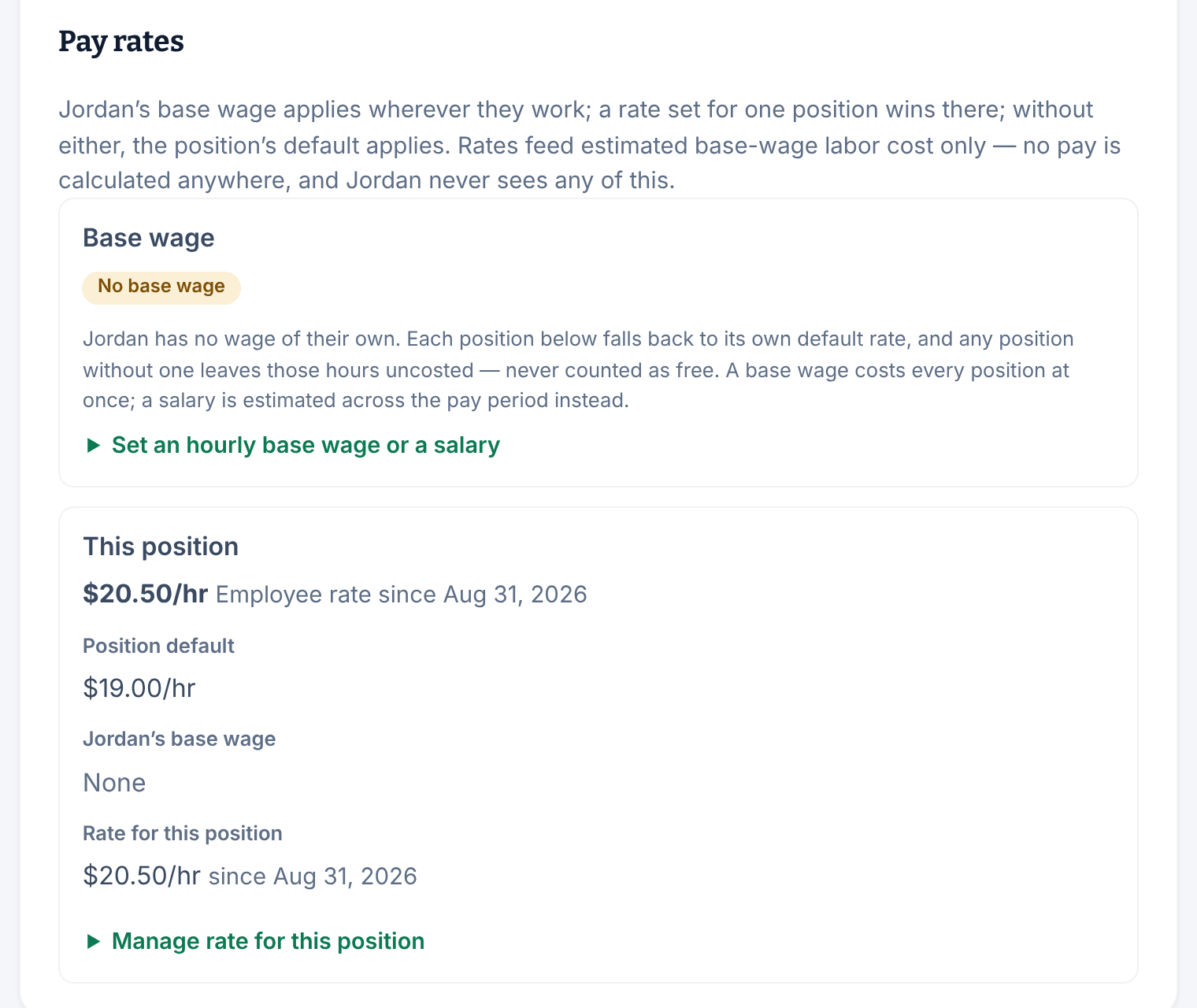
The section has a card for their own wage, then one for each position they hold.
A base wage for all their positions
- Select Set an hourly base wage or a salary.
- Enter the Base hourly wage and the Effective from date.
- Select Set base wage.
A rate for one position
- On that position's card, select Set rate for this position. If the person holds only one position, the card is called This position.
- Enter the Employee hourly rate and the Effective from date.
- Select Set rate.
For example, Jordan Kim's own $20.50 Baker rate wins over the $19.00 default.
A salary
- Select Set an hourly base wage or a salary, or Manage base wage if they already have one.
- Under the salary heading, enter the Annual salary and the Effective from date.
- Select Set salary.
From that date, the salary replaces any base wage. Their position cards show Salaried, and any rate set for one position is kept but marked Not applied while salaried.
Change, end or correct a rate
Once a rate exists, its form opens from Manage rate, Manage base wage, Manage salary or Manage rate for this position.
- To change the rate from a date, enter the new amount and date, then select Add change. Earlier dates keep the old rate.
- To stop a rate, set Ends from, select End rate, End base wage or End salary, and confirm. From that date, the next rate in the order above applies.
- To fix a mistake, select Correct… beside the entry in the history, enter the right amount, then select Correct rate and confirm. The old value stays on record.
A rate can't be zero. To stop one, end it.
For a date in the past, tick the box confirming the change is retroactive. Estimates for those dates are recalculated; payroll exports you've already made never change.
Was this article helpful?