Set up positions
Positions are the jobs your shifts need, like Barista or Baker. Create them, rename or recolor them, give them to people, and archive old ones.
Positions are the jobs a shift needs, such as Barista or Baker. They aren't app roles: what someone may do in Shift Amp comes from their role, not their positions. Every shift needs a position, and everyone on your roster needs at least one. Organization owners and operations administrators manage positions.
Create a position
- In the left menu, select Organization, then Positions.
- Select New position.
- Type the name in New position.
- Under Schedule color, choose a color. Shifts for this position show in this color on the schedule.
- Select Create position. The position's page opens.
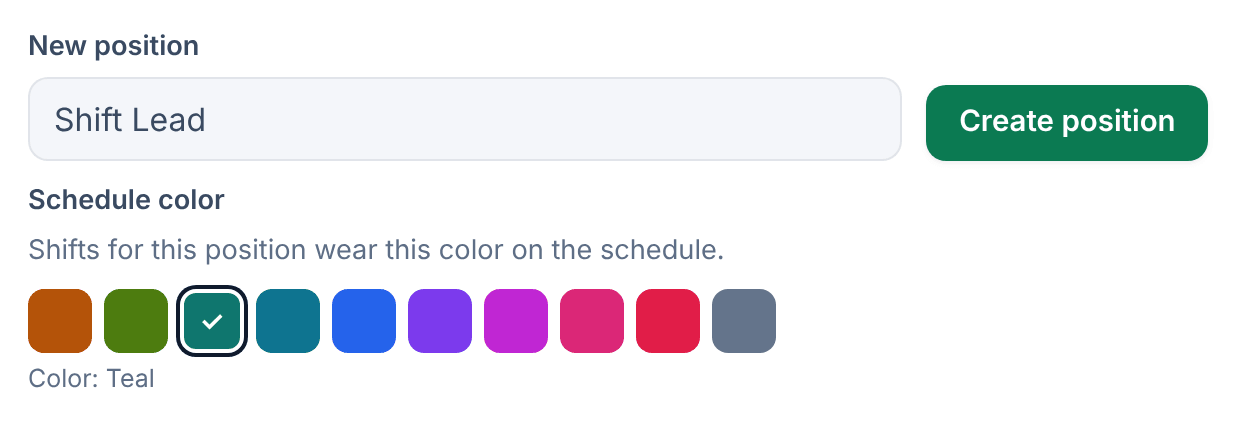
Each position needs its own name. If an archived position already has the name you want, restore that one instead.
Give a position to people
- On the position's page, under Add this position to people, tick each person who can work it. Find people searches by name. Anyone who already has it is marked "Already has it".
- Select Add position to selected people.
A position applies at every location the person works at. To change one person's positions, see Change someone's locations and positions.
Rename or recolor a position
On the position's page, under Name & color:
- Edit Position name, then select Rename.
- Choose a different color, then select Save color.
A new color shows on every week straight away, including published weeks, and nobody is notified.
Hide or archive a position
- Hide from lists takes a position out of the schedule filter and pickers. People keep it, shifts keep using it, and costs and reports don't change. Select Show in lists to bring it back.
- Archive, under Lifecycle, retires a position and keeps its history. Select Archive, then Archive again to confirm. You can't archive a position while active employees hold it, so remove it from them first, or hide it instead.
To bring back an archived position, open it from the Archived section of the Positions page and select Restore, then confirm. Positions can't be deleted.
Pay rates and position IDs
The position's page also holds its Default pay rate, which estimates labor cost for hours in this position. See Set pay rates. Under Position ID, you can enter the code your payroll or accounting system uses for this job and select Save ID. The code then appears in your timesheet and report exports.
Was this article helpful?