Change someone's locations and positions
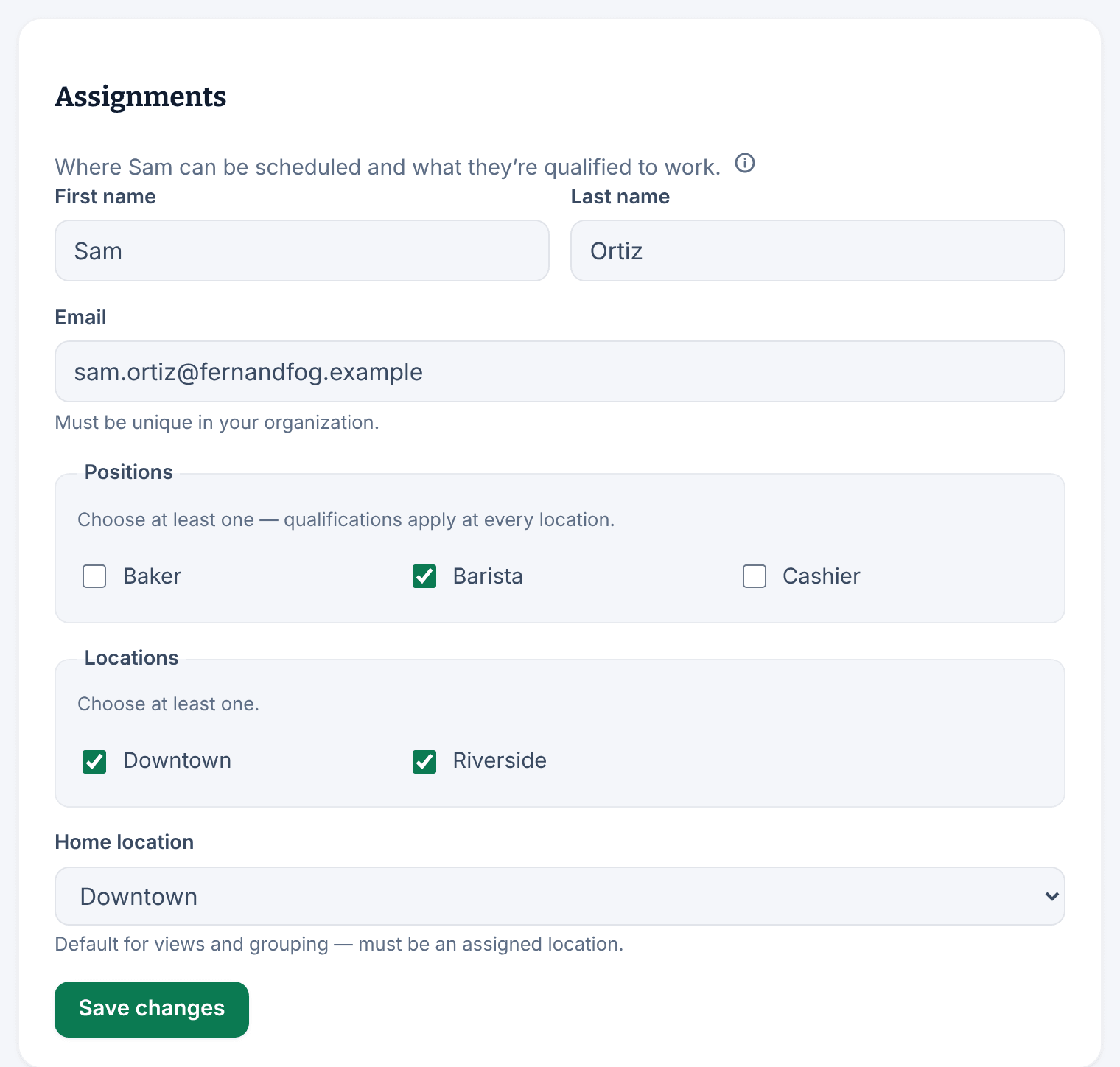
Under Assignments on the person's record, choose the positions they work, their locations and home location. You can also hide them from the schedule.
A person's positions say what they can be scheduled to work, and their locations say where. You change both on their record. Organization owners and operations administrators can change anyone's, and location managers can change positions freely but add or remove only the locations they manage. Assistant managers can't change either.
Change positions and locations
- In the left menu, select Organization, then People, then select the person's name.
- In the list of sections on their record, select Work & access. Assignments is at the top.
- Under Positions, tick each position they can work, and untick any they no longer work. A position applies at every location they work at.
- Under Locations, tick each location they work at.
- Choose their Home location. It must be one of the locations you ticked.
- Select Save changes.
The panel says "Employee saved." From now on, these choices decide which shifts they can be scheduled for, which open shifts they can claim, and which position's pay rate applies.
A position or location that has been archived stays on their record, marked "(archived)", until you untick it. An archived location can't become someone's home location.
About the home location
The home location is the person's default location for views and grouping. It also matters for location managers: they can hide, archive or reactivate someone, or revoke their sign-in, only when that person's home location is one they manage.
Give a position to several people at once
Owners and operations administrators can add a position to many people from the position's own page. See Set up positions.
Hide someone from the schedule
If someone has nothing scheduled for a while, you can keep them off the schedule grid and out of people pickers without archiving them.
- On their record, select Work & access, then scroll to Schedule visibility.
- Select Hide from the schedule.
Schedule visibility now shows "Hidden". They stay active and schedulable, keep their account and keep any shifts they already have. They also still count toward billing. To bring them back, select Show on the schedule.
Hidden people are left out of the list of names and the default People list. To find them, set Visibility to Hidden in the People list. See Find people and export your roster.
If someone has left for good, archive them instead. See Archive or restore someone.
Was this article helpful?