Adjust someone's PTO balance
On the person's PTO balance, add or take off time with a reason, give them a different annual allowance, or reverse an adjustment made by mistake.
Organization owners and operations administrators can change a person's PTO balance. They can add or take off time, give someone a different annual allowance, or reverse an adjustment. Location managers and assistant managers can see the balances of people at their locations but can't change them.
Every change is added to the person's history with your reason. Nothing is edited or removed, so you fix a mistake by reversing it.
Open someone's balance
- In the left menu, select Organization, then People.
- Select the person's name, then select PTO balance in the list of sections beside their record.
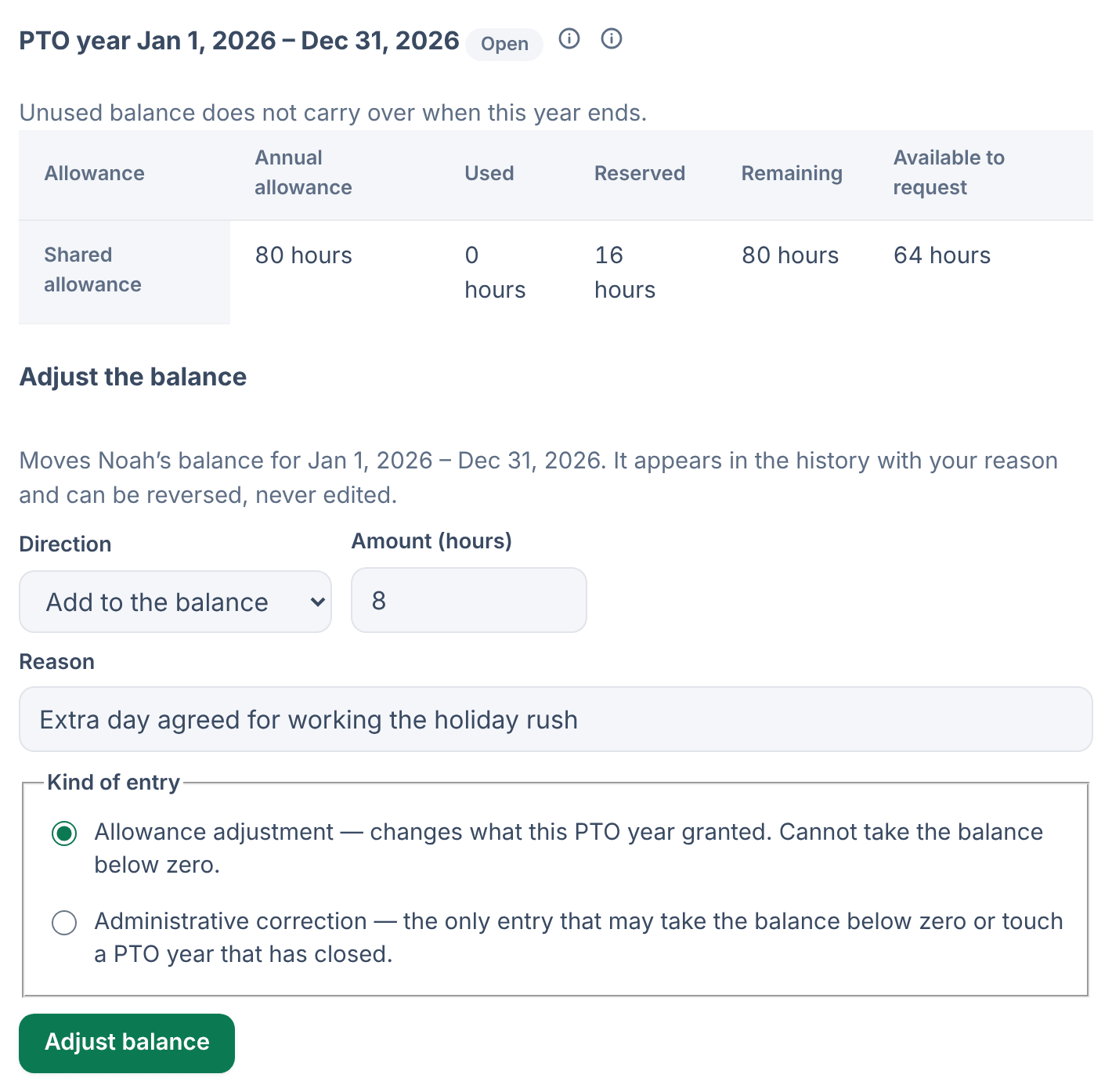
For the current PTO year, you see the Annual allowance, what's Used, what's Reserved by requests waiting for a decision, what's Remaining, and what's Available to request, which is remaining minus reserved.
Add or take off time
- Under Adjust the balance, choose a Direction: Add to the balance or Take off the balance.
- If the person has more than one allowance, choose Which allowance.
- Enter the amount, in hours or days, as your balances are shown.
- In Reason, say why. The employee never sees it.
- Under Kind of entry, keep Allowance adjustment for an ordinary change. Choose Administrative correction only to take the balance below zero, or to change a PTO year that has closed.
- Select Adjust balance.
The change appears in History. The employee gets a PTO allowance updated notification, which doesn't include the amount or your reason.
Give someone a different annual allowance
Use an override for an allowance agreed at hire, for example.
- Under Annual allowance override, enter the new annual allowance.
- Under From PTO year starting, keep the start of the person's next PTO year, or choose the start of the year that's already open.
- If you like, add a Reason (optional). Only owners and operations administrators see it.
- If you chose the open year, tick the box that applies the allowance to it. The difference is added to the history as an adjustment.
- Select Save override.
The override is listed under Allowance overrides, and the employee is notified. To remove an override, choose it under Remove an override, select Remove, then confirm. The organization's default allowance applies again from that PTO year, but a year that's already open keeps its allowance.
Reverse a mistake
- Under Reverse an adjustment, find the adjustment and say why you're reversing it.
- Select Reverse, then select Reverse again to confirm.
The opposite entry is added beside the original as an "Administrative correction".
When a request would overdraw a balance
A time-off request that would take someone below zero can't be approved. Add to their balance first, then approve the request. See Approve or deny time off.
Was this article helpful?