See who changed what
The audit log in Settings shows what changed in your organization, when, and who did it. Owners and operations administrators can read it; nobody can edit it.
The audit log is a read-only record of the changes made in your organization, such as publishing a schedule, changing someone's access or approving a claim. Each entry says when it happened and who did it. Organization owners and operations administrators can read it. Location managers and assistant managers don't have it, because the log covers every location at once.
Open the audit log
- Open the account menu at the bottom of the left menu (your name), then select Settings.
- Select Audit log.
Entries are listed newest first, 50 to a page. Use Next and Previous to move between pages.
Read an entry
- When is the date and time of the change.
- Category is the area it belongs to, such as Scheduling or Time off & PTO.
- What happened names the action, for example "Schedule published" or "Time off approved".
- Record is the kind of record that changed, with a short code that tells records of the same kind apart.
- Who is the person who made the change. "Shift Amp" means an automatic action with no person behind it, such as a scheduled job or a documented support procedure. "Former member" is someone who's no longer in your organization.
Find a change
- Choose a Category, a person under Who, or dates under From and To. You can combine them.
- Select Apply.
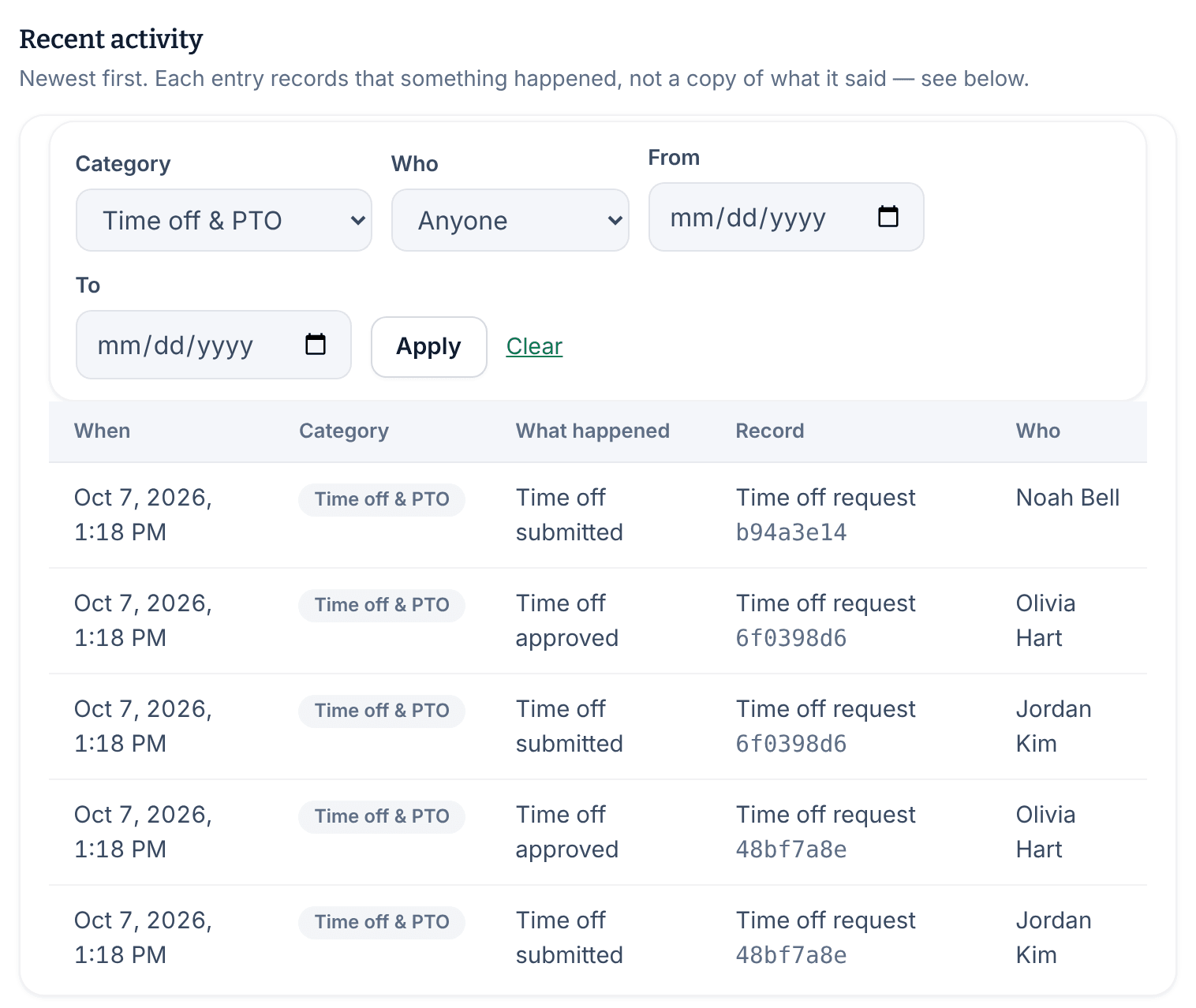
To see everything again, select Clear. If nothing matches your filters, the log says No matching entries.
What the log doesn't show
- It records that something changed, not a copy of it. It doesn't keep old and new values, the text of a note, a message or a pay rate.
- Nobody can edit or delete an entry: not a manager, not an owner, and not Shift Amp support.
- It covers the whole organization, and can't be narrowed to one location.
To see exactly how a time entry was corrected, open the person's timecard instead. Each correction is kept there beside the original punches, with who made it and why. See Correct a time entry.
Was this article helpful?