Approve or deny time off
Open the request in Requests, choose what happens to any shifts it covers, then approve or deny it. You can also cancel approved time off.
Employees request time off in the Shift Amp app, and each request waits for a manager in Requests. Organization owners and operations administrators can decide anyone's request. A location manager can decide a request only if they manage every location the employee works at. Assistant managers can see requests but can't decide them, and nobody can decide their own.
You aren't notified of new requests. They're counted beside Requests in the left menu and listed on Today under Waiting on you.
Open a request
- In the left menu, select Requests, then Time off.
- Select the employee's name. The list shows pending requests; to see others, choose a different Status.
The request shows the dates under Requested, whether it's All day or Partial day, and any note from the employee.
Approve a request
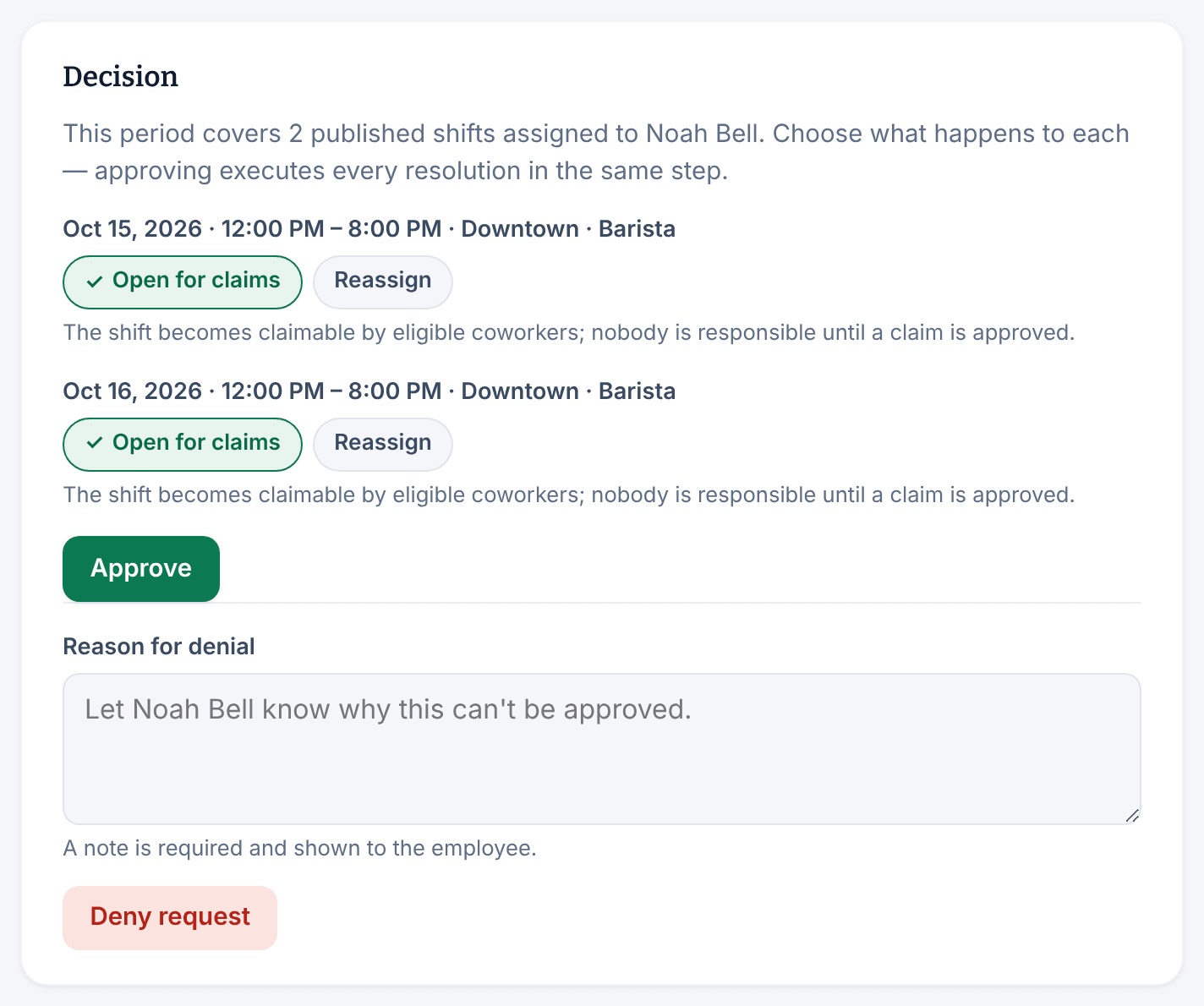
- If the time off covers shifts the employee has in a published week, the Decision panel lists each one. For each shift, choose:
- Open for claims (the default). Eligible coworkers can claim the shift, and nobody is responsible for it until you approve a claim. It's listed in Requests under Coverage as "Opened for time off".
- Reassign, then choose who takes it under Search employees…. The list isn't checked for conflicts until you approve.
- If you're asked for a PTO pay position, choose the position each date is paid at. It's recorded for PTO reporting and changes nobody's pay.
- Select Approve. If shifts were listed, select Approve again to confirm.
The request now reads Approved. The employee is notified and can't be scheduled during the time off. Each shift is opened or reassigned as you chose, and anyone you reassigned a shift to is notified.
If someone you chose can't take a shift, the page says why and nothing is approved. For an availability or position warning, you can record a reason under Override eligibility warnings, then select Override and approve and confirm.
If PTO would run out
When your organization tracks PTO, the Paid time off panel shows what approving would take from the person's allowance. The balance is checked again when you approve. If approving would take it below zero, the page says "Nothing was approved: this would take the employee's PTO balance below zero…" and nothing changes. An owner or operations administrator can add to the person's allowance first; see Adjust someone's PTO balance. Otherwise, deny the request.
Deny a request
- In Reason for denial, say why. The employee sees it.
- Select Deny request, then Deny request again to confirm.
Cancel approved time off
You can cancel approved time off until it ends, for example when plans change.
- In Requests under Time off, select Approved under Status, then select the employee's name.
- Under Cancel this time off, enter a Reason for cancelling. The employee sees it.
- Select Cancel approved time off, then select it again to confirm.
The employee can be scheduled during that time again. Shifts you opened or reassigned when you approved stay as they are. If your organization tracks PTO, dates from today on go back into their balance.
Was this article helpful?