Set up paid time off
In Settings, add your time-off types, set the PTO year and allowance, then turn tracking on. Approved time off then comes out of each person's balance.
Shift Amp can give each employee an annual PTO allowance and take approved time off out of it. Only organization owners and operations administrators can set this up. Other managers see a read-only summary. Nothing comes out of anyone's allowance until you turn tracking on.
Each person gets a set allowance for each PTO year. Shift Amp doesn't build up PTO from hours worked, carry unused PTO into the next year, or calculate pay.
To start, open the account menu at the bottom of the left menu (your name), select Settings, then select Paid time off.
Add your time-off types
Types are the kinds of time off employees choose from, such as vacation or sick time. At least one has to spend PTO.
- Under Time-off types, enter a name in New time-off type, such as Vacation, and a Reporting code if you like.
- Choose how the type behaves. Both boxes start ticked:
- Paid — the employee is paid for this time
- Spends PTO — requests of this type come out of the annual allowance
- Select Add type. Repeat for each type.
A type's name never changes how it behaves; only the boxes do. Once a request uses a type, its boxes can't change, so archive it and add a new type instead.
Set the PTO year and allowance
- Under The PTO year, choose When allowances reset. With One date for everyone, choose the Reset month and Reset day. With Each person's hire anniversary, each person's year starts on the anniversary of their hire date.
- Check the PTO time zone.
- Under Allowances and units, choose How allowance is divided: One shared allowance for every type, or A separate allowance for each type.
- Under Show balances in, choose Hours or Days. Then set A full PTO day (hours), which is what a whole day off spends.
- Turn on Offer unpaid time off if employees may take dates without spending PTO.
- Enter the annual allowance: one amount for a shared allowance, or one for each type.
- Select Save policy in the Unsaved changes bar.
Allowances aren't prorated, even for a new hire. To give one person a different amount, see Adjust someone's PTO balance.
Turn on PTO tracking
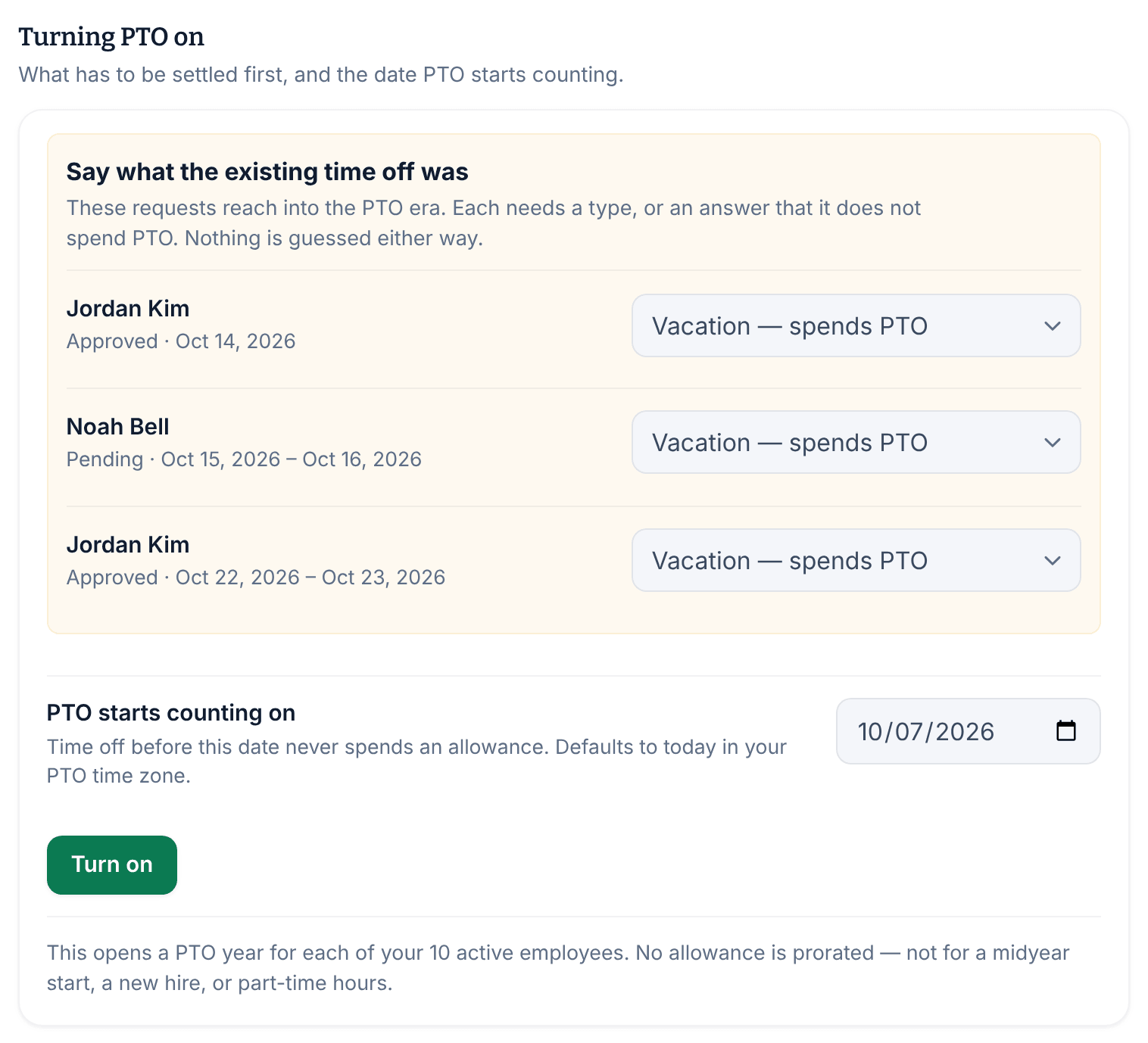
- Under Turning PTO on, settle each item listed:
- Record the missing hire dates appears if allowances reset on hire anniversaries. Add a hire date for each person listed.
- Say what the existing time off was lists requests that reach into the period PTO will cover. For each one, choose a type, or Does not spend PTO.
- Under PTO starts counting on, choose the date. Time off before it never spends PTO.
- Select Turn on.
PTO tracking now reads On, and each active employee has a PTO year. Employees see their balance in the app, and must choose a type when they request time off.
If you change the policy later, PTO years that are already open keep their allowance. The change applies to years that open after it.
To stop tracking, select Stop PTO tracking under Turning PTO off, then confirm.
Was this article helpful?