Import your team from a spreadsheet
Upload a CSV file, match its columns, and check the preview before anyone is added. An import sends no invitations, so invite people afterward.
To add many people at once, import a CSV file. You see exactly who will be added before anyone is, and either everyone in the file is added or nobody is. Organization owners, operations administrators and location managers can import people, location managers only at the locations they manage. Assistant managers can't.
Prepare your file
- Save your spreadsheet as a CSV file: a header row, then one person per row. Commas, semicolons and tabs all work. A file can hold up to 200 people.
- Include a first name, last name and email address for everyone. Columns for positions and locations are optional.
- Write each position and location exactly as it's named in Shift Amp. Capital letters don't matter, but archived positions and locations don't match.
- To give someone several positions or locations, put them in one cell separated by a vertical bar, for example Cashier|Barista.
- The first location in a row becomes that person's home location.
For example, a file could start with the header First name, Last name, Email, Positions, Locations, followed by a row like Jamie, Lee, jamie.lee@fernandfog.example, Barista, Downtown. There's no template to download.
Import the file
- In the left menu, select Organization, then People. A person's record opens.
- Select People above their name to open the People list.
- Select Import from a file.
- Under 1. Choose a file, choose your file in Spreadsheet (.csv). Nothing is saved yet.
- Under 2. Match the columns, check that First name, Last name and Email each name the right column from your file, and change any that don't.
- If your file has no positions or locations column, tick at least one box under Position for everybody in this file or Location for everybody in this file.
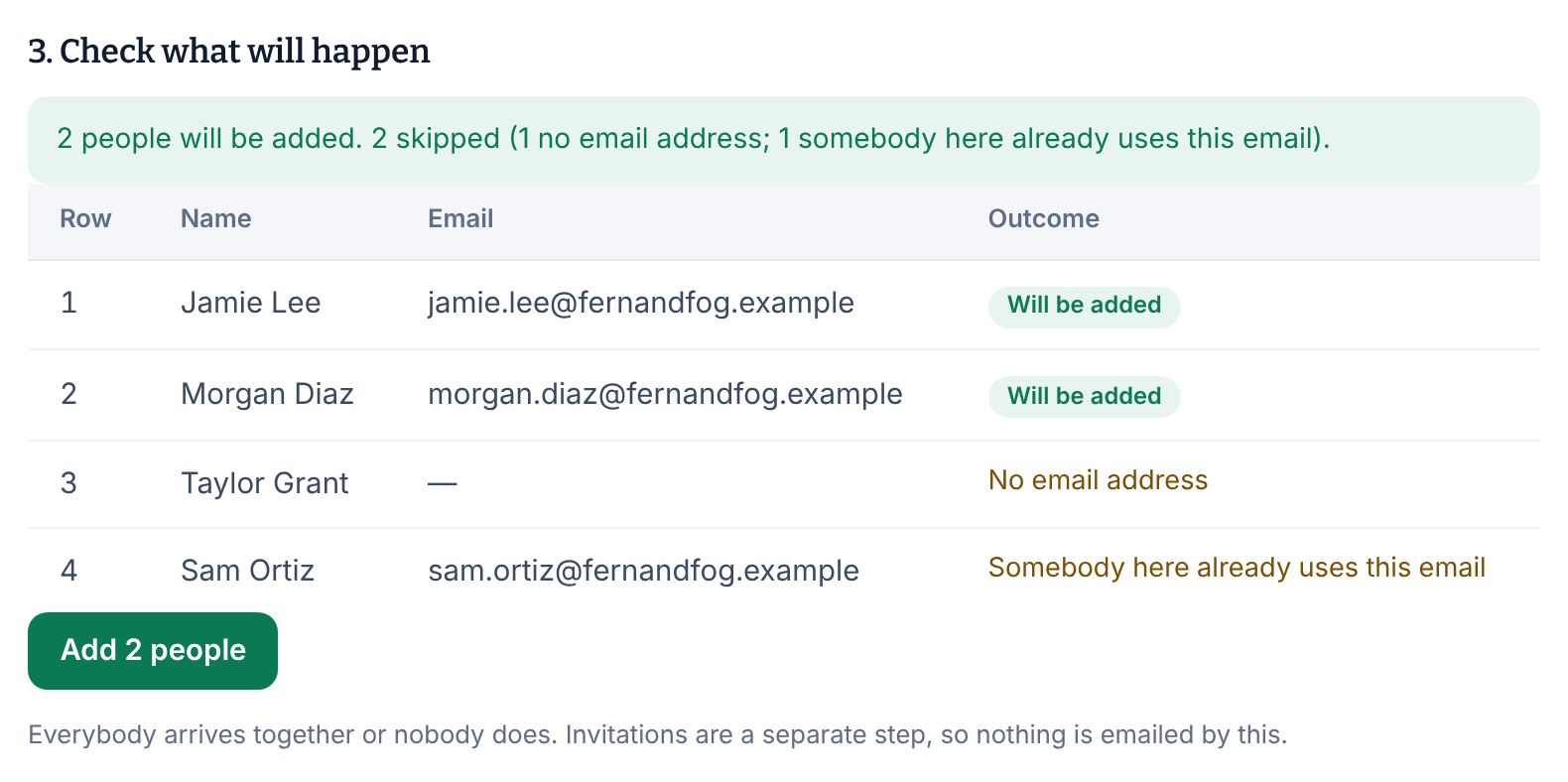
- Under 3. Check what will happen, read each row's Outcome. Rows marked "Will be added" are ready. A row with a problem, such as "No email address", is skipped. To include it, fix your file and choose it again.
- Select the button that adds them, for example Add 2 people, then select Confirm.
The page confirms how many people were added and reminds you that nobody has been emailed yet.
Invite them
An import never emails anyone. To send their invitations, select Invite your team on the confirmation, or later from the People list. See Invite your team to the app.
If nobody was added
When anything stops the import, nobody is added and a message says why. The most common reasons:
- The file would take you past the free plan. Shift Amp is free for up to 10 billable members, and an import past that is refused as a whole. Import fewer people, or have your Organization owner set up billing first by adding one person on their own, then import the rest. See Add people past the free plan.
- A location you don't manage. If you're a location manager, every row must name only locations you manage.
- An address that's already in use. The preview marks addresses already on your roster, but a location manager's preview can't check people at other locations. Remove that row and import again. If the address belongs to an archived person, reactivate them instead. See Archive or restore someone.
Was this article helpful?