Add someone to your team
Add a person from People with their positions, locations and home location. Shift Amp emails their app invitation unless you untick the box.
Add each new person with the positions they can work and the locations they work at, and Shift Amp emails them an invitation to the app. Organization owners, operations administrators and location managers can add people, location managers only at the locations they manage. Assistant managers can't add people.
Before you start
- Set up your positions. Everyone needs at least one position. If you have none, the page says Create a position first. See Set up positions.
- Use an address only this person uses. Their invitation goes to it, and two people in your organization can't share one.
Add the person
- In the left menu, select Organization, then People.
- Select Add employee (the plus sign at the top of the list of names).
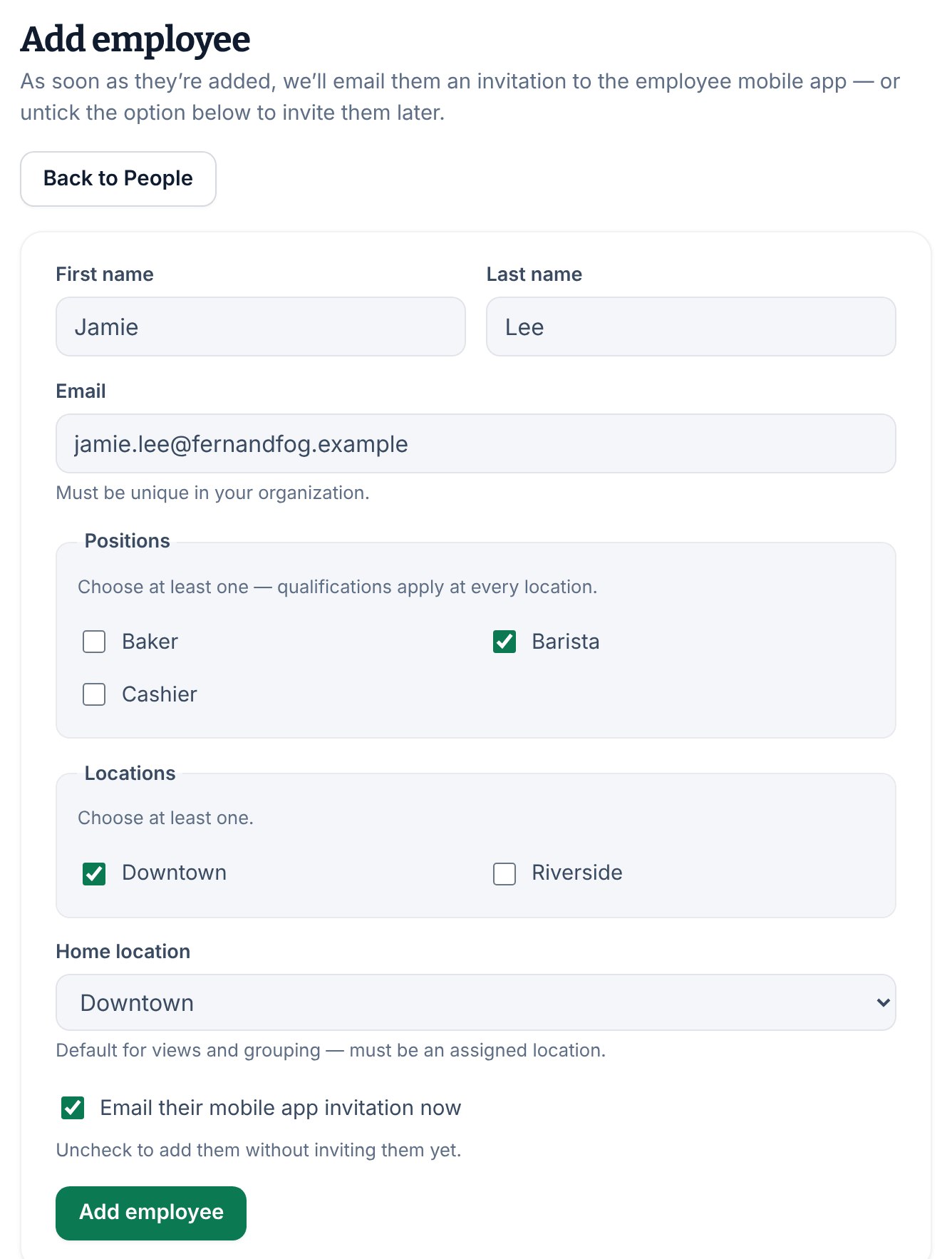
- Enter their First name, Last name and Email.
- Under Positions, tick each position they can work. A position applies at every location they work at.
- Under Locations, tick each location they work at. If you're a location manager, tick only locations you manage.
- Choose their Home location. It must be one of the locations you ticked.
- Leave Email their mobile app invitation now ticked to invite them now, or untick it to invite them later.
- Select Add employee.
Their record opens with a message at the top saying whether the invitation was emailed. If you unticked the box, send it when you're ready. See Invite your team to the app.
What happens next
- They get an email with an Accept invitation button. The link works once and expires after 7 days.
- They create an account with the address you entered, then sign in to the app. See Join your team on Shift Amp.
- Nobody is notified when they join. Their record shows "Connected" under Mobile app access once they have.
- Everyone joins as an Employee. To make them a manager, change their role after they've joined. See Change someone's role.
If your team has reached the free plan
Shift Amp is free for up to 10 billable members. Everyone you add counts, even before they accept an invitation. Adding an 11th person stops before anything is saved:
- The Organization owner sees Your team is growing, with the option to Set up billing. Once billing is set up, the person is added but isn't sent an invitation, so send it from their record.
- Operations administrators and location managers see Your team has reached the free plan. Ask your Organization owner to set up billing. The owner can do it by adding the person themselves.
See Add people past the free plan.
If the email address is already used
If someone else in your organization has the address, the form says so. If it belongs to an archived person, select View the archived employee and reactivate them instead of adding them again. See Archive or restore someone.
Was this article helpful?