Get the app and sign in
Install Shift Amp from the App Store or Google Play, then sign in with the email your invitation went to and the password you chose.
The Shift Amp app is where you see your shifts, trade them, ask for time off and clock in. It's free on the App Store and Google Play. Sign in with the email address your invitation was sent to. If you haven't accepted your invitation yet, do that first: see Join your team on Shift Amp.
Download the app
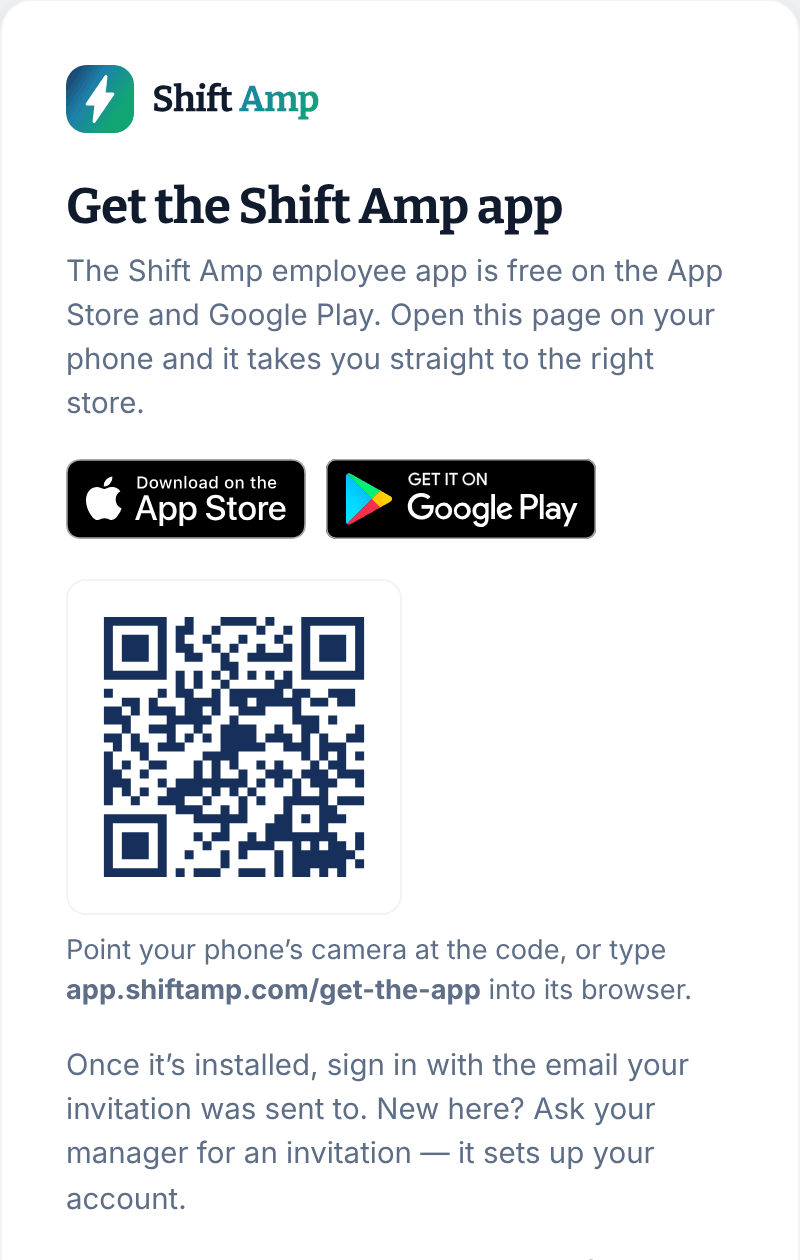
On your phone, go to app.shiftamp.com/get-the-app in your browser. It takes you straight to the App Store or Google Play, where you can install Shift Amp. You can also search for Shift Amp in either store.
On a computer, the same address shows both stores and a code you can scan with your phone's camera.
Sign in
- Open Shift Amp on your phone.
- Enter your Email and Password. Use the address your invitation was sent to and the password you chose when you joined.
- Select Sign in.
- If you work for more than one business on Shift Amp, the Choose an organization screen appears. Select the one you want.
- The first time, the app asks for a photo so your team can recognize you. Select Take a photo or Choose from photos, or select Add later to skip it.
The Today tab (the house icon) opens, showing your next shift. If Today offers "Know when your schedule changes", select Enable notifications so the app can tell you about changes. See Choose your notifications in the app.
The app has no sign-up of its own. Your account comes from your invitation.
If you joined with Google
The app signs in with a password only. If you joined with Google, set a password for the same address first:
- On the sign-in screen, select Forgot your password?.
- Enter your email and select Send reset link.
- Open the email Shift Amp sends you and select its link. In your browser, enter a New password and select Save password.
- Go back to the app and sign in.
See Reset your password.
If you can't get in
- "Incorrect email or password.": check that you're using the address your invitation was sent to. If you've forgotten the password, select Forgot your password?.
- No employee access: your account isn't connected to your workplace yet. Open your invitation email and finish joining, or ask your manager to send a new invitation if yours has expired.
For other problems, see Fix a sign-in problem.
Was this article helpful?