Help someone who can't sign in
Check the person's app access on their record, then resend their invitation, send a password reset, or revoke their access.
When someone can't get into Shift Amp, start with their record: it shows whether they've been invited, whether the invitation arrived, and whether they've joined. Organization owners and operations administrators can help anyone, and location managers can help people at the locations they manage. Assistant managers can see where someone stands but can't change it.
Check where they stand
- In the left menu, select Organization, then People, then select the person's name.
- In the list of sections on their record, select Work & access, then scroll to Account access.
Under Mobile app access you'll see one of these:
- "Invitation pending": they haven't accepted their invitation yet.
- "Email failed": the invitation couldn't be delivered.
- "Invitation expired" or "Invitation revoked": the link no longer works.
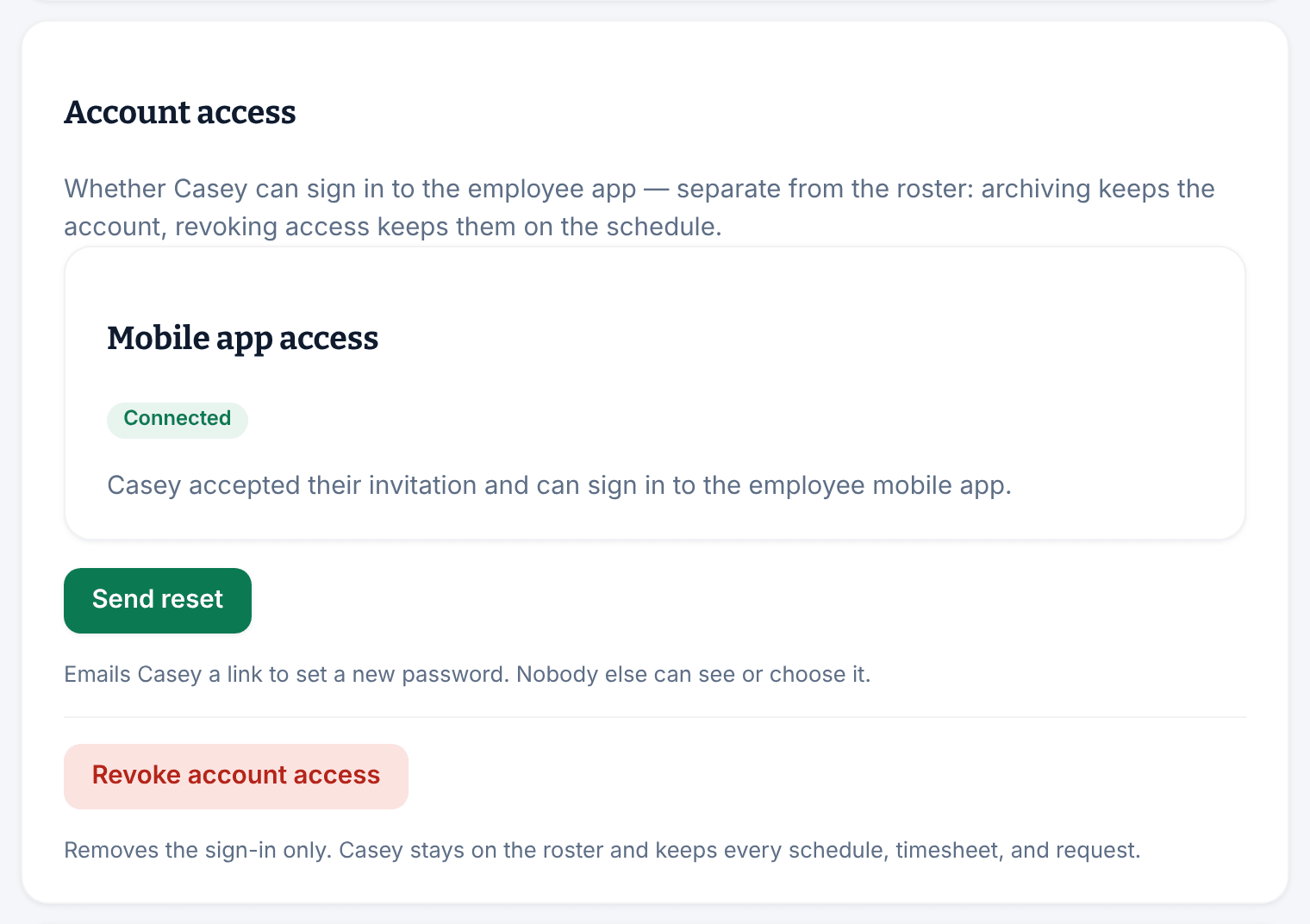
- "Connected": they've joined and have their own sign-in.
If they've never been invited, the panel says so and offers Send invitation.
If they say they made an account but the status still reads "Invitation pending", they haven't finished joining. Ask them to open the invitation link again, sign in if asked, and select the Join button, which shows your business's name.
If the invitation didn't arrive or has expired
- If the status is "Email failed", check their address first. Under Assignments, correct Email and select Save changes.
- Under Mobile app access, select Resend invitation, Resend or Send invitation, whichever is shown.
Each new invitation replaces the old link, so ask them to use the newest email. The link works once and expires after 7 days. They must create their account with the address the invitation went to. If you sent one a moment ago, wait a minute before sending another. See Join your team on Shift Amp.
If they've forgotten their password
If they're "Connected", select Send reset. Shift Amp emails them a link to choose a new password. It goes to the address they sign in with, which can differ from the contact email on their record. Only they can use it: you never see the link or the password. If a reset was sent recently, wait a few minutes before sending another.
They can also do this themselves. See Reset your password.
Withdraw an invitation
To stop a pending invitation from working, select Revoke invitation, then select Revoke invitation again. You can send a new one later.
Remove someone's sign-in
If someone shouldn't sign in anymore but should stay on your roster, select Revoke account access, then select Revoke account access again to confirm.
They're signed out of the app, and your business disappears from their account. They stay on the roster with all their history and shifts. To let them back in later, invite them again from Invite your team. See Invite your team to the app.
- You can't revoke your own access.
- For a manager, change their role to Employee first. See Change someone's role.
- Location managers can revoke access only for people whose home location they manage.
To take someone off the schedule too, archive them. See Archive or restore someone.
Was this article helpful?