Set rules for time off and availability
For managersUpdated 2 min read
In Settings, choose whether employees can change their availability or request time off in the app, and whether requests need notice or a reason.
These settings decide what your team can ask for in the Shift Amp app, and they apply to your whole organization. Organization owners and operations administrators can change them. Other managers can see them but not change them.
Change the rules
- Open the account menu at the bottom of the left menu (your name), select Settings, then select Availability & time off.
- Under Availability, turn each switch on or off:
- Employees can propose their availability: their usual weekly pattern.
- Employees can record a one-off exception: a single date that differs from their usual week.
- Apply their changes without approval: changes take effect without waiting for a manager.
- Under Time off, turn each switch on or off:
- Employees can request time off.
- Require a minimum notice. Then, under How much notice, choose from 24 hours to 30 days, counted back from the start of the time off.
- Require a reason. The note on a request becomes required.
- Select Save policy in the Unsaved changes bar. If you stopped employees proposing availability, recording exceptions or requesting time off, or let changes apply without approval, you're asked to confirm: select Save policy again.
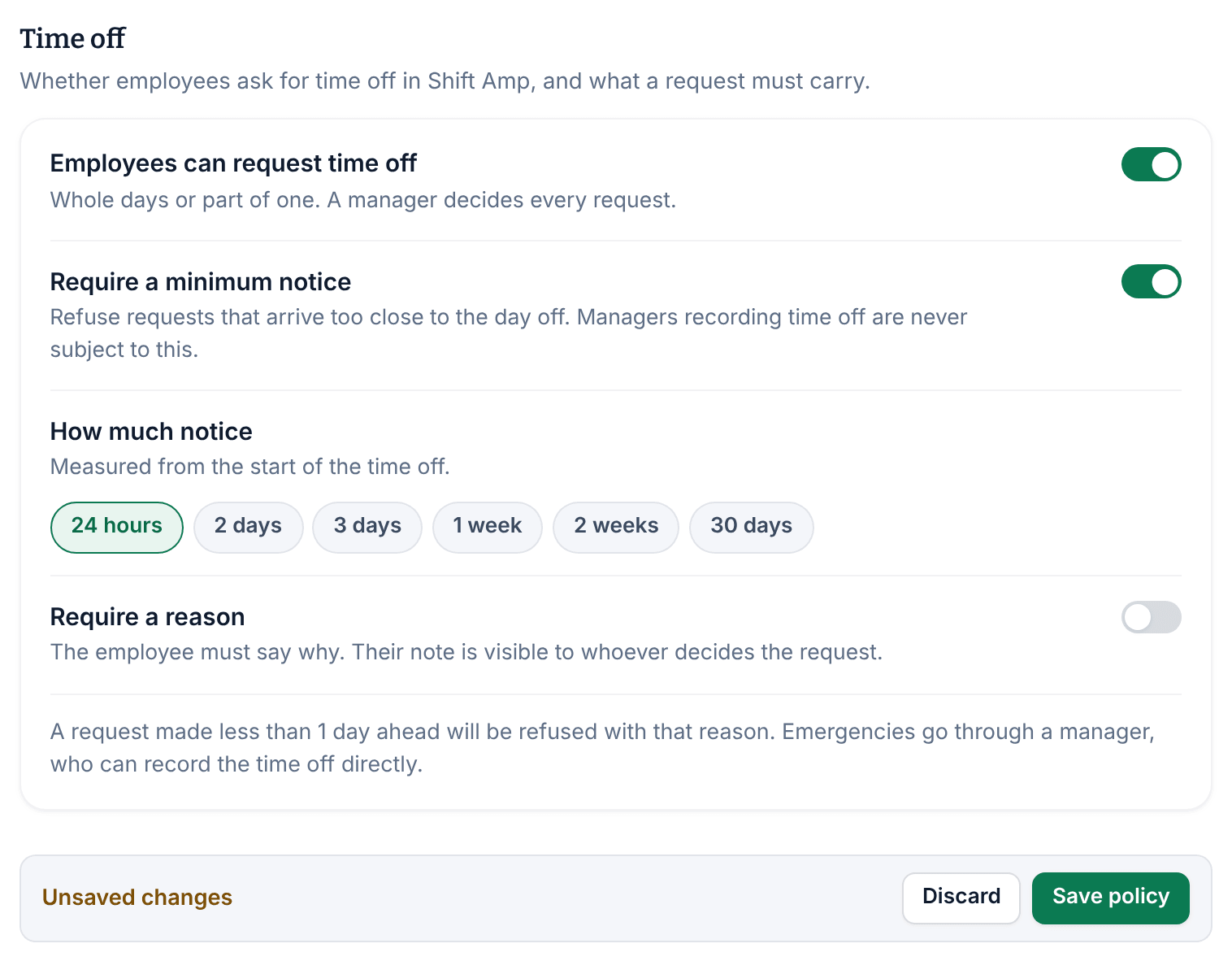
By default, employees can propose availability, record exceptions and request time off, every availability change waits for a manager, and nothing needs notice or a reason.
What your team sees
- With proposals off, the app tells employees that your organization sets their availability. You set it from their record; see Set or lock someone's availability.
- With one-off exceptions off, the app tells them to talk to their manager about a one-off change.
- With time-off requests off, the app tells employees that time off is handled outside Shift Amp. You can still record time off for them; see Record time off for someone.
- With minimum notice on, the request form says how much notice you need, and a request with less notice is refused. For an emergency, record the time off yourself.
- With changes applied without approval, new weekly availability and one-day exceptions never wait in Requests. Each one is recorded as approved automatically.
What never changes
No setting changes these rules. Most are also listed under How requests work here on the same page.
- Time off always needs a manager's approval. Automatic approval covers availability only.
- Turning a request type off stops new requests only. Requests already waiting stay in Requests for you to decide.
- Managers can always set availability and record time off from a person's record, whatever these settings say. Minimum notice never applies to them.
- Approved time off always blocks scheduling. Nobody can be scheduled, claim a shift, or be assigned one during their approved time off.
Was this article helpful?