Add your shifts to your calendar
Create a link in Calendar sync, then add it to Google Calendar, Apple Calendar or Outlook. Your shifts and approved time off then show up there.
Calendar sync gives you a private link that your calendar app checks for updates, so your shifts and approved time off appear in Google Calendar, Apple Calendar, Outlook or another calendar app. The link shows only your own schedule, from the last 60 days to the next 180 days. It never includes coworkers, notes or the reason for time off. Anyone on the schedule can use it, including managers who work shifts.
On the web
- Open the account menu at the bottom of the left menu (your name), select Settings, then select My preferences.
- Scroll to Calendar sync and select Create a calendar link. You only need to do this once.
- Select Add to Google Calendar or Add to Apple Calendar or Outlook.
- Confirm in your calendar app.
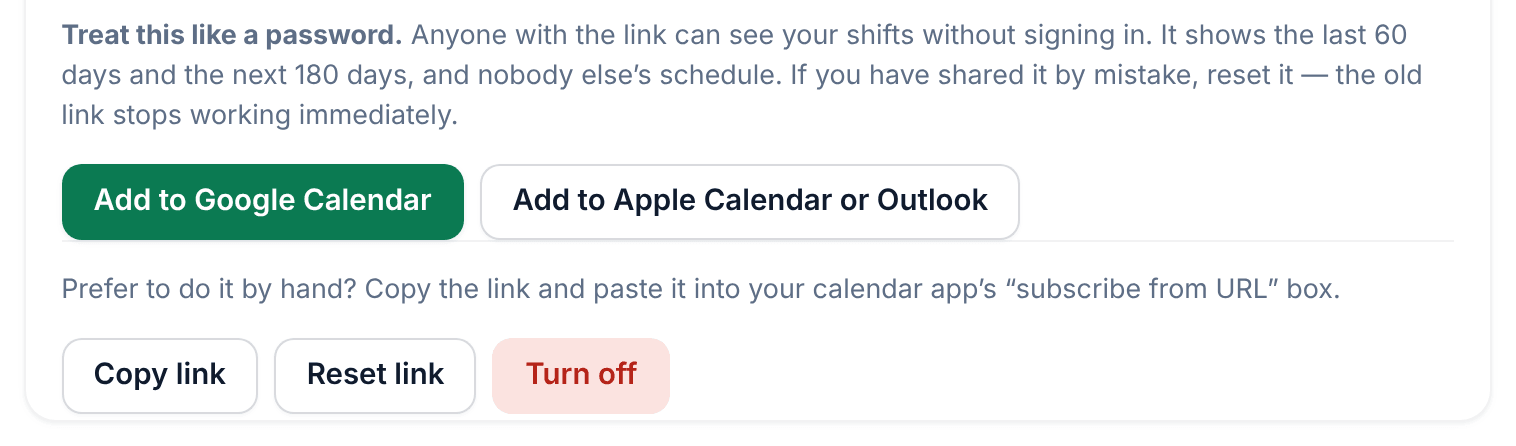
To add it by hand instead, select Copy link and paste the link into your calendar app's option for subscribing from a URL.
In the app
- Select the Schedule tab (the calendar icon), then the smaller calendar icon at the top right of the screen. Or select the More tab (three dots), then Settings, then Calendar sync.
- Select Create a calendar link. You only need to do this once.
- Select Add to my calendar. On an iPhone, Apple Calendar asks whether to subscribe.
On Android, Google Calendar can only add a calendar link on a computer. Select Share link, send the link to yourself, then add it in Google Calendar on a computer. Samsung Calendar and Outlook can add it on the phone.
Keep your link private
If you've shared the link by mistake, select Reset link and confirm. The old link stops working straight away, and calendars that use it stop updating until you add the new link. To stop syncing, select Turn off and confirm. Your shifts disappear from any calendar that used the link, and your schedule in Shift Amp doesn't change.
Good to know
- Only published shifts appear. Your calendar app checks for changes on its own schedule, so an updated shift can take a while to show up there.
- Your calendar app shows shift times in the time zone it's set to.
- The web and the app share the same link, so resetting or turning it off in one place does it everywhere.
- The link covers one organization. If you work for more than one, create a link in each.
- If Calendar sync says you have no shifts to sync, you aren't on that organization's schedule yet.
Was this article helpful?