Use Shift Amp in a web browser
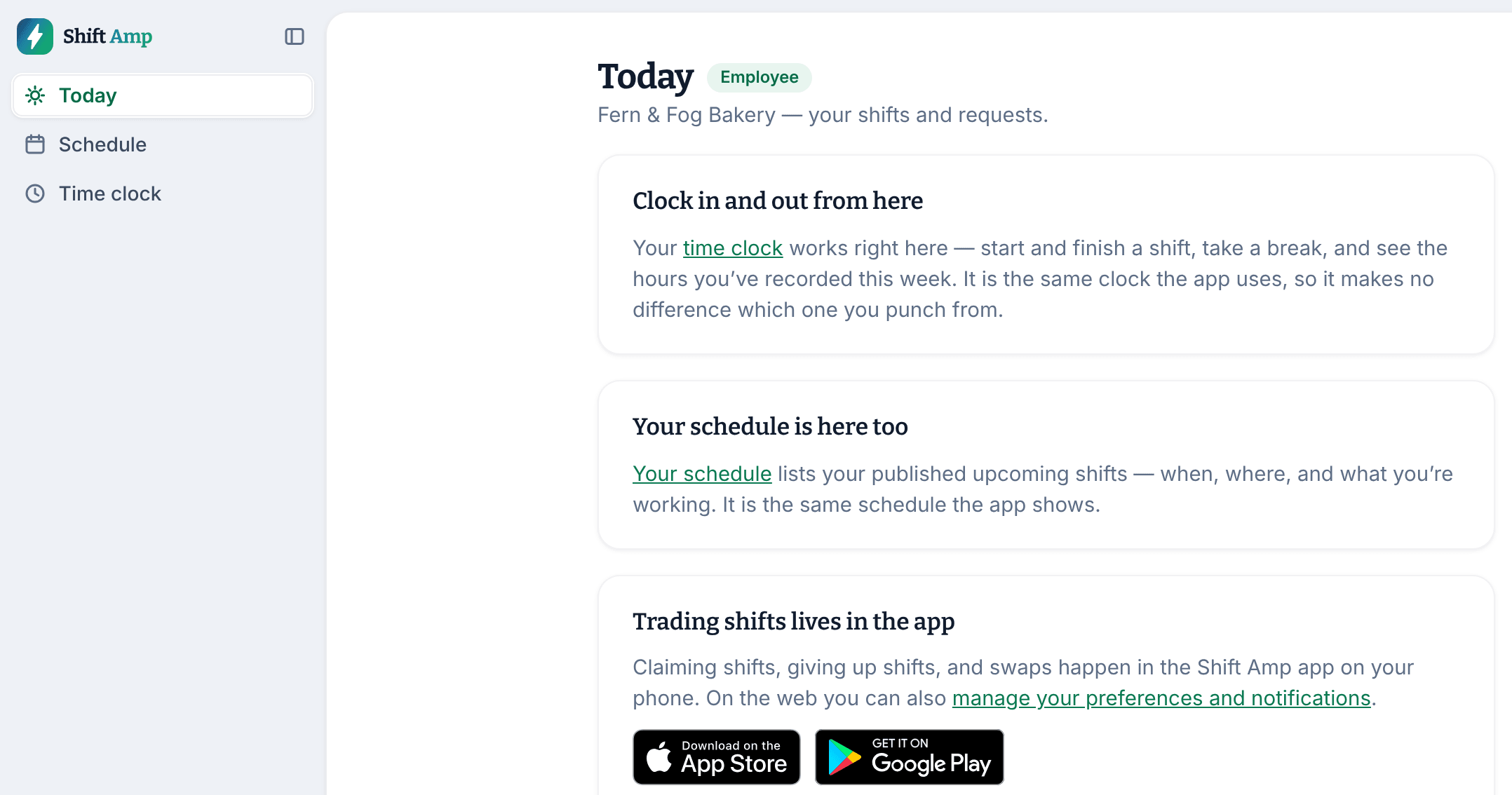
Sign in at app.shiftamp.com to see Today, your upcoming shifts and the time clock. Trading shifts and requests stay in the app.
You can use Shift Amp in a web browser as well as in the app, on a computer or on your phone. Sign in with the same email and password. On the web you can see Today, see your upcoming shifts, and clock in and out. Everything else, like trading shifts and asking for time off, happens in the Shift Amp app.
Sign in on the web
- Go to app.shiftamp.com.
- Enter your Email and Password.
- Select Sign in. If you joined with Google, select Continue with Google instead.
Today opens.
What's in the left menu
- Today points you to your time clock and your schedule, and to the app for everything else.
- Schedule lists your published upcoming shifts: the date, time, position and location. Times are in each location's time zone. You can't change shifts here.
- Time clock is where you Clock in, Start break, End break and Clock out, and see this week's hours and entries. It's the same clock as the app, so punch from whichever is handy. To report a wrong entry, select Report on its row. See Clock in and out from a browser.
The bell at the bottom of the left menu has your notifications. Select it to see them all.
Your settings on the web
- Select your name at the bottom of the left menu.
- Select Settings.
My preferences has your photo, how times, names and durations are shown, and a calendar link for your shifts. Notifications sets what reaches you by push or email. See Choose your notifications.
The same menu has Your account, with your sign-in email and Sign out everywhere, and Sign out.
What's only in the app
Use the Shift Amp app to:
- ask for coverage, pick up open shifts, and swap or offer a shift;
- request time off and change your availability;
- read and send messages, and read the wiki;
- see the team schedule;
- tick off shift checklists, rate shifts, and set your kiosk PIN;
- report a shift you worked without clocking in.
To get the app, see Get the app and sign in.
Was this article helpful?