Get reminders before your shifts
Set up to three reminders before each shift, from 1 hour to 1 day ahead, by push or email. You start with one push reminder 2 hours before.
Shift Amp can remind you before each published shift you're assigned to. You can have up to three reminders, each 1 hour, 2 hours, 4 hours or 1 day before the shift, and each arriving by push or by email. Unless you change it, you get one push reminder 2 hours before. Reminders are set in your notification settings, separately for each organization you work for.
Set your reminders on the web
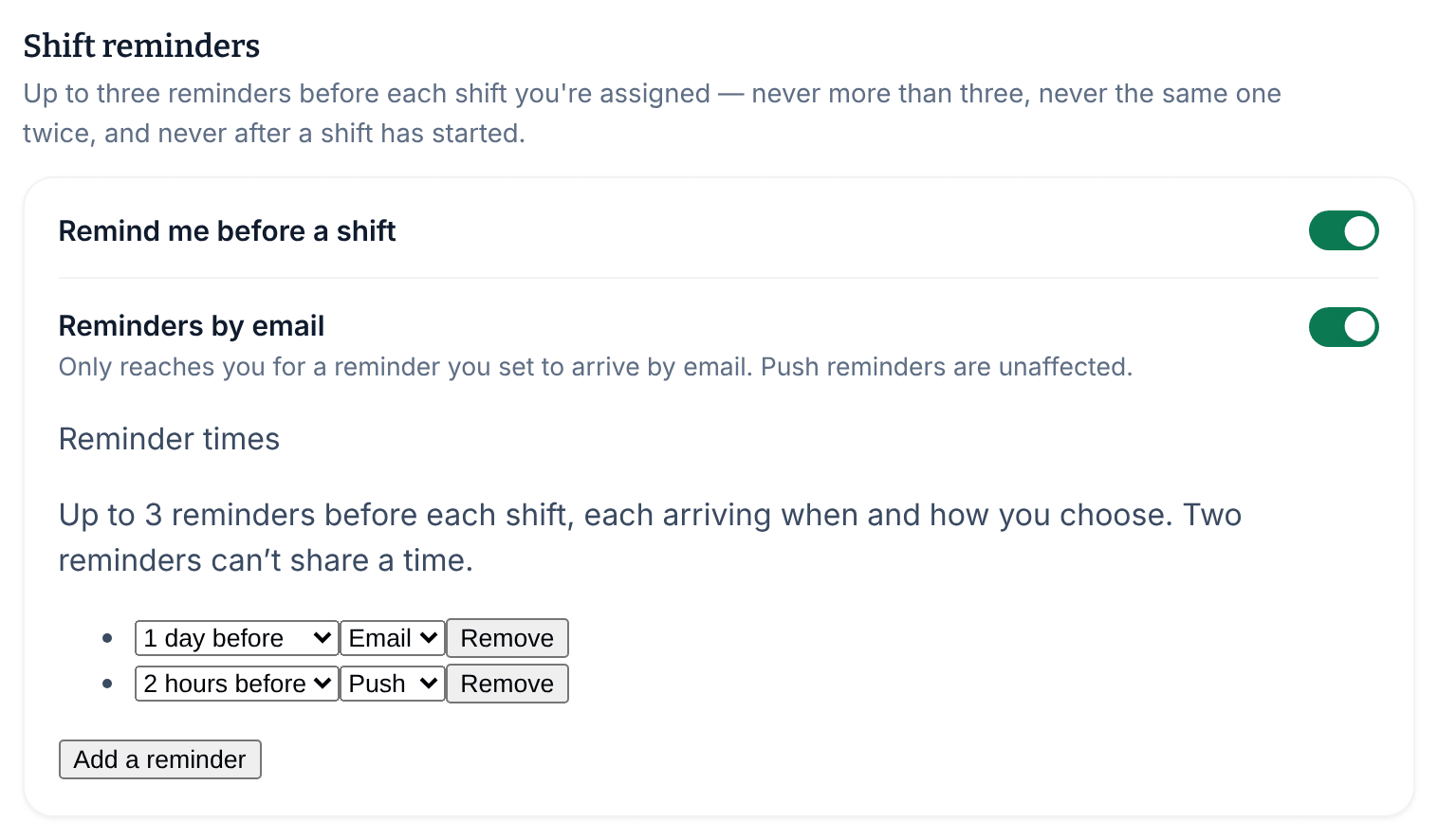
- Open the account menu at the bottom of the left menu (your name), select Settings, then select Notifications.
- Under Shift reminders, check that Remind me before a shift is on.
- Under Reminder times, choose when your first reminder arrives, for example 1 day before, and whether it comes by Push or Email.
- To add another reminder, select Add a reminder, then choose its time and how it arrives.
- To delete a reminder, select Remove beside it.
Each change saves as soon as you make it. Two reminders can't be at the same time.
Set your reminders in the app
- Select the More tab (three dots), then Settings, then Notifications.
- In the Shift reminders card, choose a time under Reminder 1, and choose Push or Email under How it arrives.
- To add another reminder, select Add a reminder, then choose its time and how it arrives.
- To delete a reminder, select its remove button, for example Remove reminder 2.
Get a reminder by email
Choose Email for the reminder, and keep Email notifications and Reminders by email turned on. An email reminder arrives even if you also get push notifications on your phone.
Turn reminders off
Turn off Remind me before a shift to stop push reminders, and Reminders by email to stop email reminders. The list always keeps at least one reminder, so these switches are the way to stop them.
If a reminder doesn't arrive
- A reminder that can't be delivered says so. "Won't arrive — push reminders are off above." means Push notifications or Remind me before a shift is off. "Won't arrive — reminder email is off above." means Email notifications or Reminders by email is off.
- A push reminder arrives only where you've set up push notifications, such as the Shift Amp app on your phone. If you don't use the app, set your reminders to Email. See Choose your notifications in the app.
- Reminders come only for published shifts you're assigned to, and never after a shift has started.
Every reminder also appears in your notification history as Upcoming shift.
Was this article helpful?