Change how Shift Amp looks for you
Choose 12- or 24-hour times, how names and durations read, your time zone and light or dark mode. Nobody else at your workplace is affected.
Your display preferences change how Shift Amp looks for you alone. Nobody else sees a difference, except your photo, which everyone in your organization can see. On the web, they're in Settings under My preferences. In the app, they're in Settings under Display. Each change saves as soon as you make it.
On the web
Open the account menu at the bottom of the left menu (your name), select Settings, then select My preferences. You can change:
- Your photo: select Add photo or Replace photo to choose a JPEG, PNG or WebP image, or Remove to go back to your initials.
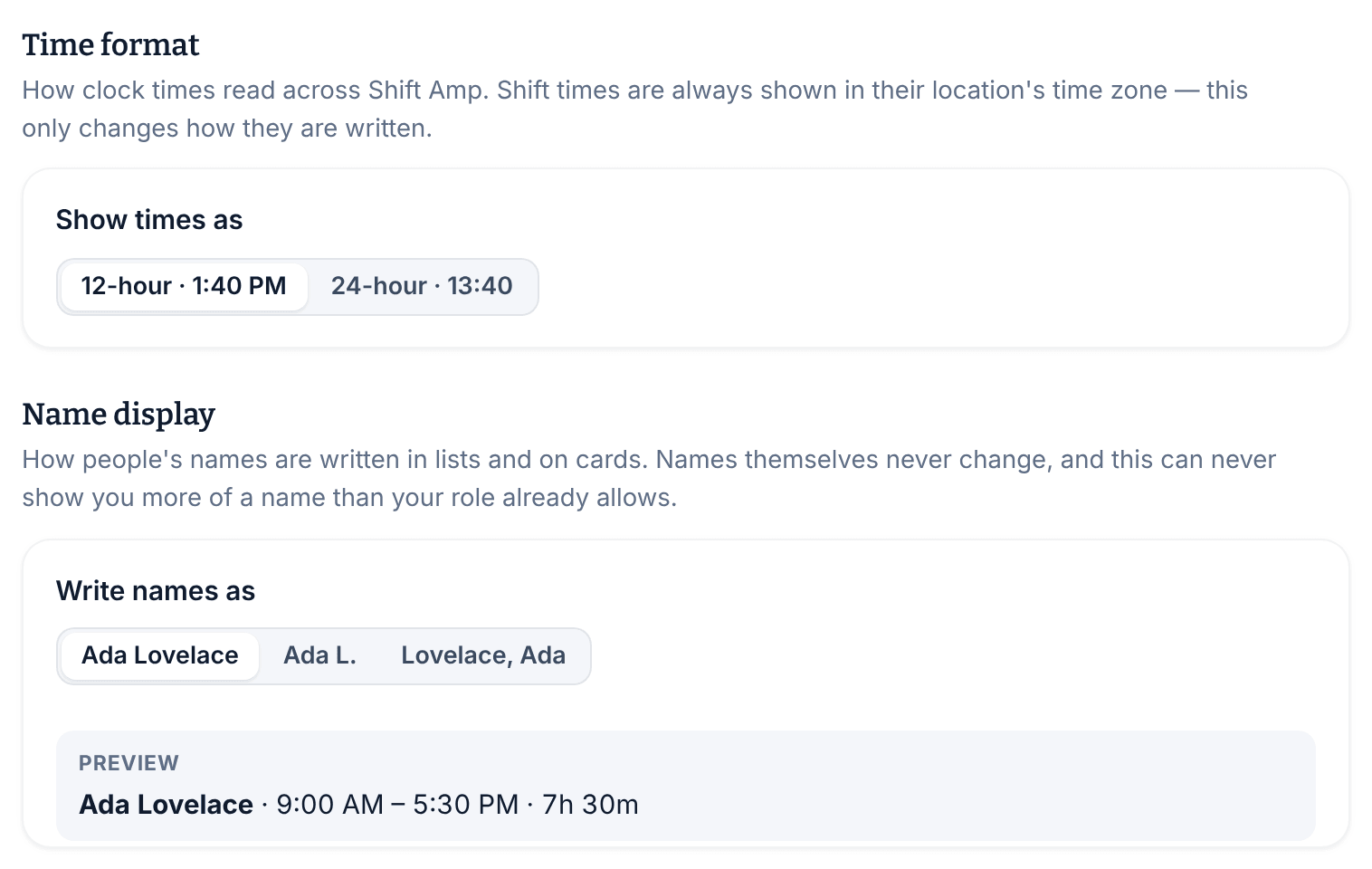
- Time format: 12-hour · 1:40 PM or 24-hour · 13:40.
- Name display: how people's names are written: in full (Ada Lovelace), with a last initial (Ada L.) or last name first (Lovelace, Ada). A preview shows the result.
- Duration format: Hours and minutes · 7h 30m or Decimal hours · 7.50. Downloaded reports follow this choice too.
- Your time zone: the time zone for times like when a schedule was published or a message arrived. It starts as This device's time zone.
- Shift cards: for managers, which details shifts show on the schedule grid. Warnings always show.
- Appearance: Light, Dark or System, which follows your computer's setting. You can also switch it under Appearance in the account menu.
- Message sound: turn on Play a sound for new messages to hear a chime when a message arrives while you're using Shift Amp.
In the app
Select the More tab (three dots), then Settings, then Display. You can change Time format, Name display, Duration format, Your time zone and Message sound, as on the web. The time zone starts as This phone's time zone.
- The app follows your phone's light or dark mode. It has no setting of its own.
- The Shift cards switches change only the schedule grid managers use on the web, not the app.
- To change your photo, go to Settings, then Your photo, and select Take a photo or Choose from photos. See Update your profile and photo.
Where your choices apply
- Time format, name display, duration format, time zone and shift cards follow you to every device and every organization.
- Appearance and Message sound apply only to the browser or phone where you set them.
- Your photo belongs to one organization. If you work for more than one, add a photo in each.
Was this article helpful?