Choose your notifications
In Settings, open Notifications to pick push or email and the kinds of update that reach you. Everything also stays in your in-app notification history.
Shift Amp tells you about schedules, requests and other updates in three ways: push notifications on your phone, email, and the notification history inside Shift Amp, which keeps everything. In Settings, under Notifications, you choose what reaches you by push or by email. Your choices apply to one organization. If you work for more than one, set each one separately.
Open your notification settings
- On the web, open the account menu at the bottom of the left menu (your name), select Settings, then select Notifications.
- In the app, select the More tab (three dots), then Settings, then Notifications. Or select the Notifications tab (the bell), then Notification settings.
Each change saves as soon as you make it.
Choose how updates reach you
Under How we reach you:
- Push notifications come from the Shift Amp app on your phone, once you've turned on notifications there. See Choose your notifications in the app.
- Email notifications are used when you have no push set up on any device. If you don't use the phone app, email is how updates reach you outside Shift Amp.
- Email frequency is Send each email right away, Hourly digest (routine email bundled into at most one message an hour) or Daily digest (one summary each morning). Changes to your own published shifts are never held for a digest.
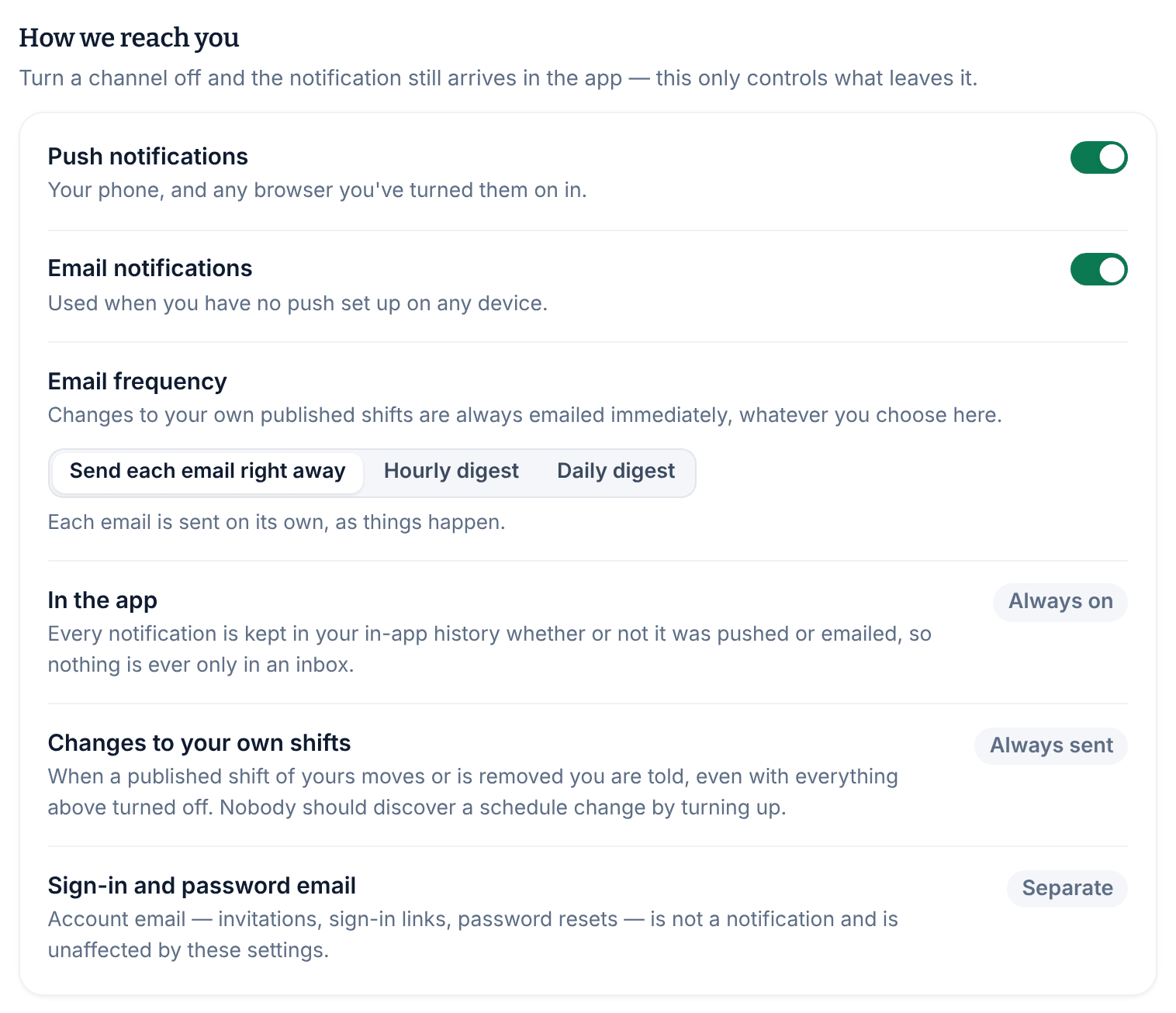
Some things don't change with these settings: your history in the app is always kept, changes to your own published shifts are always sent, and sign-in and password emails are separate from notifications.
Choose what you hear about
Under What you hear about, each kind of update has its own push switch and email switch: schedule, availability, time off, shift coverage and time clock. For example, Schedule push and Schedule email cover published schedules and new instructions or checklists on your shifts. Turning a switch off stops that push or email, but the update still appears in your history.
Under Messages, Message push turns message notifications on or off. Channel messages chooses whether channels notify you Only when I'm mentioned or for Every message. Messages are never emailed.
Managers also see Standing reports on the web: Today's roster and Team activity are daily summary emails, and both stay off until you turn them on. Some updates for managers, such as new claims to review, come only by email and in your notification history.
For reminders before your shifts, see Get reminders before your shifts.
See your notification history
- On the web, select the bell at the bottom of the left menu. Its number shows how many notifications are unread.
- In the app, select the Notifications tab (the bell).
Select a notification to open what it's about. To clear the unread count, select Mark all as read. Your history goes back one year, and each organization keeps its own.
Was this article helpful?