Approve availability changes
In Requests, open Availability to compare a proposed week with the current one, or to check a one-day exception, then approve or deny it.
When employees change their availability in the app, the change waits for a manager in Requests under Availability. It's either a whole new week or a single date that differs. Organization owners and operations administrators can decide anyone's. A location manager can decide only for people who work only at locations they manage. Assistant managers can see these requests but can't decide them.
If your organization applies availability changes without approval, nothing waits here. See Set rules for time off and availability.
Decide a new weekly availability
- In the left menu, select Requests, then Availability.
- Select the employee's name in the list.
- Under What changed, compare Current approved with Proposed. Days that differ are marked "Changed". The Requested start date is when the new week would begin.
- Select Approve. To deny it instead, say why in Reason for denial, select Deny request, then select Deny request again to confirm.
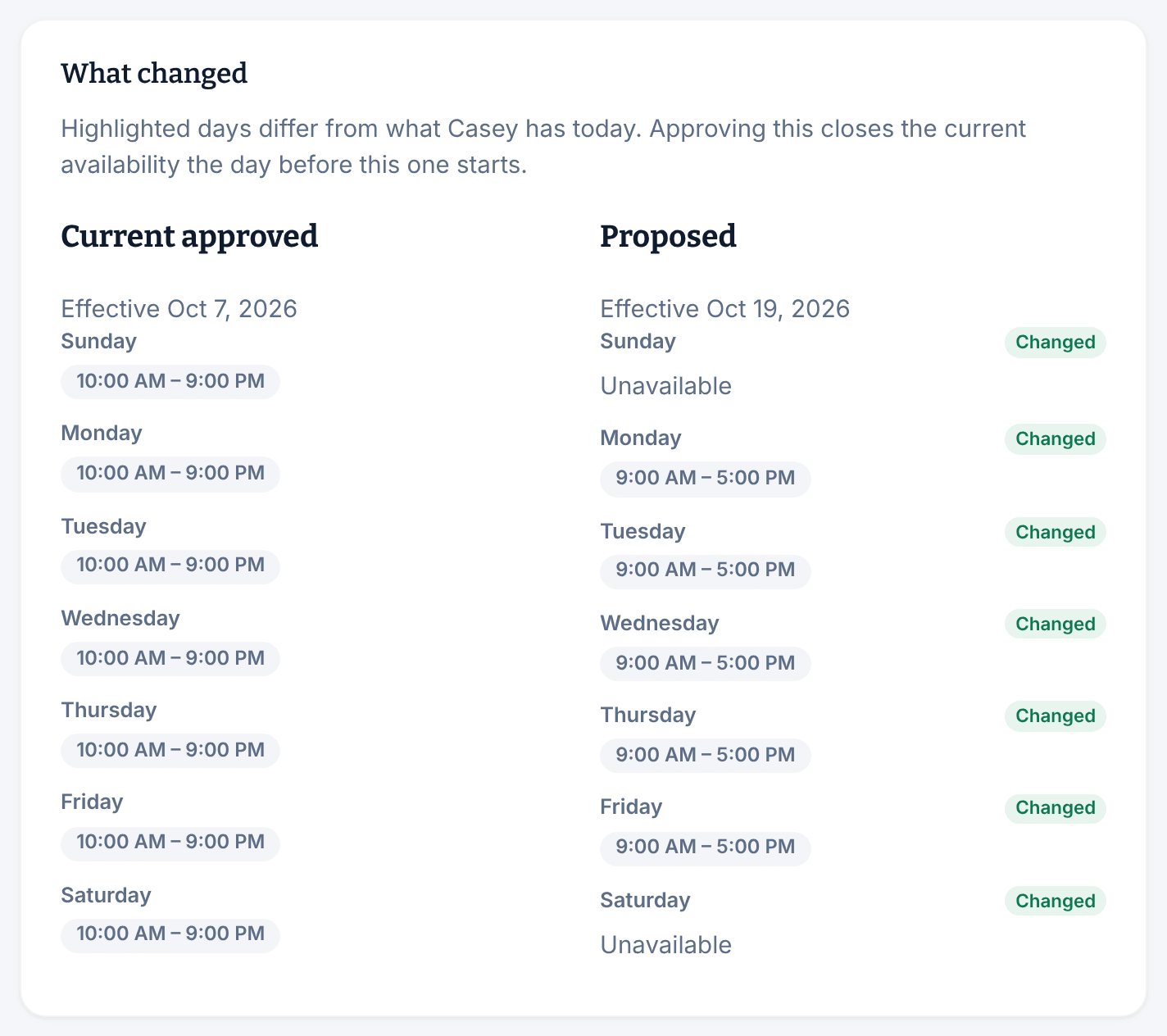
There's no confirmation when you approve. The new week applies from its start date, and the current one ends the day before. The employee is notified, and sees your reason if you deny it.
A proposal is always a whole week. A day with no hours reads "Unavailable", and "12:00 AM – 12:00 AM" means the whole day.
Decide a one-day exception
- In Requests under Availability, find the request under Date exceptions and select the employee's name.
- Check the Requested change and any Available times. What it replaces shows the person's usual hours for that day.
- Select Approve. To deny it instead, say why in Reason for denial, select Deny request, then select Deny request again to confirm.
An approved exception replaces the person's weekly hours for that date only.
Find decided requests
To see weekly changes you've already decided, choose a different Status, such as Approved or Denied. The Date exceptions list shows pending exceptions only. Decided ones are on the person's record, in the Availability section.
The schedule checks each shift against approved availability and flags any shift outside it. See Understand conflict flags.
Was this article helpful?