Understand conflict flags
A shift marked ⚠ Conflict has someone on it who can't work it, and it stops the week from publishing. The ◔ marks are advice and never block anything.
Shift Amp checks every assignment against the person's availability, time off, positions, locations and other shifts. A shift marked ⚠ Conflict has someone on it who fails a check, and the week can't be published until you fix it. Other marks on a card are information or advice and never stop a publish.
What ⚠ Conflict means
Hover over ⚠ Conflict on a card to see the reason:
- "Outside approved availability": outside the times the person can work.
- "Doesn't hold this position": the person doesn't have the shift's position.
- "On approved time off": they have approved time off then.
- "Has an overlapping shift": another shift at the same time, at any location. Back-to-back shifts are fine.
- "Not at this location": the person isn't assigned to the shift's location.
- "Archived employee": the person has been archived.
Apart from the two warnings you can override, Shift Amp won't let you assign someone who fails a check. A conflict usually means something changed later, such as their time off being approved.
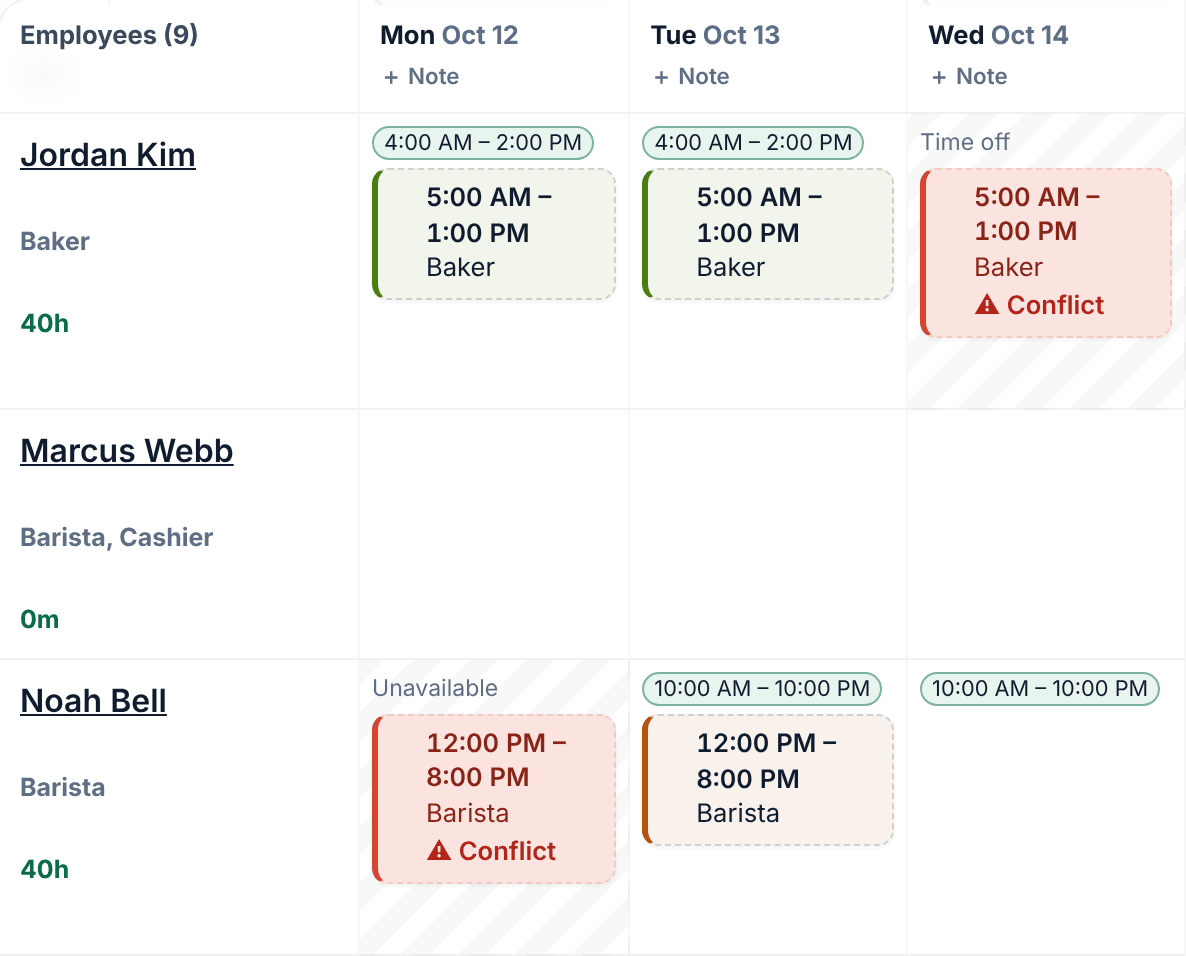
Fix a conflict
- Select the shift to open it.
- Choose someone else under Employee, change the date or times, or choose Leave unassigned or Open shift.
- Select Save changes. If you made it an open shift, the button reads Save as open shift, and you confirm.
You can also delete the shift. When you select Publish…, the panel lists the shifts still in conflict; select one to open it.
Override availability or position
Two reasons can be overridden: "Outside approved availability" and "Doesn't hold this position". Only owners, operations administrators and location managers can override, in the shift panel. Dragging, bulk edits and Auto-assign never do.
- Open the shift. If the person on it needs an override, or you pick someone listed under Needs override, the Override eligibility warnings section appears.
- Choose a reason: Employee agreed verbally, Manager arranged coverage, Training or shadowing or Other.
- In the box under the reasons, say why. A reason is required, and employees never see it.
- Select Override and save.
The card shows ⤳ Overridden, and the shift publishes with that person on it. If you later change the shift's date, times, position, location or person, you'll need to override again.
Other marks on a shift card
- ◔ Short rest or ◔ Days in a row: a tiring pattern, such as a short rest between back-to-back days. They appear only if your organization turns them on in Settings → Scheduling, and never block.
- ◇ Open shift: once published, eligible employees can claim it.
- ◍ Claims · 2 or ◍ Coverage · 1: claims are waiting for you in Requests.
- ⇄ Reassigned: it changed hands after it was published.
- ↻ Repeats: part of a repeat.
- ✎ Note or ✎ 2 notes: the shift has instructions or a manager-only note.
- +1d: the shift ends the next day. (end hidden): employees don't see the end time.
- Published: it changes only through a revision.
- "☑ 0/4" and similar: how much of the shift's checklist is done.
Hours, time off and closed days
- Day cells show "Time off", "Partial time off" or "Unavailable", and the hours someone is available.
- A badge such as Over 40h cap beside someone's weekly hours means they're over your organization's weekly hours limit. It isn't a ⚠ conflict. See Set a weekly hours limit.
- A closed day warns you when you add a shift to it, but never stops you. See Add a day note or close a day.
Was this article helpful?
More in Building the week
- Add a shift
- Move, copy, or delete shifts
- Copy last week
- Save and reuse a week template
- Reuse common shifts with templates
- Set up a repeating shift
- Fill shifts with Auto-assign
- Edit several shifts at once
- Add a day note or close a day
- Change how the schedule looks
- Add a checklist to a shift
- Set a weekly hours limit
- Change the first day of the week
- All of Scheduling