Set or lock someone's availability
On the person's record, enter their weekly availability or a one-day exception yourself, or lock it so they can't change it in the app.
You can set an employee's availability yourself, for example after a conversation or when they don't use the app. It applies straight away, with no approval step, and the employee is notified. You can also lock it, so that only managers can change it.
Organization owners and operations administrators can do this for anyone. A location manager can do it only for people who work only at locations they manage. Assistant managers can't, and nobody can change their own availability this way.
Set someone's weekly availability
- In the left menu, select Organization, then People.
- Select the person's name, then select Availability in the list of sections beside their record.
- If they already have availability, select Edit, next to the date it took effect. If they have none, select Set availability.
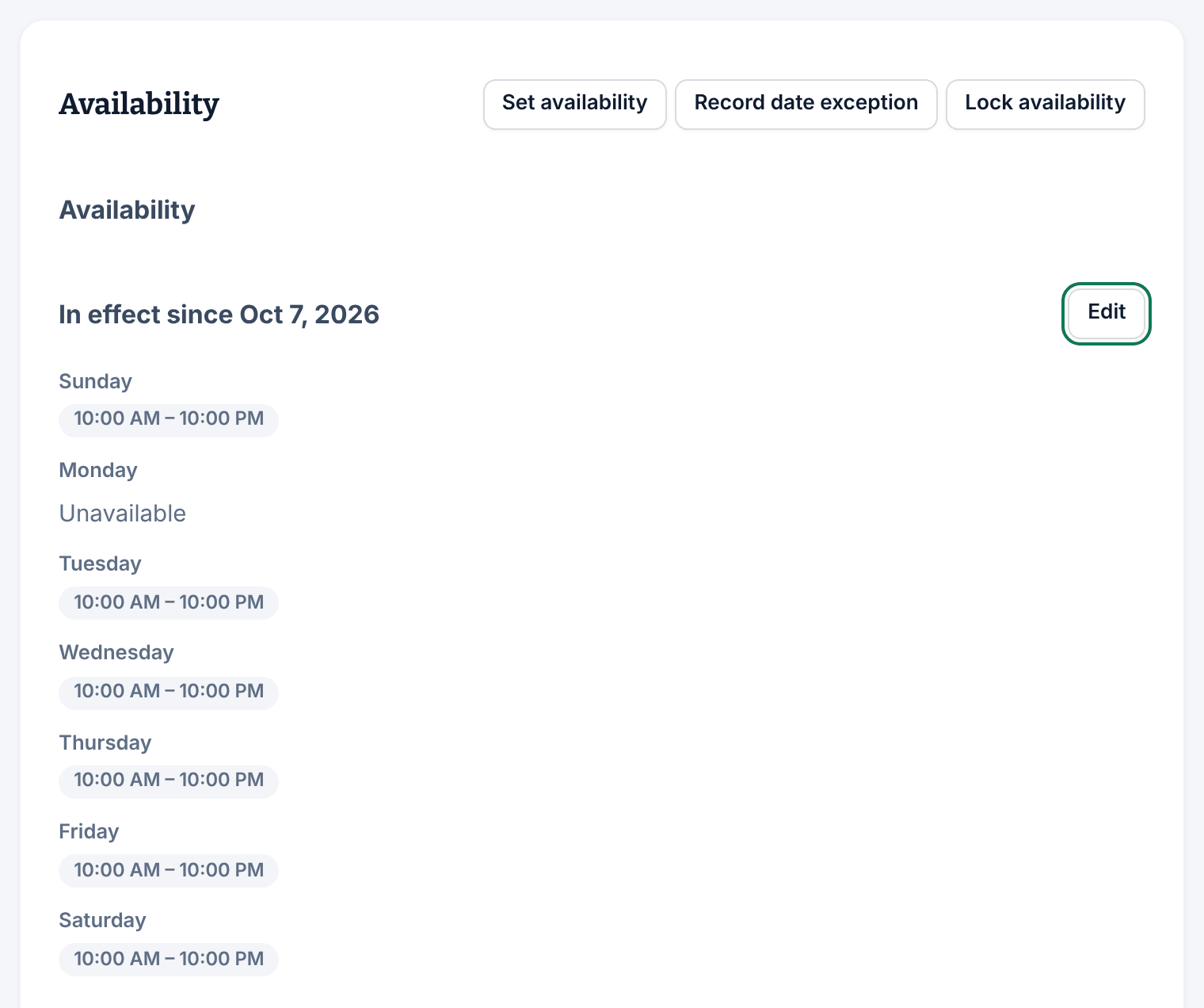
- Choose the Start date. Their current availability applies until then.
- For each day, set the hours they can work. Select Add hours to add another window, or Remove (the bin icon) to delete one. A day with no hours is unavailable.
- Select Save availability.
The employee gets an Availability approved notification. If they had proposed a change that's still waiting, it stays in Requests for you to decide.
A window that ends at or before its start runs overnight into the next day. An end time of 12:00 AM means midnight at the end of the day.
Change one date
- In the person's Availability section, select Record date exception.
- Choose the Date.
- Choose Unavailable all day or Available only at set times. For set times, enter them under Available times, and select Add interval to add more.
- Select Record exception.
The times replace their usual hours for that date only. Shifts they already have aren't changed.
Lock someone's availability
- In the person's Availability section, select Lock availability.
- In Why, say why, and who to talk to. They see this in the app instead of the button to change their availability.
- Select Lock availability.
They can no longer change their weekly availability or ask for a date exception in the app, but you can still set it. A change they had already proposed stays in Requests for you to decide.
To give control back, select Unlock availability, then Unlock availability again in the panel. Locking and unlocking don't send a notification.
Was this article helpful?