Approve who covers a shift
Open the shift from Requests and approve a claim. For an employee's coverage request, you can also open it to everyone, reassign it, or deny it.
When an employee asks for coverage, or someone claims an open shift, the shift waits in Requests until a manager decides. Nothing changes hands before then. Organization owners and operations administrators can decide at any location; location managers and assistant managers can decide at the locations they manage. Nobody can decide about their own shift or claim.
Find the shift
- In the left menu, select Requests. The Coverage queue opens.
- Find the shift. Type says whether it's a Released shift (an employee asked for coverage), an Open shift you posted, or Opened for time off. Claims shows how many claims are waiting.
- Select the shift's date to open it.
You can also select a published shift on the schedule, then Review the claims or Review the coverage request.
Approve a claim
- Under Claims, find the person you want.
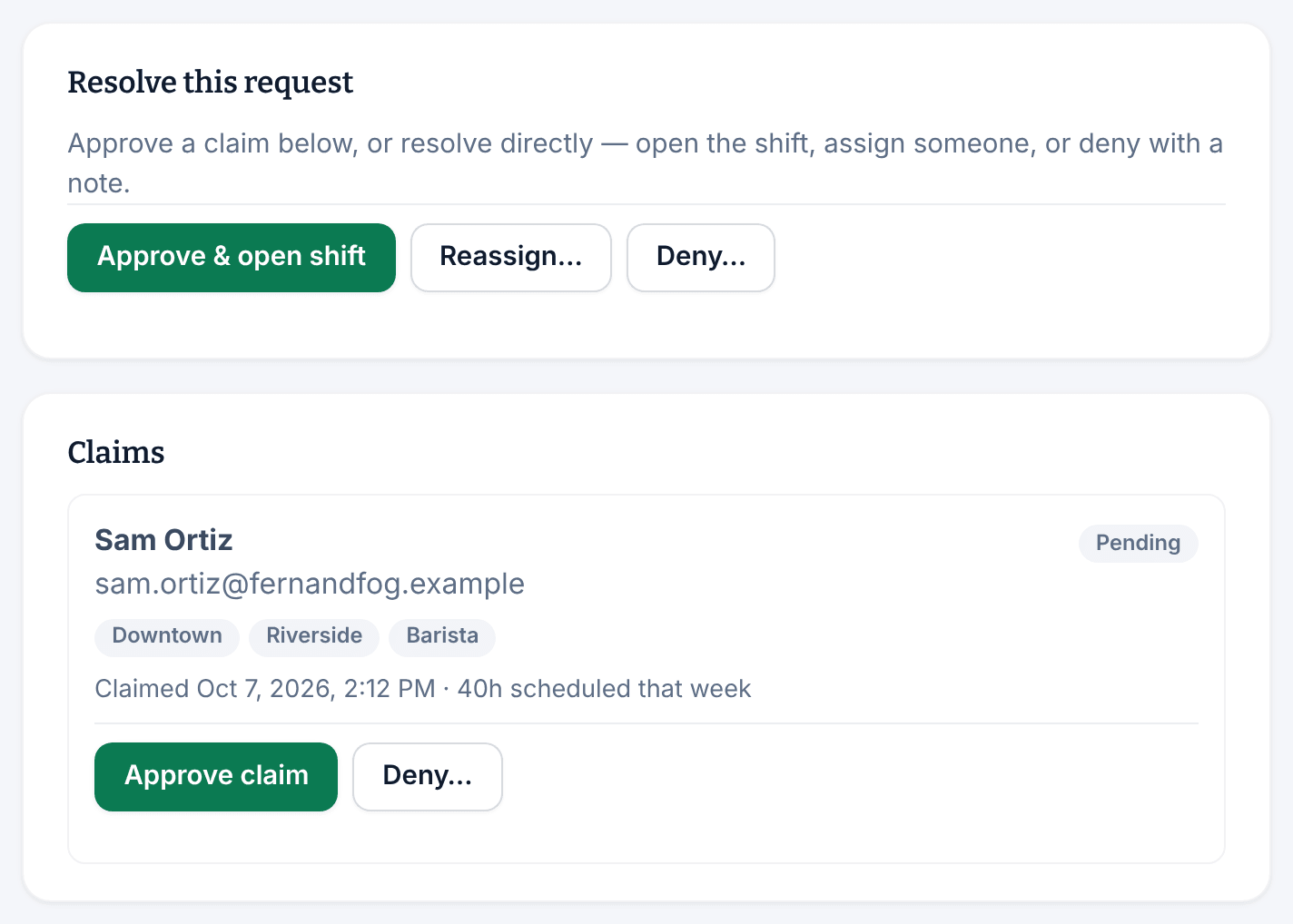
- Select Approve claim, then select Approve claim again to confirm.
The shift is theirs right away, and every other pending claim is closed. The person you approved, the employee who asked for coverage, and anyone else who claimed it are notified.
To turn down one claim, select Deny…. Add a note in Note to the claimant (optional) if you like, select Deny claim, then confirm. The claimant sees your note in the app, and the shift stays open for other claims.
Resolve a coverage request yourself
A Released shift also has a Resolve this request panel. The employee who asked stays responsible for the shift until you approve a claim or use one of these:
- Approve & open shift releases the employee now and keeps the shift open for claims. From then on, nobody is responsible for it until you approve a claim or reassign it.
- Reassign… puts someone on the shift directly. Choose them in Assign to, then select Reassign shift. Any pending claims are closed.
- Deny… leaves the shift with the employee. Write a note explaining why (it's required, and they see it in the app), then select Deny request. Any pending claims are closed.
Each one asks you to confirm. After Approve & open shift, and on a shift Opened for time off, the panel offers only the reassign form.
If the person you reassign to is outside their approved availability, the page says so. Owners, operations administrators and location managers can then choose a reason under Override eligibility warnings, explain it in the box below, and select Override and reassign, then confirm. Assistant managers can't override.
If you can't approve a claim
- The claimant is currently ineligible. Their claim says why, for example an overlapping shift, and can only be denied.
- Your weekly hours limit is set to Block. You can't approve a claim, or reassign the shift, if that would put someone over the limit. See Set a weekly hours limit.
- The shift has started. It can't be claimed or approved any more. See When nobody picks up a shift.
Swaps and offers that coworkers agreed between themselves are further down the same page. See Approve swaps and shift offers.
Was this article helpful?