Record time off for someone
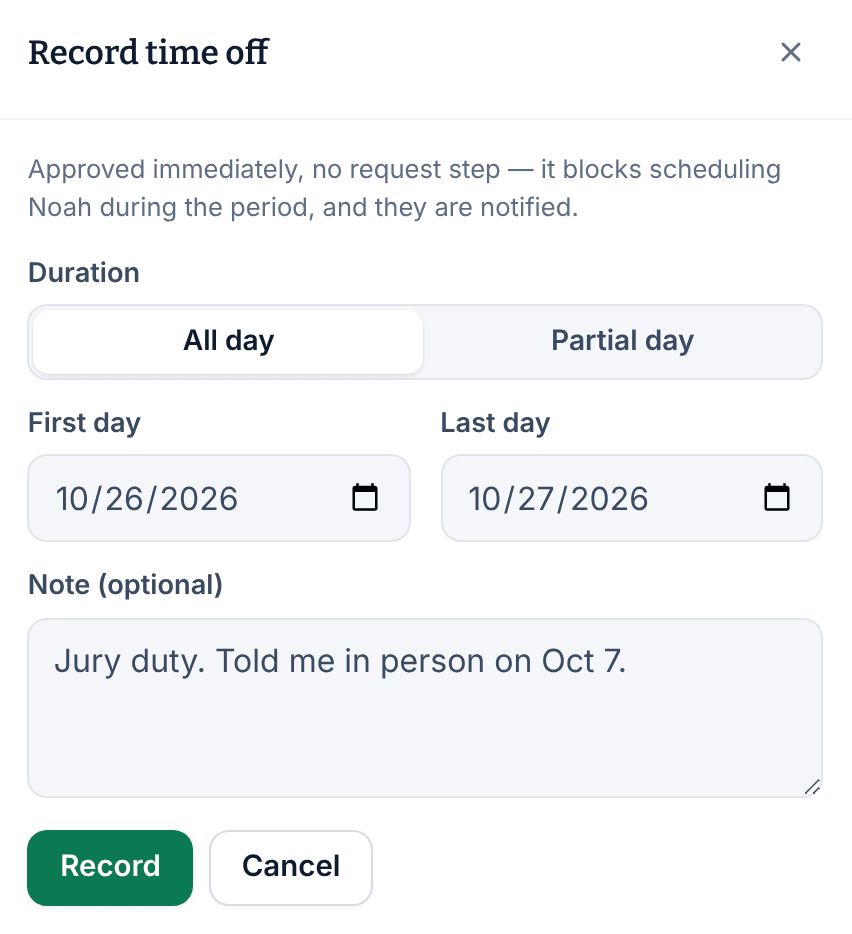
On the person's record, select Record time off. It's approved straight away, with no request to decide, and the employee is notified.
When an employee tells you about time off in person, or can't use the app, record it for them. Recorded time off is approved immediately, with no request step, and the employee is notified. You can record it even if your organization has turned off time-off requests in the app, and minimum notice never applies to you.
Organization owners and operations administrators can record time off for anyone. A location manager can record it only for people who work only at locations they manage. Assistant managers can't record time off, and nobody can record their own.
Record time off
- In the left menu, select Organization, then People.
- Select the person's name, then select Time off in the list of sections beside their record.
- Select Record time off.
- Under Duration, choose All day or Partial day.
- For whole days, set the First day and Last day. For part of a day, set the Date, From and To. Times are in the location's Time zone; if the person works in more than one time zone, choose one.
- If your organization tracks PTO, choose a Type. If it offers unpaid time off, you can also tick Record as unpaid, spending no PTO, or untick dates they wouldn't have worked under Days not charged. If the person holds more than one position, choose Paid at, the position the time off is paid at.
- If you like, add a Note (optional). The employee sees it.
- Select Record.
The time off is listed under Upcoming approved on the person's record, and in Requests under Time off when you choose Approved. The employee gets a Time off approved notification and can't be scheduled during that time.
A partial day has to end on the same date it starts.
When recording is refused
- Recording can't change published shifts, so it's refused if the period covers shifts the person has in a published week. Ask them to request the time off in the app, then approve it and choose what happens to each shift; see Approve or deny time off. Or change those shifts first with a revision; see Change a published week.
- If it overlaps time off that's already pending or approved, decide or cancel that one first.
- If the period has already ended, it can't be recorded.
Was this article helpful?