What your team sees when you publish
Each employee with shifts gets one notification, eligible employees hear about open shifts, and everyone sees their published shifts in the app.
Publishing is what tells your team. Drafts never notify anyone, and employees never see a draft or a revision you haven't published yet.
Who's notified when you publish
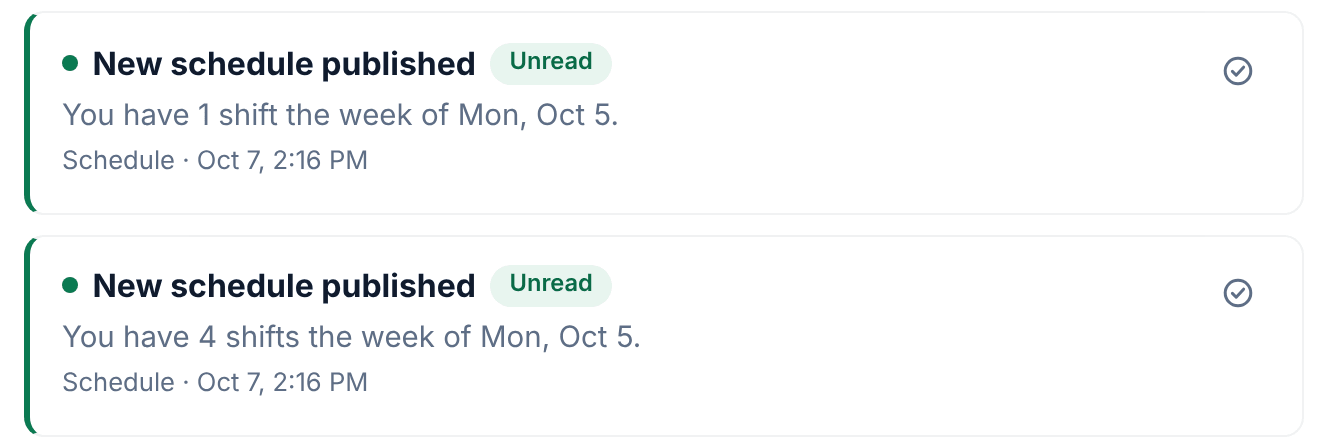
- New schedule published goes to each employee with shifts that week. It's one summary, such as "You have 4 shifts the week of Mon, Oct 5." Someone with shifts at two locations gets one for each location.
- Open shifts available goes to each employee who's eligible for at least one of the week's open shifts, for example "An open shift is available to claim at Downtown the week of Mon, Oct 5."
Nobody else is notified. Managers aren't notified as managers; those who also work shifts get the same notifications as everyone else. People who haven't joined yet, or who are archived, get nothing. Someone who joins later sees their published shifts as soon as they sign in.
Who's notified when you publish a revision
Only people whose own shifts were added, removed or changed are notified. Each gets one Schedule updated notification, such as "1 changed the week of Mon, Oct 12 at Fern & Fog Bakery." Nobody can turn this one off. If the revision adds open shifts, eligible employees get Open shifts available for those.
A few changes notify without a revision. Changing the instructions on a published shift sends Shift instructions updated to the person working it, and adding a checklist sends Checklist added to your shift. Creating or discarding a revision, editing manager-only notes, printing and exporting notify nobody.
How notifications arrive
Every notification is kept in the person's notification history: the bell on the web, and the Notifications tab (the bell) in the app. It's also pushed to their phone. Someone who hasn't set up push notifications on any device gets the schedule notifications by email instead.
People choose which kinds of notification reach them, but changes to their own published shifts are always sent. See Choose your notifications.
What employees see in the app
- The Today tab (the house icon) shows their next shift.
- The Schedule tab (the calendar icon) lists their published shifts day by day, in each location's time zone, with any instructions you added. A hidden end time reads "End time varies".
- Team schedule shows who else is working, if you allow it. See Choose what your team sees of the schedule.
- Open shifts, on the Today tab, lists the shifts they can claim.
- After a revision, Schedule changes, also on the Today tab, shows what changed, with the old and new times.
Manager-only notes and labor cost never appear.
What employees see on the web
Employees can sign in on the web too. Their Schedule there is a list of their own upcoming published shifts. Coworkers and open shifts are only in the app.
Was this article helpful?