Clear flags on a timecard
For managersUpdated 2 min read
A review flag marks something on a time entry to check. Fix the entry if needed, then select Mark reviewed: a week with open flags can't be approved.
Shift Amp flags a time entry when something about it needs a manager's eye, such as a punch with no matching shift. A flag describes the record, not the person, and it never stops anyone punching. But while any flag is open, the week can't be approved. Owners, operations administrators and location managers can review flags at their locations.
Find flagged entries
- On Timesheets, the Flags column counts open flags plus reported problems waiting for a decision, so one report usually counts as 2. To list only those people, set Flags to With flags only. Choose Auto clocked out to find automatic clock-outs.
- On the Today page, a line says how many time-clock entries need review, with a link to Open timesheets.
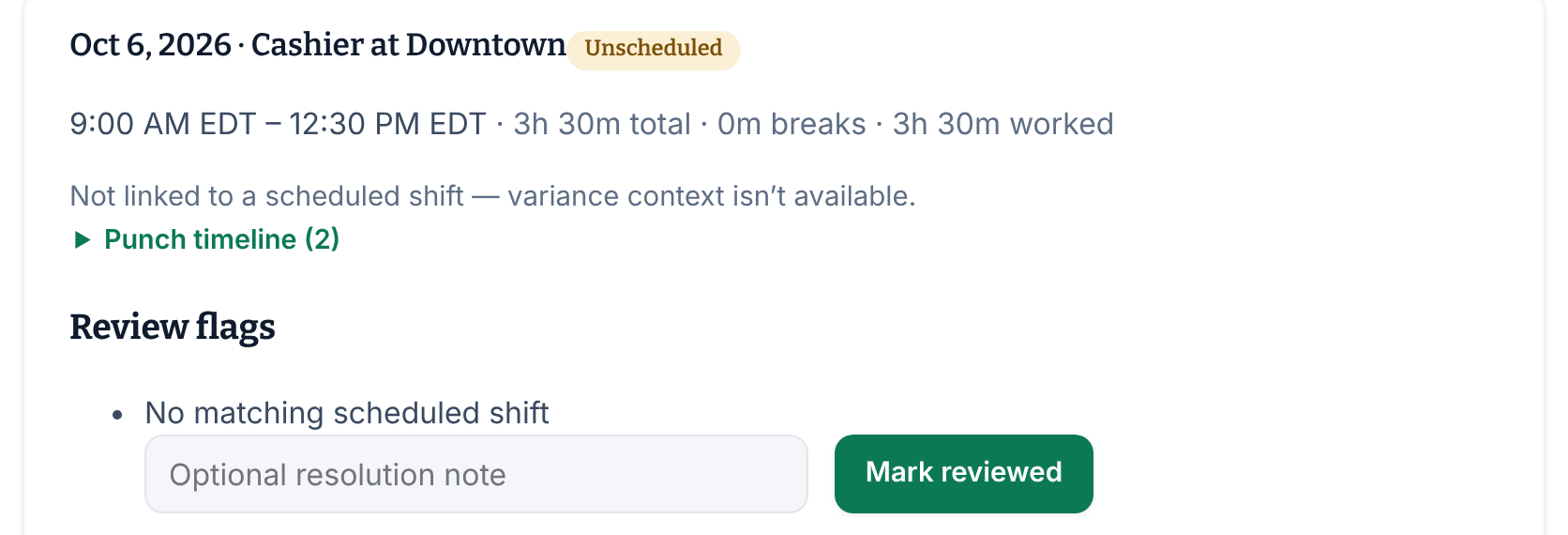
- On a timecard, each flagged entry has a Review flags list.
What each flag means
- "No matching scheduled shift": the entry isn't linked to a published shift. The person clocked in without one, or a manager added the entry.
- "Correction request awaiting review": the employee reported a problem. See Respond to a reported time problem.
- "Clocked out automatically — please check the time": automatic clock-out closed a session someone forgot. Correct the clock-out to the real time before you mark it reviewed.
- "Break was still open at clock-out": they clocked out during a break, which ended both at once. Check the break times.
- "Punch recorded offline": the punch was saved on a phone with no connection and synced later, using the phone's clock.
- "Device clock was ahead — time adjusted to server time": an offline punch came from a phone whose clock was a few minutes fast, so the time was moved back.
- "Location outside the configured radius": the punch came from outside the location's radius.
- "Location could not be verified": no location was shared, or the punch's network couldn't be checked or isn't on the location's allowed list. See Check where punches come from.
Mark a flag reviewed
- In the left menu, select Time, then Timesheets, then select the person's name.
- Find the entry. If something is wrong, correct it first: see Correct a time entry.
- Under Review flags, add an Optional resolution note if you like.
- Select Mark reviewed.
The flag now reads "resolved", followed by your note. Nobody is notified.
Flags that clear by themselves
Correcting a time doesn't clear a flag, but these do:
- Linking the entry to a shift with Correct the linked shift clears "No matching scheduled shift".
- Deciding a report clears "Correction request awaiting review".
- Excluding an entry from the totals clears all its flags.
When no flags or other problems remain, you can approve the week. See Review and approve timesheets.
Was this article helpful?