Change a published week
Create a revision, edit it like a draft, then review and publish it. Your team keeps seeing the current week until the revision goes out.
A published week can't be edited directly. Instead, you create a revision: an editable copy of the week. Your team keeps seeing the published week until you publish the revision, and then the people whose shifts changed are notified. Any manager can create and edit revisions at the locations they schedule, but assistant managers can't publish them.
Start a revision
- In the left menu, select Schedule, then go to the published week.
- Select Create revision… at the top right.
- If the week has more than one location, under Locations to revise, clear any location you don't want to change.
- Select Create revision.
The badge next to the week now reads Revision draft. Change the week the way you build a draft: add, move, edit or delete shifts, and assign people. To take someone off a shift and offer it to the team, point at the shift's card, select ⋯, then Mark open…, and select Mark open to confirm. Copy previous week isn't available in a revision.
Each location's week has one revision at a time. If another manager already started one, the schedule names them: work in that one.
Before you publish
- Settle waiting requests. A revision can't be published while a published shift that week, at that location, has a coverage request, claims, a swap or an offer in progress. Decide them in Requests, ideally before you start the revision. A swap or offer still waiting on a coworker's answer has to be answered or withdrawn first. See Approve who covers a shift.
- Check shifts that changed hands. If you approve a claim, swap or offer after starting the revision, update the revision so it has the right person, then select I’ve reviewed these coverage changes on the review page and select it again to confirm.
- Fix every ⚠ conflict. Overrides don't carry over from the published week, so a shift that needed one needs it again. See Understand conflict flags.
Review and publish the revision
- Select Review changes….
- On Review schedule changes, check each location's added, removed and changed shifts. Employee impact lists exactly who will be notified.
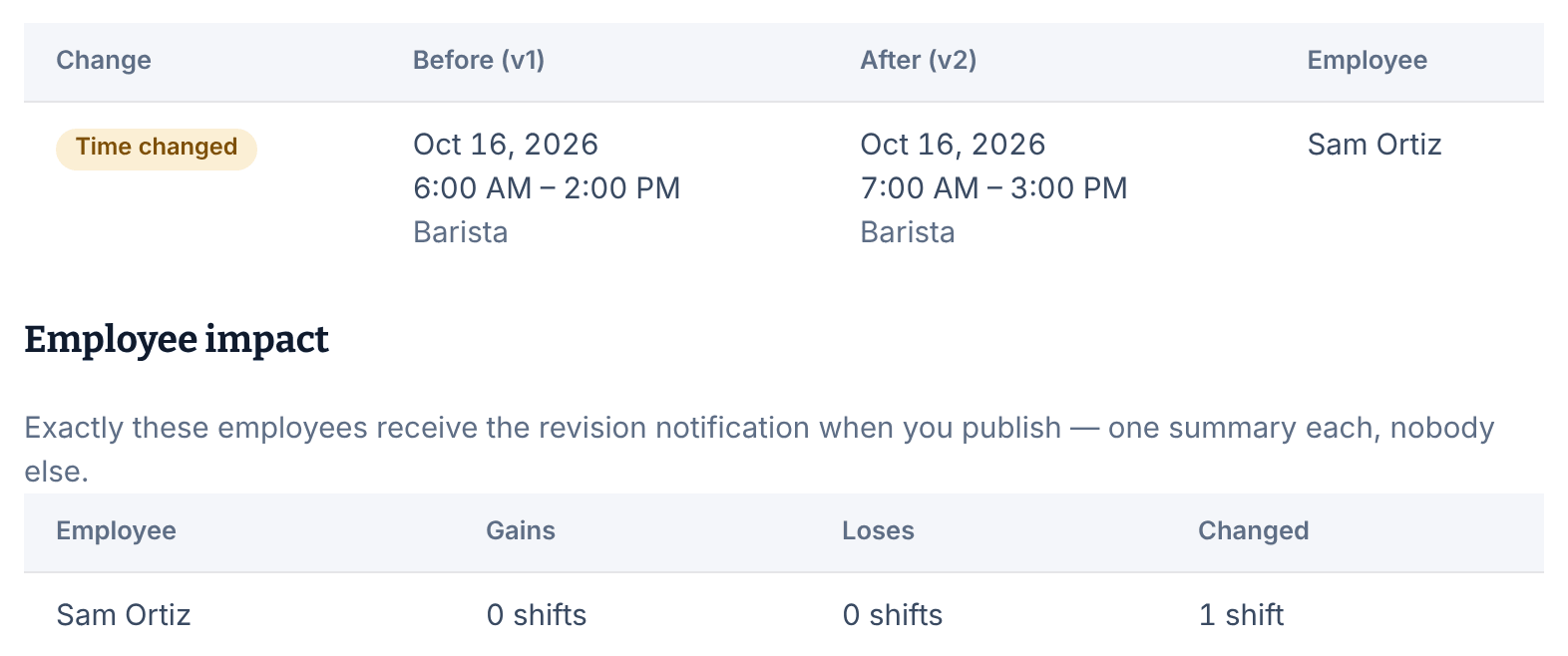
- If the page lists anything under "This revision can’t be published yet:", select each item and fix it.
- Select Publish revision, then select Publish revision again to confirm.
The page then says "No revision to review", because the revision is now the published week. Your team sees the new version right away. Each person whose own shifts were added, removed or changed gets one Schedule updated notification, and eligible employees hear about any new open shifts. See What your team sees when you publish.
Discard a revision
Select Discard revision… on the schedule or on the review page, then select Discard revision. Every change in it is thrown away, and the published week stays exactly as it was.
Changes that don't need a revision
These change a published week straight away:
- Notes. Select the shift, change Instructions for the employee or Manager-only note, then select Save notes. Changing the instructions notifies the person working the shift.
- Tasks, day notes and closed days. See Add a checklist to a shift and Add a day note or close a day.
- Sick callouts and no-shows. See Record a sick callout or no-show.
- Who works a shift, when you approve a claim, coverage request, swap or offer.
Was this article helpful?