Update your business details
Owners and operations administrators change your organization's name, industry and team size in Settings, where they also see what's set up.
Your organization's name, industry and team size are in Settings, on the Organization page. The same page counts the locations, positions and people you've set up. Organization owners and operations administrators can see and change it. Location managers and assistant managers don't have this page.
Change your business details
- Open the account menu at the bottom of the left menu (your name), then select Settings.
- Under your organization's name, select Organization.
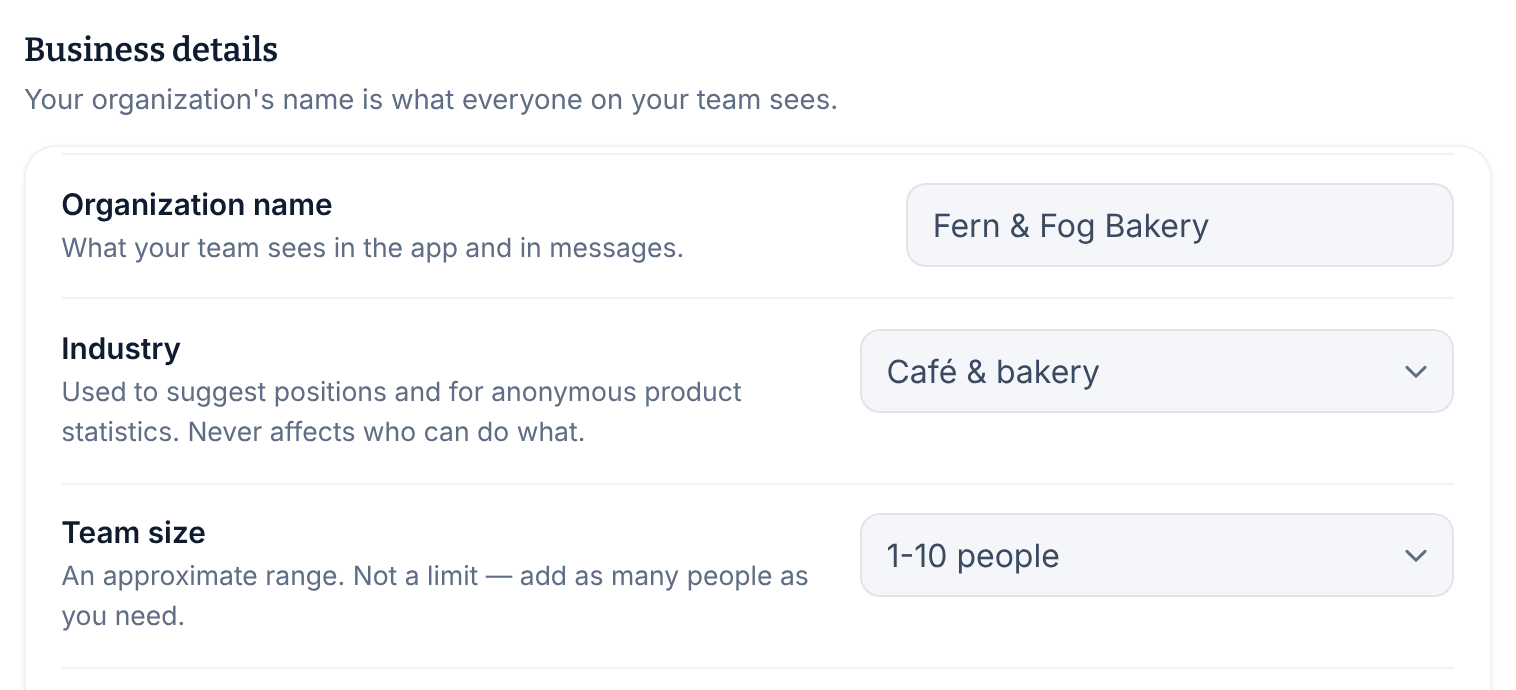
- Under Business details, change the Organization name, Industry or Team size.
- A bar reading Unsaved changes appears below the details. Select Save details.
The page says "Business details saved." To throw away your edits instead, select Discard.
If someone else saved these settings while you had the page open, you're asked to reload. Select Reload settings, then make your change again.
What each detail is for
- Organization name is what your whole team sees in the app and in messages. It can be up to 120 characters.
- Industry helps Shift Amp suggest positions, and is used anonymously for product statistics. It never affects who can do what.
- Team size is an approximate range. It doesn't limit how many people you can add.
See what's set up
Under What's set up, you see how many active locations, active positions and active people you have. When they apply, it also counts locations without an address, locations that don't check where punches come from, and archived locations. To work on any of these, select Manage locations →, Manage positions → or Manage people →.
If you haven't added a position yet, No positions yet appears with Add a position. Every shift needs a position, so add one before you build a schedule. See Set up positions.
Settings that live somewhere else
- A location's time zone, address and contact details are kept on the location itself. See Update a location's details.
- Your currency and pay period are in Settings under Labor cost & reporting. See Set your currency and who sees labor cost.
- The first day of the week is in Settings under Scheduling. See Change the first day of the week.
- To close the organization, see Close your organization.
Was this article helpful?