Set your time clock rules
In Settings, Time clock & timesheets controls what your team can do: clock in without a shift, record breaks, use kiosks, report problems, or clock in early.
Your time clock rules apply to everyone in your organization, whether they punch on a phone, in a browser or at a kiosk. Owners and operations administrators can change them. Location managers and assistant managers can see the rules but not change them.
Open the time clock rules
Open the account menu at the bottom of the left menu (your name), select Settings, then select Time clock & timesheets.
Choose what your team can do
These switches are under The time clock:
- Employees can clock in: turn this off if you record time somewhere else. The app then hides its time clock, and the web clock says "Time is recorded elsewhere". While it's off, the next three switches and the clock-in window are hidden.
- Allow clocking in without a scheduled shift: when on, someone with no matching shift can still clock in, and the entry is flagged for your review. When off, that clock-in is refused.
- Track breaks: employees start and end their own breaks. Nothing is ever deducted automatically.
- Shared kiosks: employees can clock in at a registered tablet with a PIN. Turning this off keeps every PIN and kiosk.
- Employees can report a time-entry problem: when off, employees can't send new reports. Reports already sent can still be decided.
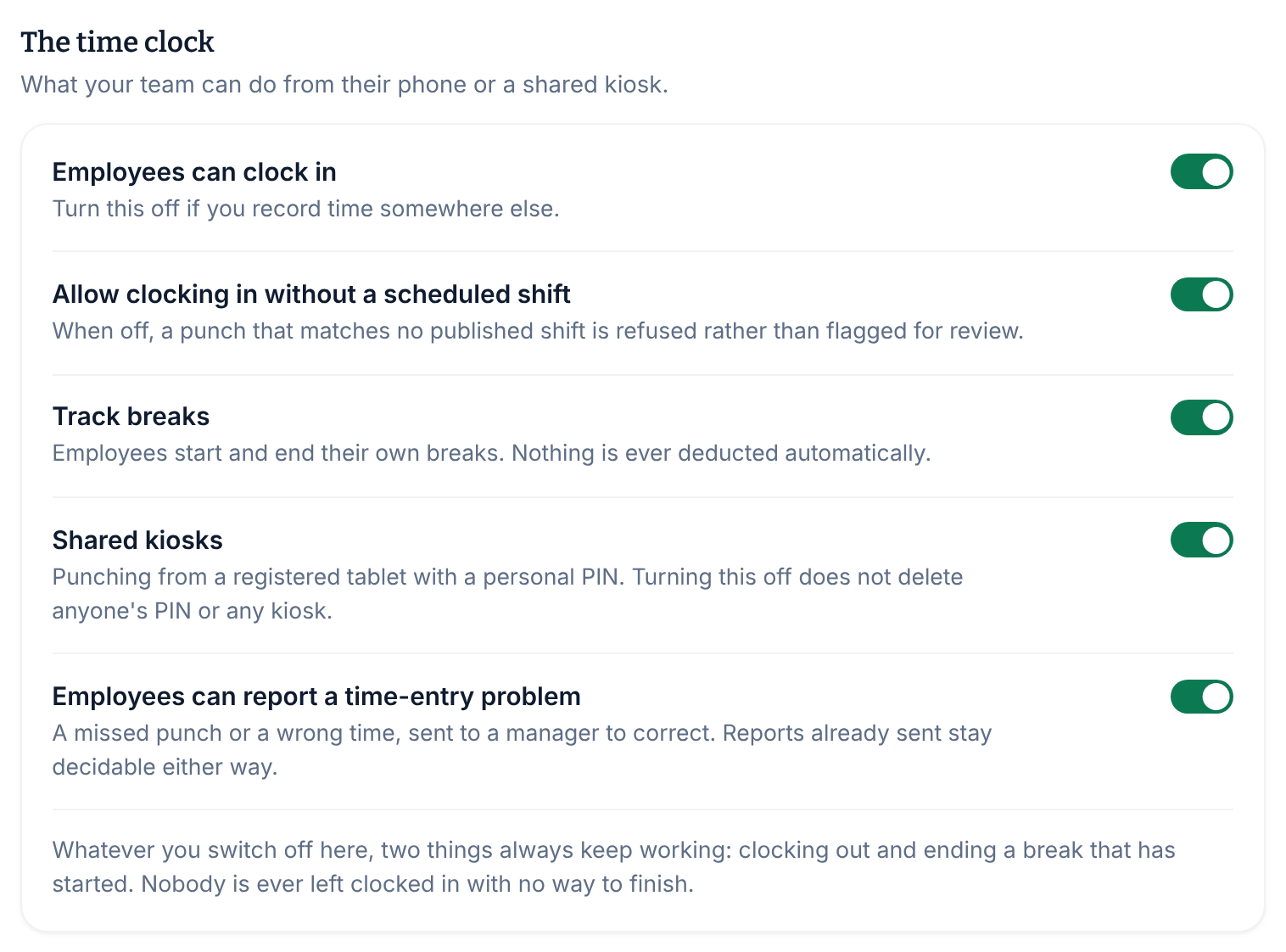
Whatever you switch off, two things always keep working: clocking out and ending a break that has started.
Set the clock-in window
These options show while Employees can clock in is on.
- A punch can match a shift starting within: how early a clock-in can link to a shift, from 30 minutes to 4 hours before it starts. It's 90 minutes unless you change it. This setting never refuses a punch by itself. A clock-in before the window doesn't link to the shift, so it counts as unscheduled, and it's refused only if you don't allow clocking in without a scheduled shift.
- Refuse clock-ins that are too early: off unless you turn it on, so people can clock in whenever they arrive. When it's on, choose Clocking in opens, from At the scheduled start to 1 hour before the start. In the app and in a browser, employees see when they can clock in, and a kiosk turns an early clock-in away. It applies only to clock-ins that match a shift.
Save your changes
Select Save policy. To undo changes you haven't saved, select Discard.
If people are clocked in and you're turning off Employees can clock in or Track breaks, Apply this change? shows how many people that affects. They can still end a break and clock out. Select Save policy to confirm.
The message "Timekeeping policy saved." confirms your changes.
Other rules on this page
- How breaks count toward worked time: Choose how breaks count.
- Closing sessions people forget to end: Close forgotten sessions automatically.
- When a clock-in counts as late: Review attendance.
To take one person off the clock, see Set someone's kiosk PIN or turn off their clock.
Was this article helpful?