Set up a shared kiosk
Register the kiosk under Kiosks, then enter its one-time setup code on the tablet. Rotate the code to replace it, or revoke the kiosk to retire it.
A kiosk is a shared tablet at one location where employees clock in with a personal PIN. It runs Shift Amp in a web browser and holds a setup code, never anyone's account. Owners and operations administrators set up kiosks. Other managers don't see Kiosks in the left menu.
Before you start
- Check that Shared kiosks is on in your time clock rules. It's on unless someone turned it off. See Set your time clock rules.
- Everyone who'll use the kiosk needs a kiosk PIN and must be assigned to the kiosk's location. See Set someone's kiosk PIN or turn off their clock and Change someone's locations and positions.
Register the kiosk
- In the left menu, select Organization, then Kiosks.
- Select Register a kiosk.
- In New kiosk name, name the tablet, for example "Front counter tablet".
- In Location, choose where the tablet will be.
- Select Register kiosk.
The kiosk's setup code appears on the page, with a note about where to open the kiosk on the tablet.
Connect the tablet
- On the tablet, open a web browser and go to the kiosk page, as the note under the code says.
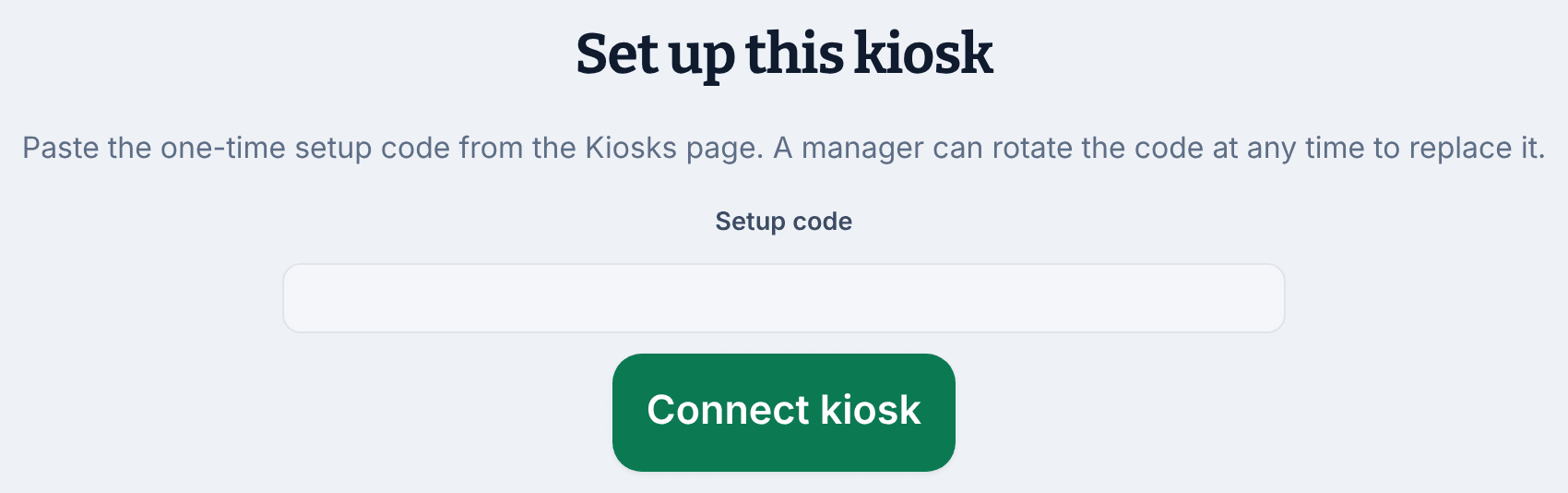
- Paste the code into Setup code.
- Select Connect kiosk.
The tablet now shows the location's name above a PIN keypad, ready for employees. On the Kiosks page, the kiosk no longer reads "Never connected", and shows its last activity instead.
The tablet keeps the code in its browser. If the browser's data is cleared, the kiosk asks for a code again, and you'll need to replace the code.
Replace a lost code or a tablet
- On the Kiosks page, select the kiosk's name.
- Under Setup code, select Rotate credential, then select Rotate credential again to confirm.
The old code stops working at once. A new code appears, again only once. Enter it on the tablet, or on its replacement.
Retire a kiosk
- On the Kiosks page, select the kiosk's name.
- Under Lifecycle, select Revoke, then select Revoke again to confirm.
The tablet stops identifying employees and recording punches at once. The punches it already recorded are kept. You can't undo this. To replace the kiosk, register a new one.
If a kiosk is locked
If the Kiosks page shows "Temporarily locked after failed PIN attempts", someone entered 8 wrong PINs in a row. The kiosk unlocks by itself after 15 minutes.
Was this article helpful?