Review attendance
The Attendance report lists each published shift with late clock-ins, no-shows and sick callouts. You choose when a clock-in counts as late.
The Attendance report shows, for each published shift, whether the person clocked in late and whether a manager marked a no-show or sick callout. Owners and operations administrators see every location, and location managers see their own. Assistant managers can't open it.
Open the report
- In the left menu, select Reports.
- In the list of reports, select Attendance.
- Choose a range: Last 7 days, Last 30 days, This week or Last week. Or set From and To, then select Apply range.
- To narrow it down, choose a Location or Position.
Read the report
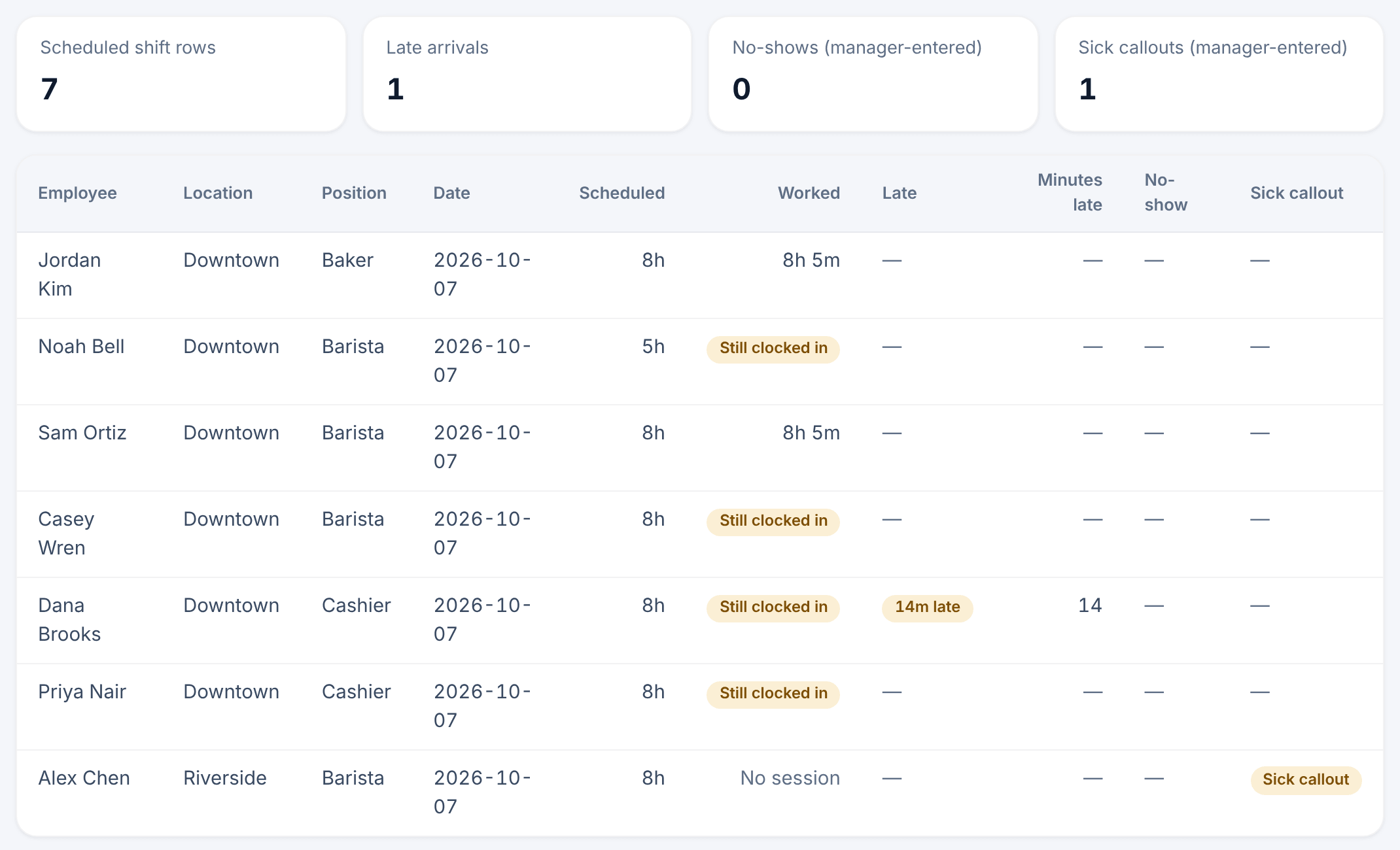
The cards at the top count the Late arrivals, No-shows (manager-entered) and Sick callouts (manager-entered) in the range. Below them, each row is one published shift and the person on it, with:
- Scheduled and Worked time. "Still clocked in" means the entry is still open. "No session" means nobody clocked in for the shift.
- Late, such as "14m late", and Minutes late.
- No-show and Sick callout, when a manager recorded one.
Keep in mind:
- No-shows and sick callouts appear only when a manager marked the shift. A missing clock-in is never counted as a no-show. See Record a sick callout or no-show.
- Lateness is worked out from the clock-in each time the report loads, so correcting a clock-in updates it.
- The report lists records. It gives nobody a score or ranking, and your comments on marks never appear.
To download the rows on screen, select Export report CSV. Use Columns to choose which columns appear. See Find your way around reports.
Set when a clock-in counts as late
A clock-in counts as late when it's more than your late threshold after the shift's scheduled start. The threshold is 10 minutes unless it's been changed, and it also decides who the time clock board shows as late. Only owners and operations administrators can change it.
- Open the account menu at the bottom of the left menu (your name), select Settings, then select Time clock & timesheets.
- Under Late threshold, choose a time for Counts as late after, from 5 to 60 minutes.
- Select Save policy.
The new threshold applies right away, to past shifts as well, because lateness is never stored. It never delays or refuses a punch, and nobody is notified.
Was this article helpful?