Check where punches come from
Each location can check punches against its map pin and a radius, its allowed networks, or either. A failed check flags the punch for review, never blocks it.
You can have Shift Amp check each punch at a location: against the location's map pin and a radius around it, against the location's internet connection, or against either. A punch that fails a check is still recorded. It's flagged for review, and the week can't be approved until a manager marks the flag reviewed. Checking is off until you turn it on. Owners and operations administrators set it up on each location.
Check punches against a radius
The location needs a map pin first. See Update a location's details.
- In the left menu, select Organization, then Locations, then select the location.
- Under Time clock, select Check where punches come from.
- In Radius (metres), enter how far from the map pin a punch can be, from 25 to 5000. It starts at 150.
- Select Save.
- Under Verification mode, select Location radius, then select Save mode.
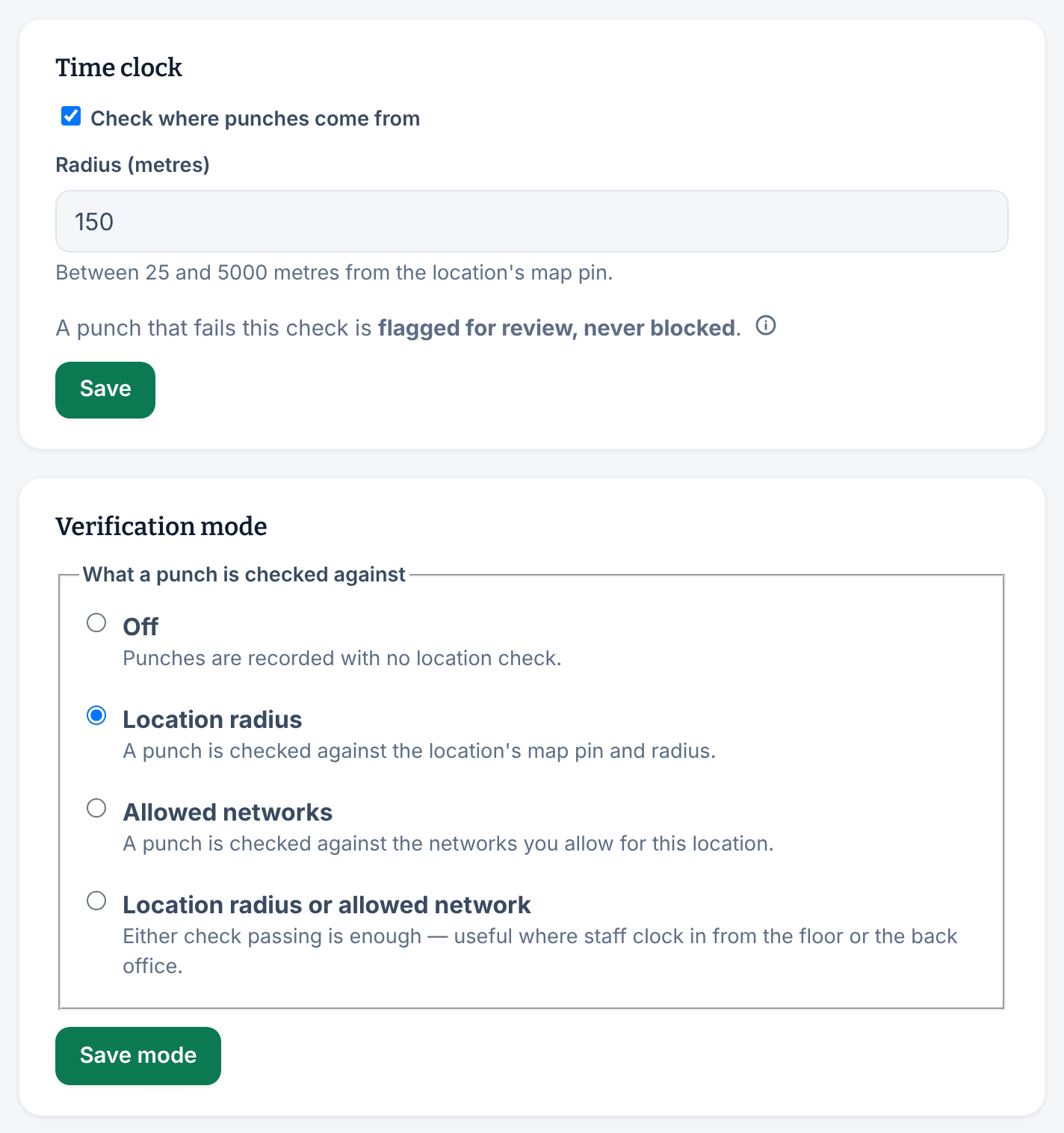
The location's Overview then reads "Checking, 150 m". Do both saves: while Verification mode is Off, punches aren't checked, even with the box ticked. The phone app shares the employee's location once at each clock-in and clock-out. A browser doesn't share a location, so with a radius check alone, every browser punch is flagged. Kiosk punches aren't checked against the radius.
Allow your site's internet connection
Allowed networks are public IP addresses, not Wi-Fi names.
- While you're on the location's internet connection, open the location and select Check this network. It shows the address you're on, partly hidden, and whether the location allows it. It doesn't add it.
- In IP address or range, enter the site's full public address, such as 203.0.113.9, or a range, such as 203.0.113.0/24. Your internet provider can tell you what it is.
- In Name, give it a name you'll recognize, such as "Downtown café broadband".
- Select Add network.
- Under Verification mode, select Allowed networks or Location radius or allowed network, then select Save mode.
Networks are checked on kiosk and browser punches.
What gets flagged
- A punch outside the radius is flagged "Location outside the configured radius".
- A punch with no location, from a network you don't allow, or one that couldn't be checked is flagged "Location could not be verified".
Each punch's result is listed under Punch timeline on the person's timecard. To clear a flag, see Clear flags on a timecard.
Turn checking off
Under Verification mode, select Off, then select Save mode. Punches at that location are then recorded with no check.
Was this article helpful?