Close forgotten sessions automatically
Automatic clock-out ends a session someone forgot to close, at a time your rules set. Each one is flagged so a manager checks the time before approving.
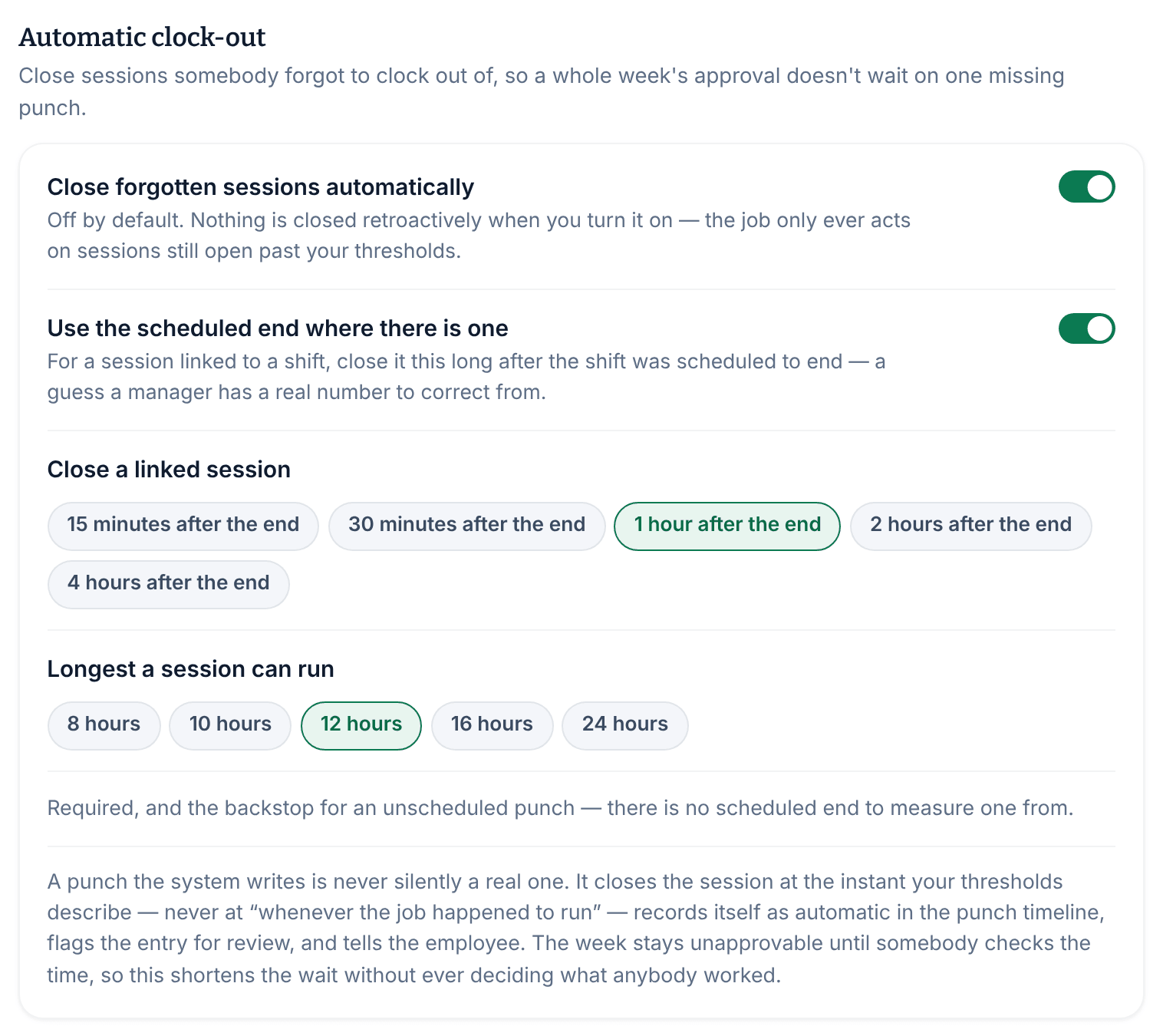
When someone forgets to clock out, their session stays open and their week can't be approved. Automatic clock-out closes the session for you at a time your rules set, then flags the entry so a manager checks it. It's off unless an owner or operations administrator turns it on. Other managers can see whether it's on.
Turn on automatic clock-out
- Open the account menu at the bottom of the left menu (your name), select Settings, then select Time clock & timesheets.
- Under Automatic clock-out, turn on Close forgotten sessions automatically.
- In Longest a session can run, choose from 8 hours to 24 hours. 12 hours is selected at first.
- To close scheduled shifts sooner, turn on Use the scheduled end where there is one. Then, in Close a linked session, choose from 15 minutes after the end to 4 hours after the end. 1 hour after the end is selected at first.
- Select Save policy.
Which time it uses
- A session linked to a scheduled shift, when Use the scheduled end where there is one is on, closes at the shift's scheduled end plus the time you chose. If Sam's shift ends at 2:00 PM and you chose 1 hour after the end, a session Sam leaves open closes at 3:00 PM.
- Every other session, including one with no scheduled shift, closes at its clock-in time plus Longest a session can run. A session that started at 6:00 AM closes at 6:00 PM with 12 hours.
The clock-out is recorded at that time, not at the moment Shift Amp noticed. If a break was still running, it ends at the same time.
When it runs
Shift Amp checks every 15 minutes. It acts only on sessions that are still open past your limits, including any that were already open when you turned it on. It never changes an entry that's already closed, and it skips weeks that are already approved.
What it flags
- On the timecard, the entry shows Auto clocked out, and its clock-out under Punch timeline reads "Recorded automatically".
- The entry gets the review flag "Clocked out automatically — please check the time". The week can't be approved until someone selects Mark reviewed. Correcting the time doesn't clear the flag by itself.
- If a break was still running, the entry also gets "Break was still open at clock-out". To move the clock-out earlier than that break's end, correct the break first: a break has to fall inside the entry.
- The employee gets a notification, We clocked you out automatically, and can report the time if it's wrong.
To find these entries, in the left menu, select Time, then Timesheets. Under Flags, choose Auto clocked out.
To change the time it recorded, see Correct a time entry. To mark the flag reviewed, see Clear flags on a timecard. To close a session by hand instead, see Fix a missed punch.
Was this article helpful?