Set someone's kiosk PIN or turn off their clock
On a person's record, the Timekeeping panel lets you switch their time clock off without archiving them, and set or reset their kiosk PIN.
Each person's record has a Timekeeping panel. Use it to take someone off the time clock without archiving them, or to set the PIN they use at a shared kiosk. Owners, operations administrators and location managers can switch someone's clock off or on. Only owners and operations administrators can set kiosk PINs. Assistant managers don't see the panel.
Open the Timekeeping panel
- In the left menu, select Organization, then People.
- Select the person's name.
- Select Work & access. The Timekeeping panel is in that section.
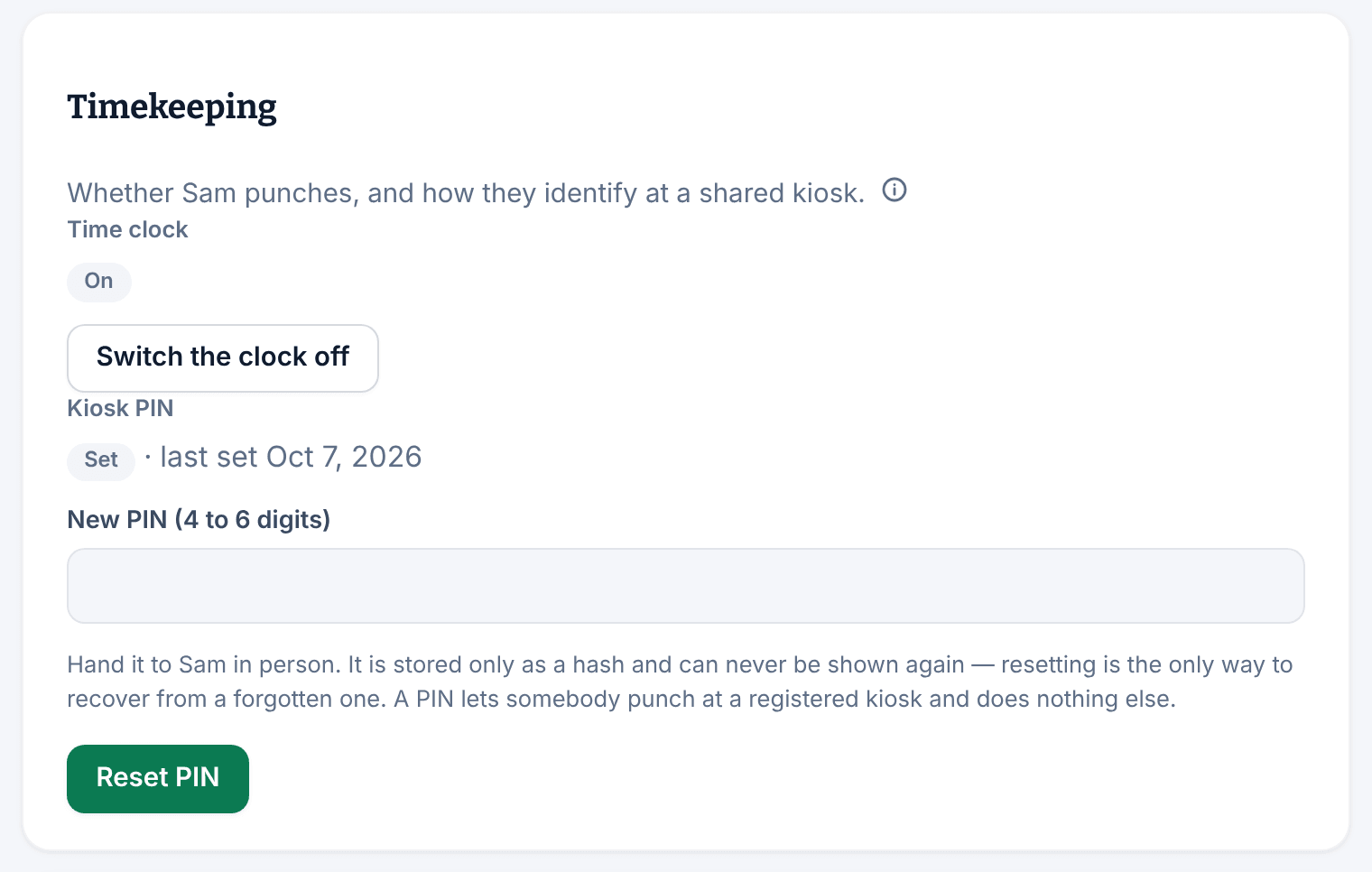
Set or reset a kiosk PIN
- In Timekeeping, check Kiosk PIN. It reads "Not set", or "Set" with the date the PIN was last set.
- Enter 4 to 6 digits in PIN (4 to 6 digits). If the person already has a PIN, the box is New PIN (4 to 6 digits).
- Select Set PIN, or Reset PIN if they already have one.
The message "PIN set. Tell them in person — it is stored only as a hash and can never be shown again." confirms it. Nobody can look a PIN up later, so if someone forgets theirs, set a new one. Employees can also set their own PIN in the app: see Set your kiosk PIN.
Each PIN belongs to one person. If you see "That PIN is taken — choose a different one.", choose another. You can't set a PIN for someone who's archived.
Switch someone's clock off
Use this for people who don't record their hours in Shift Amp, such as salaried staff.
- In Timekeeping, next to Time clock, select Switch the clock off.
- Select Switch the clock off again to confirm.
Time clock now reads "Off". The person stays on the schedule and keeps every other part of the app. Where they'd clock in, they see "Time tracking isn’t switched on for you". If they're clocked in when you switch it off, they can still clock out.
To turn it back on, select Switch the clock on, then confirm. They can clock in again from their next shift.
To take someone off your team instead, see Archive or restore someone. To stop everyone punching, see Set your time clock rules.
Was this article helpful?