Approve swaps and shift offers
After the coworker accepts, a swap or offer waits in Requests for a manager. Approving moves the shift at once; denying leaves everyone's shifts as they were.
A swap is two employees trading shifts. An offer is one employee handing a shift to one named coworker. Either way, the coworker says yes in the Shift Amp app first, and then a manager decides. Nothing changes hands until a manager approves.
Who can decide
- Swaps: organization owners, operations administrators, and location managers who manage both shifts' locations. Assistant managers can't decide swaps.
- Offers: organization owners and operations administrators at any location, and location managers and assistant managers at the shift's location.
- Nobody can decide a swap or offer they're part of.
Find swaps and offers
- In the left menu, select Requests. The Coverage queue opens.
- Scroll down to Direct swaps and Shift offers.
Awaiting manager means the coworker has accepted and it's ready for you. Awaiting coworker means they haven't answered yet, so there's nothing to decide. Only the ones awaiting a manager count toward the number beside Requests. When a coworker accepts, the managers who can decide get a Shift swap to review or Shift offer to review notification.
Decide a swap
- Under Direct swaps, select the name under Proposed by.
- Under The exchange, check what each person Gives and Takes.
- Select Approve swap, then select Approve swap again to confirm.
Both shifts change hands at once: each person takes over the other's shift, and both are notified.
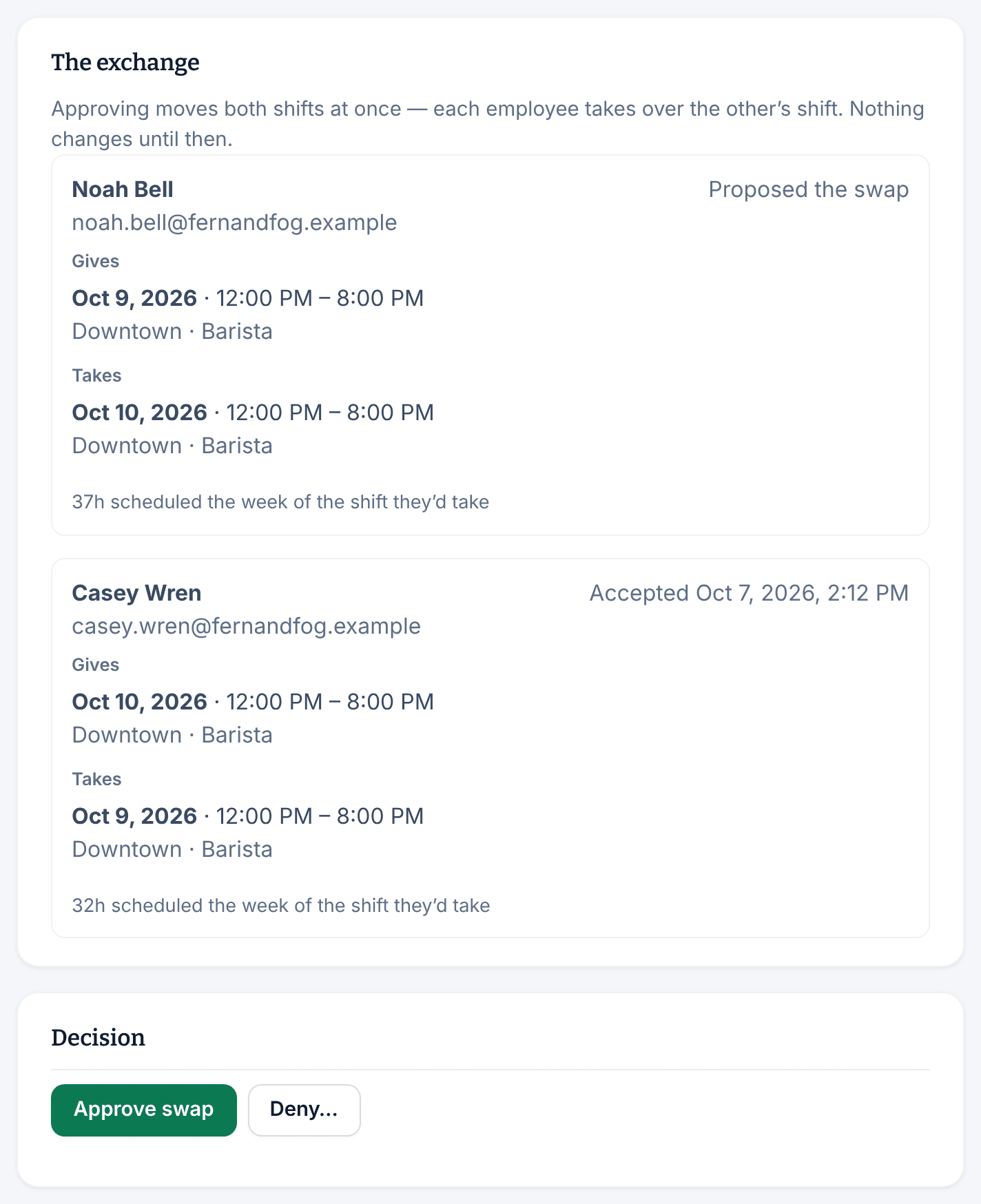
To turn the swap down, select Deny…. Add a note in Note to both employees (optional) if you like, then select Deny swap and confirm. Both keep their current shifts.
If one shift is at a location you don't schedule, its card says "A shift at a location you don’t schedule". A manager who schedules both locations has to decide that swap.
Decide an offer
- Under Shift offers, select the name under Offered by.
- Check the shift and who Would become responsible. If the employee wrote a message to their coworker, it shows too, for example under What Alex Chen said.
- Select Approve hand-off, then select Approve hand-off again to confirm.
The shift moves to the coworker right away, and both are notified. To turn it down, select Deny…, add a note in Note to both employees (optional) if you like, then select Deny hand-off and confirm. The shift stays with the employee who offered it.
If you can't approve
If someone is no longer eligible for the shift they'd take, for example because they now have an overlapping shift, you can only deny. The same goes for a swap where either shift has changed hands since it was proposed.
Swaps and offers also run out of time:
- A swap expires if either shift starts before you decide. Both people keep their shifts.
- An offer the coworker doesn't answer expires after the time set under How long an offer waits. Once accepted, it waits for you until the shift starts.
Expired and decided swaps and offers leave the queue.
Was this article helpful?