Archive or delete a location
Archive a location you no longer use: new scheduling stops and its history is kept. Only the owner can delete one, and only if it was never used.
When a location closes, archive it. Nothing new can be scheduled there, and every shift, time entry, timesheet and report already recorded there is kept. You can restore it later. Owners and operations administrators can archive and restore locations. Only the Organization owner can delete one for good, and only if it was never used.
Before you archive
Shift Amp won't archive a location while:
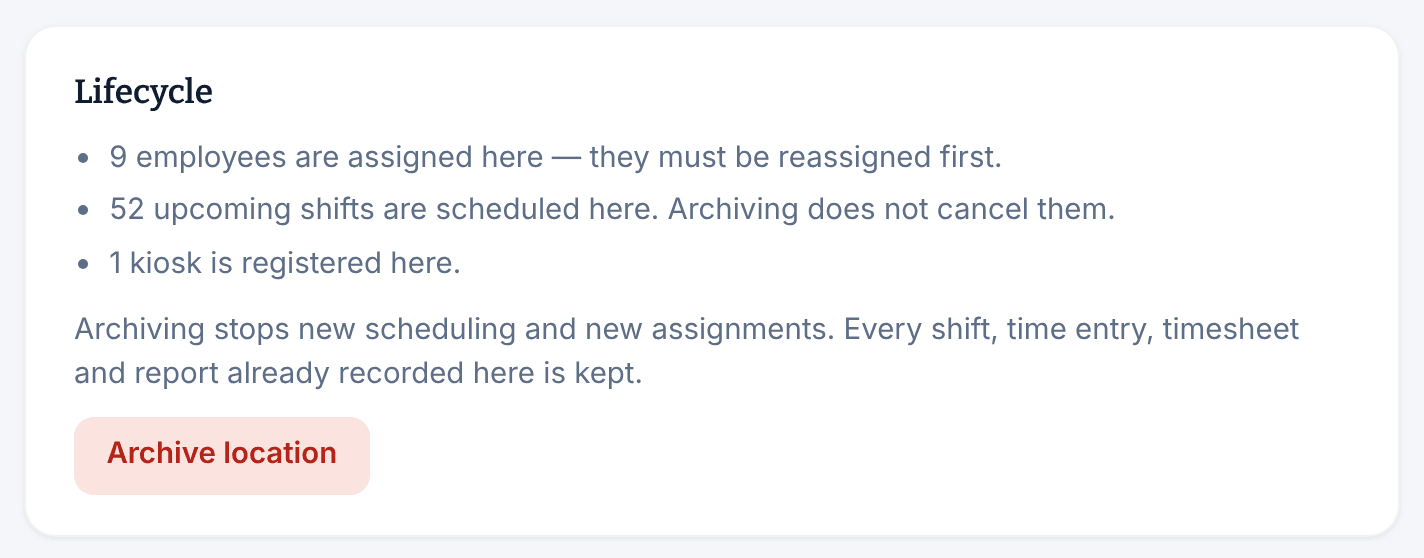
- active employees are assigned to it. Take the location off each person's record first. See Change someone's locations and positions.
- someone is clocked in there, or a kiosk there hasn't been revoked. See Set up a shared kiosk.
- it's your organization's only active location.
Deal with its upcoming shifts too. Archiving doesn't cancel them, and employees keep seeing their published shifts there. Once the location is archived, it no longer appears on the schedule, so make any changes to those shifts first.
Archive the location
- In the left menu, select Organization, then Locations, then select the location.
- Under Lifecycle, check what's still linked to it: employees, upcoming shifts and kiosks.
- Select Archive location, then select Archive location again to confirm.
The location's page now says it's archived, and the location is out of every picker. To find it again, select Archived at the top of the Locations page.
Hide a location instead
If a location is only in the way, hide it. On its page, under Visibility, select Hide from lists. It's kept out of pickers and the default list of locations, but it stays active: its schedules, shifts, time clock and reports carry on. To bring it back, select Show in lists.
Restore a location
- On the Locations page, select Archived, then select the location.
- Under Lifecycle, select Restore location, then select Restore location again to confirm.
Restoring brings back the location itself. Add it to the record of each person who works there again, and register new kiosks if the site needs them.
Delete a location for good
Deleting is for a location created by mistake. Only the Organization owner can do it, and only for an archived location where nothing was ever scheduled or clocked, and that no employee, manager, kiosk or template is linked to. A revoked kiosk still counts. Otherwise, the page lists what stops the deletion.
- On the Locations page, select Archived, then select the location.
- Under Delete permanently, type the location's exact name in the box.
- Select Delete location.
The location disappears, and you're back on the Locations page.
Was this article helpful?