Update a location's details
On the location's page, change its name, time zone, address, map pin, contact details, internal note or location ID. Each part saves separately.
Owners and operations administrators can change a location's details on its page. Each part you can edit has its own save button, so save one part before you move on to the next. If a save says someone else saved changes while you had the page open, reload the page and make your change again.
To open a location's page, in the left menu, select Organization, then Locations, then select the location's name.
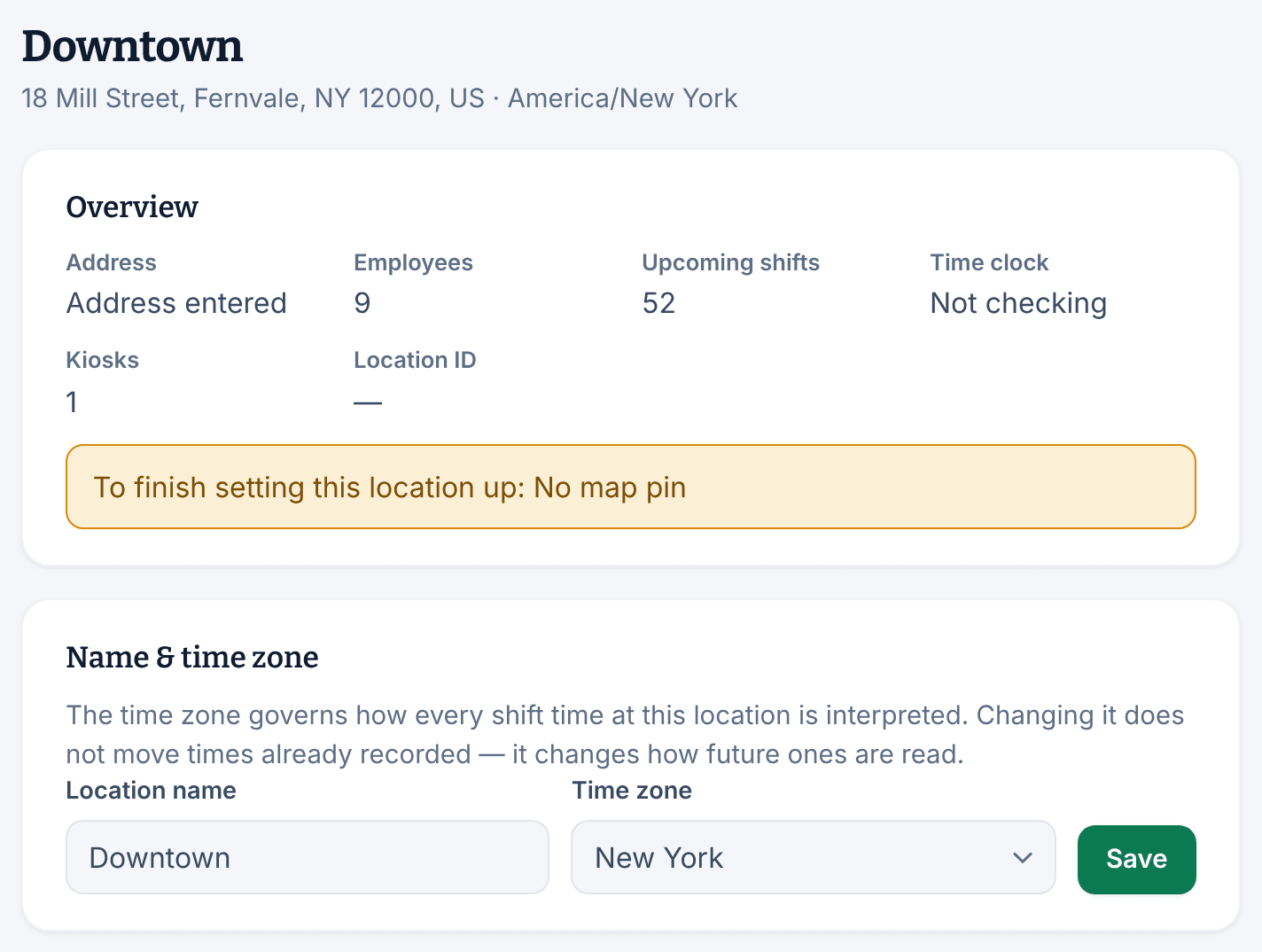
Name and time zone
Under Name & time zone, change Location name or Time zone, then select Save.
Address and map pin
- Under Address & contact, fill in Address line 1, City or town and Country, which takes two letters, such as US. Address line 2 (optional), State or region (optional) and Postal code (optional) can stay blank.
- Select Save address.
- Under Map pin, enter the Latitude and Longitude of the entrance your team uses, then select Save pin.
The pin is where the time clock measures distance from, and where employees' directions lead. Saving a new address never moves the pin, so if the site moves, update the pin too. After an address change, the page marks the pin "Pin needs review" as a reminder. To clear the pin, select Remove pin, then select Remove pin again to confirm.
Contact details
Under Operational contact, fill in Phone (optional), Email (optional) and Contact (optional), then select Save contact.
Employees who work at the location see these details in the app, under Where is this? on their shifts, along with the address and directions. Use the site's own phone number and email, never a manager's personal ones, and a role such as "Front desk" for the contact.
Internal note
Under Internal note, write anything your admins should know about the site, up to 2,000 characters, then select Save note. Only owners and operations administrators can read it.
Location ID
Under Reporting & identifiers, enter the code your payroll or accounting system uses for the site in Location ID (optional), then select Save ID. It appears in reports and exports. Two locations can't share an ID, even written with different capital letters.
Time clock checks
The Time clock, Verification mode and Allowed networks sections decide how punches at the location are checked. See Check where punches come from.
Was this article helpful?