Check coverage and availability
Three staffing reports show how shifts changed hands, who could step in for each shift, and when fewer people were clocked in than you scheduled.
Three reports help you see whether your shifts are covered. Owners and operations administrators see every location, and location managers see the locations they manage. Assistant managers don't have these reports.
To open one, select Reports in the left menu, then select Coverage, Availability or Below scheduled coverage in the list of reports. Set the dates with From, To and Apply range, and pick a Location if you like.
Coverage: how shifts changed hands
Coverage opportunities counts coverage requests and open shifts by week, location and position. Source says whether each began as an Employee release or a Manager open shift. Across the row:
- Filled: the shift actually went to someone. A denied claim doesn't count against it.
- Still open and Unfilled (started): not filled yet, or never filled before the shift began.
- Claims approved and Median to fill: how many claims you approved, and how long filling typically took.
- Under 4h notice through 48h+ notice: how far ahead of the shift each one came up.
Direct swaps counts swaps by outcome, and Short-notice coverage requests groups requests by how close to the shift they came. To act on any of them, select Coverage queue at the bottom of the page.
Availability: who could step in
- Availability completeness shows who has approved availability on file. None on file — unrestricted means the person counts as available at any time.
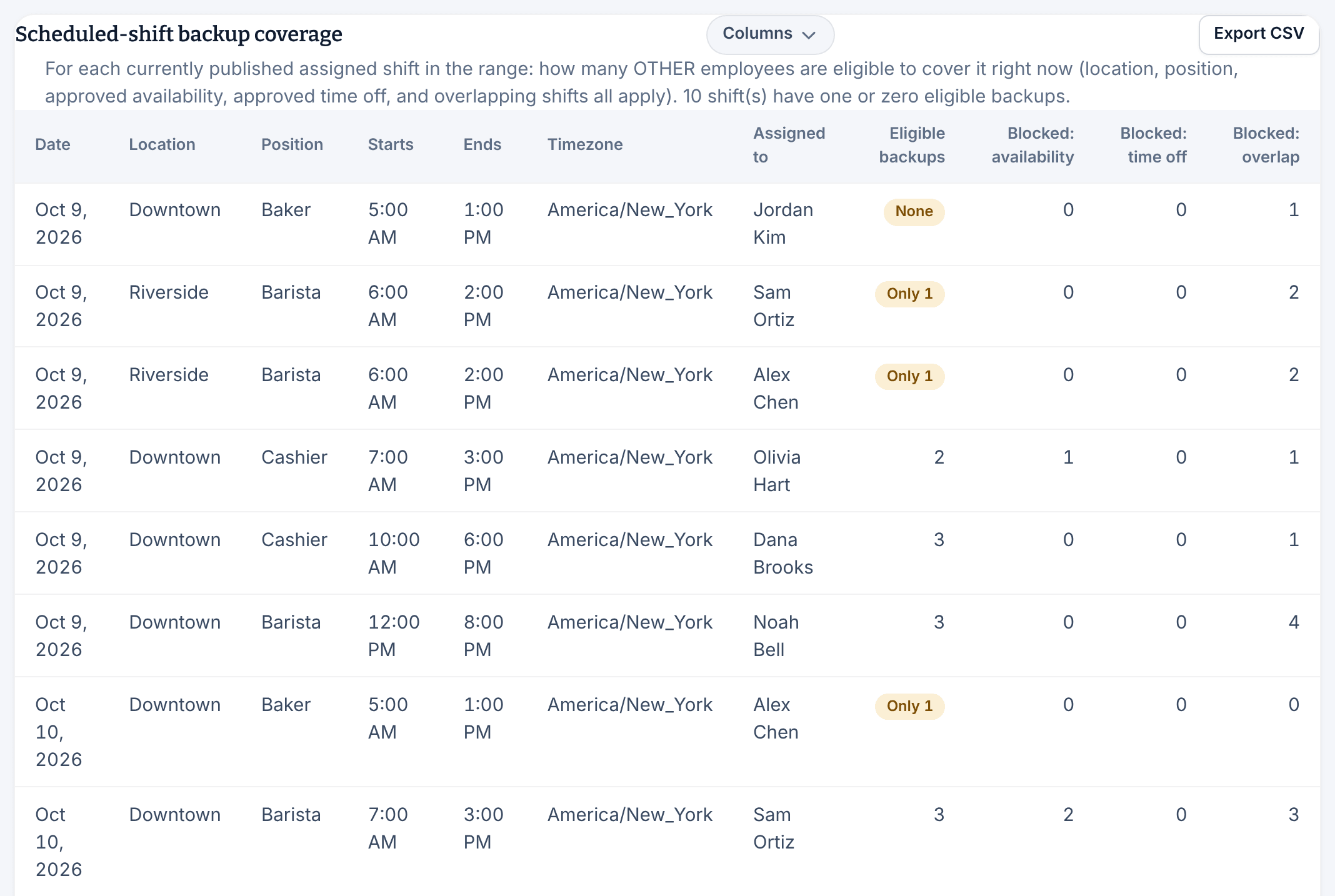
- Scheduled-shift backup coverage lists each published shift with its Eligible backups: how many other people could take it right now. None or Only 1 marks a thin spot. Blocked: availability, Blocked: time off and Blocked: overlap count the people each reason rules out.
- Open-shift coverage shows each open shift's claims and Eligible employees. None eligible means nobody can claim it as things stand.
- Time-of-week availability shows how many people are available at each hour of the week. Pick one location under Location to see it.
Here, available means allowed by your availability, time-off and scheduling rules. It doesn't mean someone has agreed to work.
Below scheduled coverage: when you were short
This report compares, day by day, how many people were clocked in with how many you scheduled.
- Time below (present): how long fewer people were clocked in than scheduled. Breaks count as present.
- Time below (actively working): the same, with breaks not counted.
- Max gap: the most people missing at one time.
- Unfilled open shifts: hours of open shifts nobody took.
- Status: Provisional means someone on that day hasn't clocked out, so the figures aren't final.
Select a date to see how staffing changed through that day. Choose days that have already passed, since nobody has clocked in for a day still to come. The report covers up to about three months at a time. It measures against the schedule you published, not an ideal staffing level, and never marks anyone absent.
Was this article helpful?