Compare scheduled and actual hours
The Scheduled vs Actual report sets the hours on your published schedule beside the hours people worked, and shows the difference as a variance.
The Scheduled vs Actual report compares the hours on your published schedule with the hours people actually worked. Every manager role can open it for the locations they manage. Assistant managers can view it but can't download it.
Open the report
- In the left menu, select Reports.
- In the list of reports, select Scheduled vs Actual.
- Choose the dates and, if you like, a Location or Position.
- Under Group by, choose Day, Week, Location, Position or Employee.
The table gives the detail. Unless you group by employee, a chart above it shows scheduled hours beside worked hours.
What the columns mean
- Scheduled (assigned): hours of shifts that had someone assigned, as the published schedule stood when each shift started. A revision published later doesn't rewrite them.
- Open shifts: hours of open shifts still unfilled when they started. They're kept apart from assigned hours.
- Worked (approved): hours from approved timecards.
- Worked (provisional): hours from weeks that aren't approved yet. They can still change.
- Unscheduled: time worked with no shift. It's part of the worked hours and also shown on its own.
- Variance: worked hours, approved and provisional together, minus scheduled hours. It's always in minutes: +90m means 90 minutes more worked than scheduled.
- Open sessions: clock-ins with no clock-out yet. That time isn't counted until the clock-out is recorded or fixed.
- Published late: shifts that were published only after they had started.
Grouped by Employee, the scheduled column is called Scheduled, and each name opens that person's timesheet.
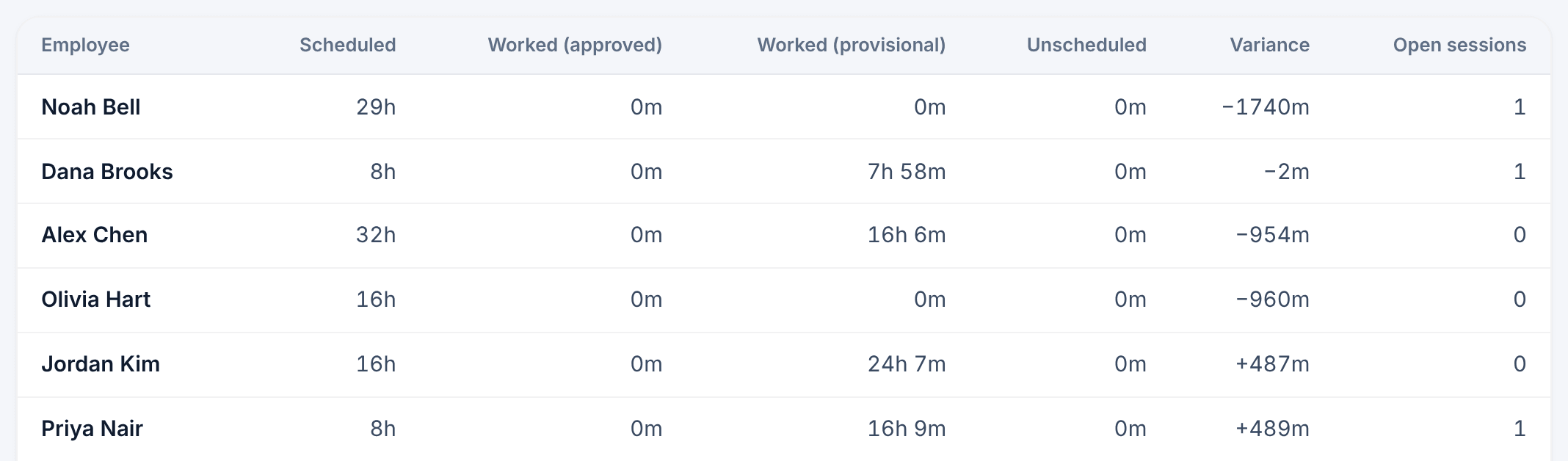
To hide or reorder columns, or hide the total row, use Columns. To download the table, select Export report CSV.
Check what's missing
Near the top of the page, Data completeness warns you when the numbers aren't final. For example: "Open work sessions (missing clock-outs) are excluded from totals — actual time is incomplete, not zero." A day or week with no published schedule is reported as missing, never as zero hours.
To firm up the figures, fix missed punches and approve timesheets. Provisional hours become approved hours as each week is approved.
Include draft weeks
To see what's planned but not yet published, select Include draft planning. A separate table, Planning (draft) — not published, lists draft hours by day, location and position. It never changes the main figures and isn't in the download. Select Published only to hide it again.
Was this article helpful?