Review shift tasks and feedback
The Tasks report shows which checklist items were ticked on published shifts. Shift feedback shows how your team rated the shifts they worked.
Two reports show what happened on your shifts. Tasks shows the checklists attached to shifts and who ticked each task. Shift feedback shows the ratings employees give their shifts in the Shift Amp app. Neither report scores or ranks anyone.
See which tasks are done
Every manager role can open Tasks for the locations they manage. Assistant managers can't download it.
- In the left menu, select Reports.
- In the list of reports, select Tasks.
- Choose the dates and, if you like, a Location or Position.
The cards count Shifts with a checklist, Tasks, Done and Not done. The table lists every task on each published shift: Who is working the shift, the task's Status (To do or Done), and when it was Completed. The first row of each shift shows its progress, such as 2 of 4 done.
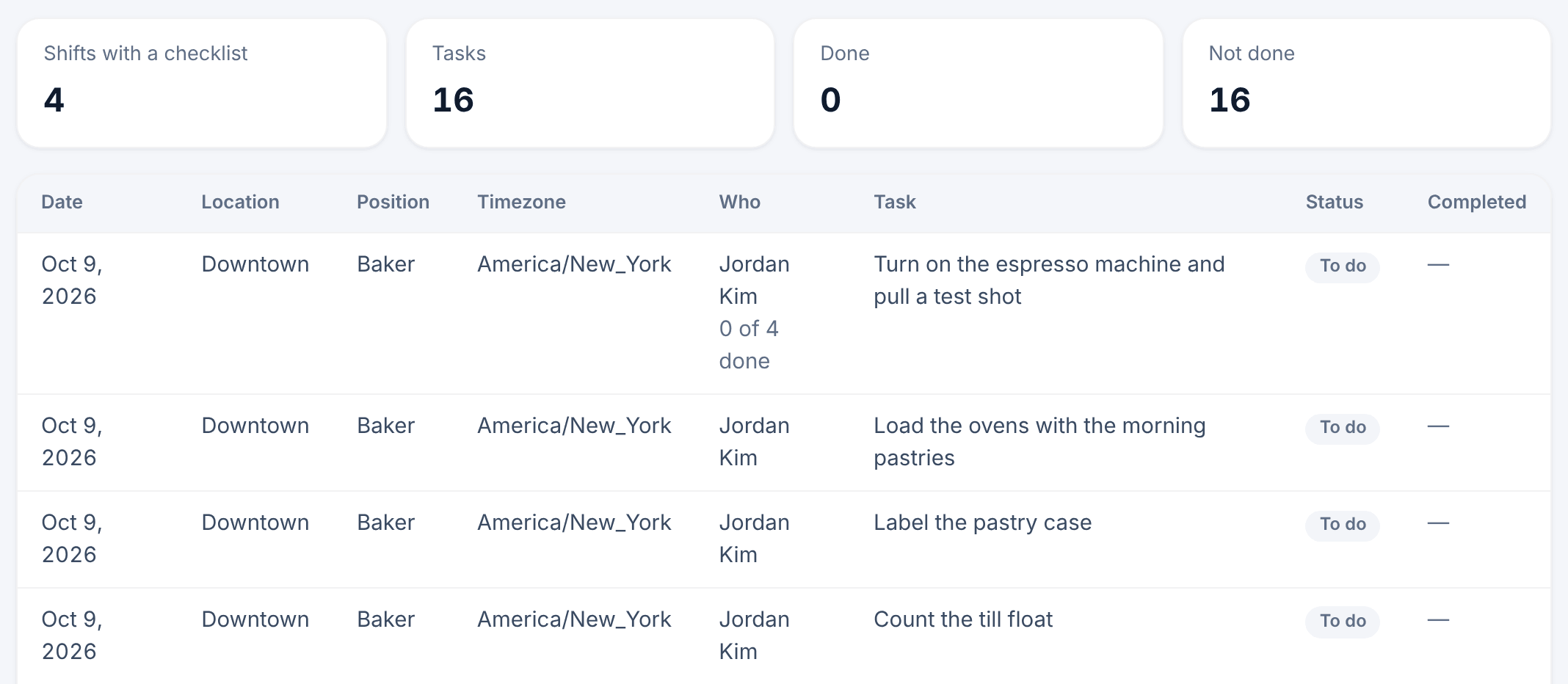
To download the list, select Export tasks CSV.
If the page says "Checklists are off", shift tasks are turned off in Settings, under Shift tasks. Nothing was deleted: everything comes back when they're turned on again. If it says "No checklists in this range", no published shift in those dates has a checklist. See Add a checklist to a shift.
Read shift ratings
Owners, operations administrators and location managers can open Shift feedback.
- In the left menu, select Reports.
- In the list of reports, select Shift feedback.
- Choose the dates and, if you like, a Location, Position or Group by option.
Employees can rate a shift in the app from 1 (Bad) to 5 (Great) within 14 days of clocking out, and add a comment if they want. Rating is optional, so the report shows the shifts people chose to rate, not a survey of everyone.
The cards show the number of Ratings, the Average rating, and how many came With a comment. Rating distribution counts shifts at each rating, and the table breaks the ratings down by Day, Week, Location or Position. You can't group by person, and nothing shows one person's average.
Comments lists what employees wrote, without names. Comments aren't included when you select Export report CSV.
"No ratings in this range" is normal when your team has only started using the app.
Was this article helpful?