Clock in at a shared kiosk
Enter your PIN on the shared tablet and choose what you're doing. The screen confirms the time, then clears itself for the next person.
Some workplaces keep a shared tablet, called a kiosk, where you clock in with a PIN instead of your phone. To use it, you need a kiosk PIN, and you must work at the location the kiosk belongs to.
Before you start
Choose your PIN in the Shift Amp app. See Set your kiosk PIN. An owner or operations administrator can also set one for you.
Clock in or out
- On the kiosk, enter your PIN on the keypad, then select Continue. To start again, select C. To delete one digit, select ⌫.
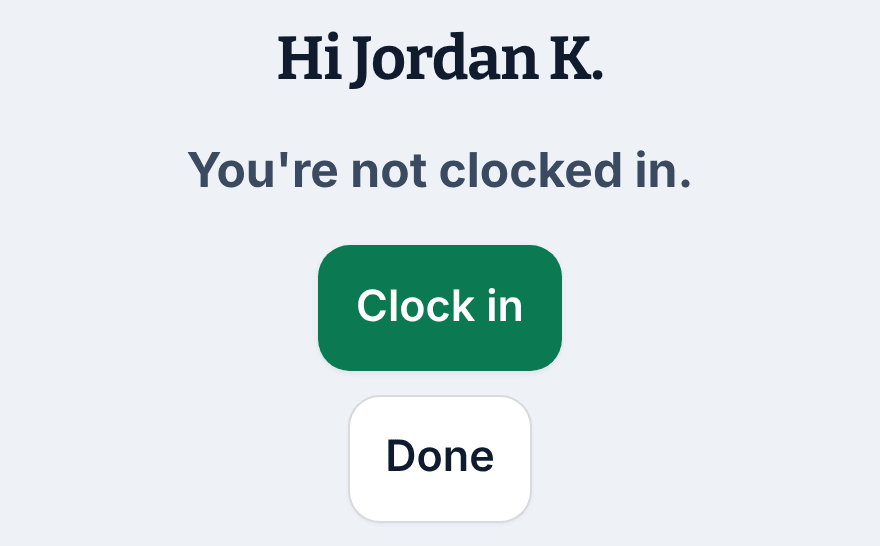
- Check that the kiosk greets you by name, such as "Hi Jordan K.", and shows your status, such as "You're not clocked in."
- Select Clock in. When you're clocked in, the kiosk offers Start break and Clock out instead. On a break, it offers End break and Clock out.
- Read the confirmation, such as "Clocked in at 9:02 AM.", then select Done. If you walk away, the screen clears itself after a few seconds.
If you clock out while a break is still running, the kiosk asks you to confirm. Select End break and clock out. The break and your shift end together, and your manager reviews the entry.
If you don't have a shift at this location right now, the kiosk clocks you in straight away, if your workplace allows it. It uses the first of your positions in alphabetical order, and your manager reviews the entry.
If the kiosk doesn't accept your punch
- "That didn't match. Try again." Enter your PIN again. If you've forgotten it, set a new one in the app.
- "This kiosk is locked after too many failed attempts. Try again in a few minutes." After 8 wrong PINs in a row, the kiosk locks for 15 minutes.
- "You're not assigned to work at that location." Ask your manager to add you to this location.
- "This kiosk isn't taking punches. Clock in from your own phone, or ask your manager."
- "Your organization only allows clocking in for a scheduled shift, and there isn't one right now. Check with your manager."
- "It's too early to clock in for this shift. Try again closer to the start time." Your workplace limits how early you can clock in for a shift.
- "Time tracking isn't switched on for you. You're still on the schedule — ask your manager if that looks wrong."
- "Can't reach Shift Amp, so this punch may not have gone through. Try again — it won't be recorded twice." Select Try again.
Clocking out and ending a break always work, whatever your workplace has switched off. To clock in from your phone instead, see Clock in and out on your phone.
Was this article helpful?